
 Bunlings: sprint apps for Jira





Jira will happily store an 8 forever. It never asks how the room got there.
It keeps the estimate. Reaching it is up to you.
How does story point estimation work in Jira Cloud?
Every work item can hold a number in an estimate field. Your board or space decides what that number means: story points or time. Reports such as velocity and the sprint burndown add those numbers up.
That is the whole mechanism. Jira stores the estimate and does the sums. How to read the Jira velocity chart shows what those sums do and do not tell you. The question “how big is this?” stays with the team.
Watch the field names. Company-managed spaces usually use a field called Story Points. Team-managed spaces use Story point estimate. They look alike, they are separate fields, and mixing them up is behind many “my points do not add up” threads. If the field is missing from your work items, see why the Story Points field goes missing.
How do you turn on estimation in Jira?
It depends on the kind of space.
- Team-managed space. Open Space settings, choose Features, and switch on Estimation. Then pick Story points or Time. Estimation is off by default in team-managed spaces, so a new space shows no estimate field until you do this.
- Company-managed scrum board. Open Board settings, choose Estimation, and pick a method in the Estimation method dropdown.
- Company-managed kanban board. Atlassian notes that this setting can only be changed for company-managed scrum boards, so there is no method to pick here. For a finish date without points, see forecasting without story points.
You need to be a space admin or a board admin. Switching on estimation changes a few other things in a team-managed space, so read Atlassian’s estimation guide before you flip it in a space that is already busy.
Quick check: if your burndown shows hours and you wanted points, the board is set to estimate in time. Look at the estimation setting before you blame the team.
What are the native ways to set story points?
There are three, and every one of them ends with somebody typing a number.
- On the work item. Open it, find the estimate field, type the number.
- From the backlog. Depending on your setup, the backlog shows each estimate next to the work item and lets you change it there. Handy when you walk down the list in refinement.
- Out loud, then typed. Someone says “so, a 5?”, nobody objects fast enough, and one person types 5.
The first two decide where the number goes. The third decides how it was chosen, and that is the soft spot. The first number spoken tends to become the team’s number.
Jira also has a Votes button on work items. It shows who wants the work done, not how big it is. Good idea, different job.
Does Jira Cloud have built-in voting for estimates?
No. In Jira, an estimate is a field you fill in. There is no step where each person picks a number in private, no reveal, and no view of how far apart the team was before it agreed.
Teams usually fill that gap in one of three ways:
- a separate estimation website, with its own list of work items to copy across
- sticky notes or a whiteboard, then typing the result by hand
- nothing at all, which is how “8?” sails through
None of these is wrong. They just mean the estimate lives in two places, and one of them is somebody’s memory.
Why do hidden votes matter?
Because people copy each other without meaning to. Someone senior says a number, and the quieter voices drift toward it. This is called anchoring, and you have almost certainly seen it.
Hidden votes remove the cause. Everyone commits to a number first, then the cards flip together. Five 5s and a 3 means a short, useful chat with whoever chose the 3. A 3 next to a 13 means the team pictures two different pieces of work. Much better to find that out in refinement than halfway through the sprint.
More on both in anchoring and other estimation habits and what to do when votes are far apart.
What does an estimation app add to Jira?
Here is what stays the same and what changes when the round happens inside Jira:
| Native Jira | Bunlings inside Jira | |
|---|---|---|
| Stores the estimate on the work item | Yes | Yes, in the board’s own field |
| Lets people vote privately first | No | Yes, cards stay hidden |
| Shows every number at once | No | Yes, cards flip together |
| Shows how far apart the team was | No | Yes, all cards stay on the table |
| Shows how long a 5 actually took on your board | No, not per point value | Yes, point at a card |
The last row is the quiet one. A 5 means something different on every board. The honest way to learn what yours means is to look at the work your team has already finished.
What does a round look like with Bunlings?
Bunlings is a Jira app for estimation and sprint retros. Here is one round, start to finish.
Open the menu on a sprint, board or backlog. The room is already there, with the work items in it. Nothing to set up, and no new login: everyone signs in with the Jira they already use. Bunlings runs on Jira Cloud only and makes no calls to outside servers.
Each person picks a card. Decks include Fibonacci and T-shirt sizes. While votes come in, the cards stay face down.
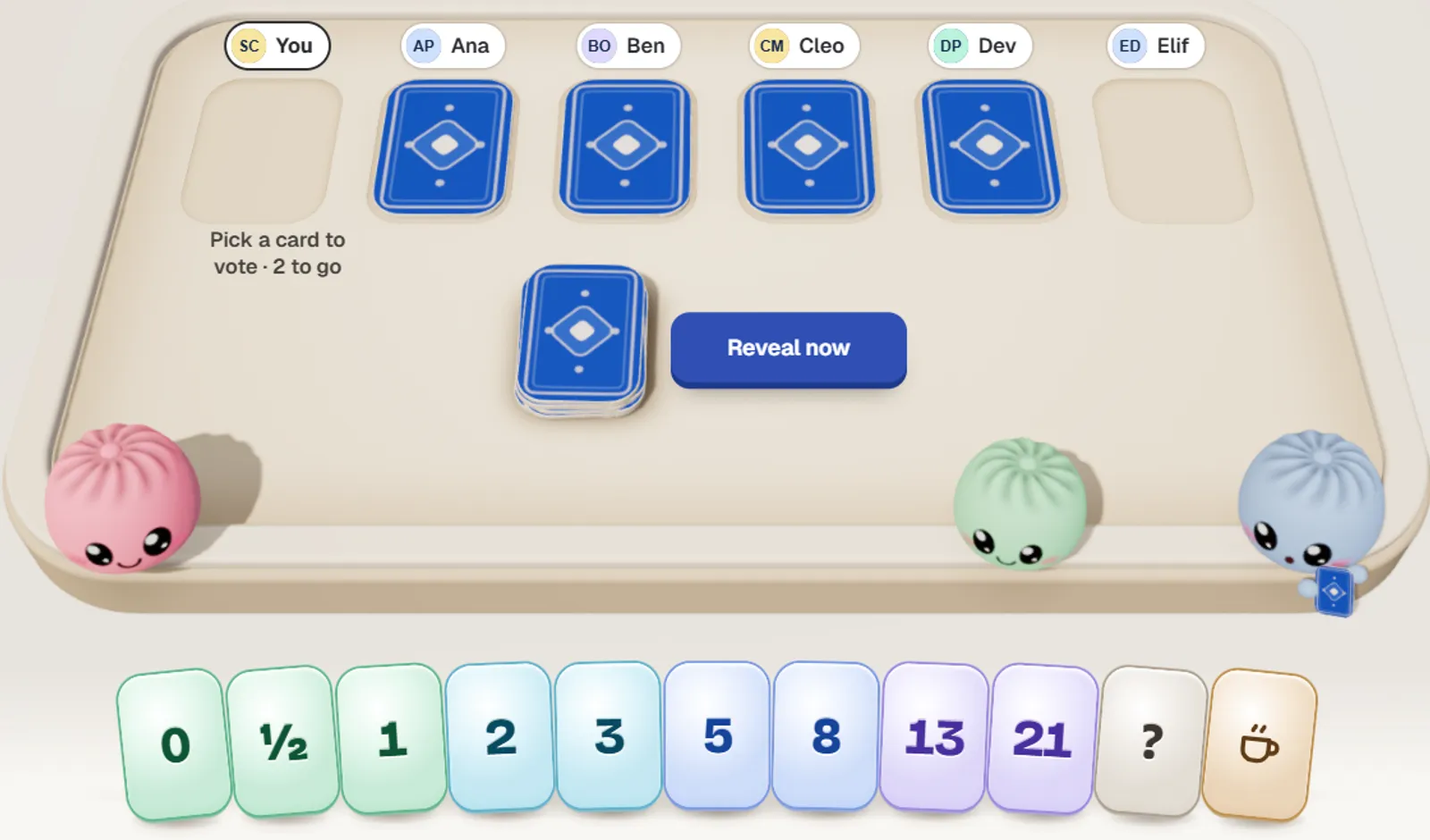
Four of six have voted, and nobody can see a number yet. Sample team, sample work items.
When the room is ready, someone presses Reveal now and the cards flip together. Agree saves the number to the board’s own estimate field, such as Story Points, written as the person who clicked. Jira’s History shows their name, and there are 10 seconds to undo. Can’t edit the work item? Ask a teammate who can to save it.
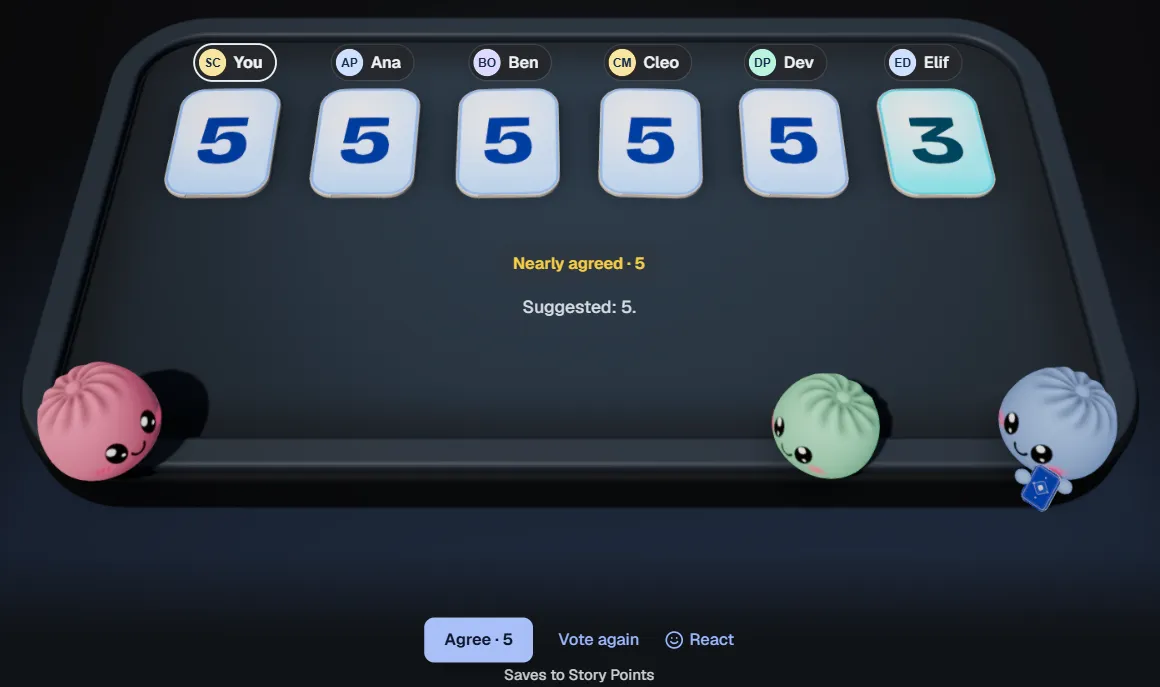
Five 5s and one 3. The 3 gets a sentence before anyone presses Agree. Sample data.
Before you vote, point at a card. Bunlings shows how long work with that number actually took on this board, from your team’s own finished work.
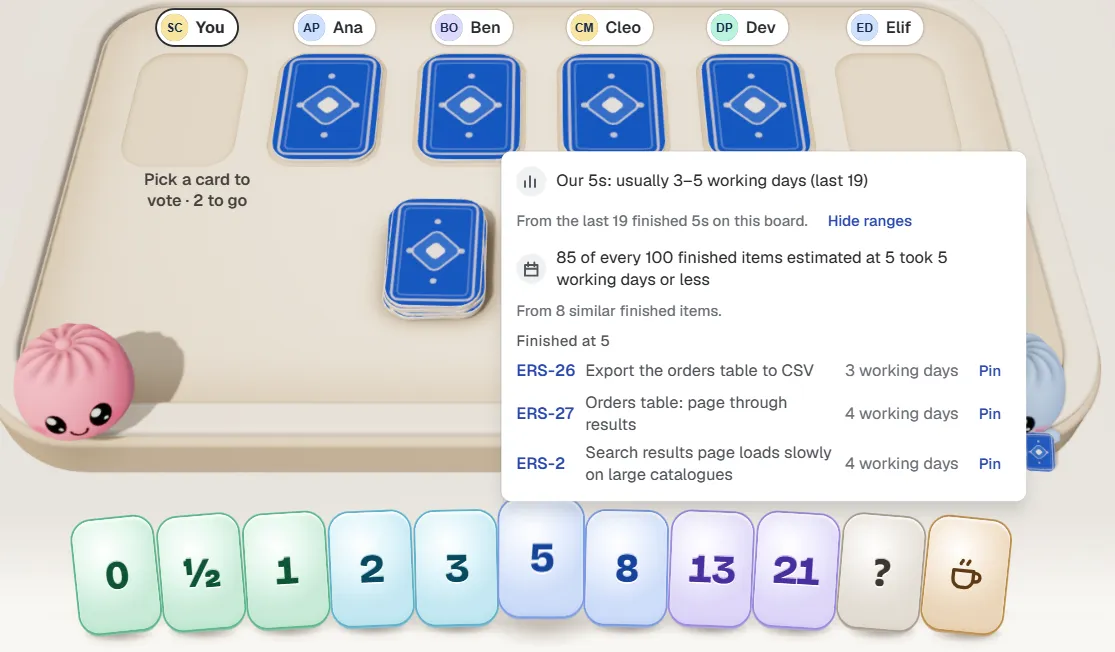
How long past 5s actually took on this board. Sample data here; yours comes from your own finished work.
No time for a meeting? See how to estimate without a meeting.
Do you need an app to estimate in Jira?
No. Typing the number in can be plenty. If your team is small, speaks up freely, and your estimates already hold up, the field may be all you need.
An app starts to earn its place when one of these sounds familiar:
- the same two people set every estimate
- the room agrees a little too fast
- estimates are copied over from a side tool by hand
- nobody remembers what a 5 usually takes
If none of that rings a bell, keep the field and skip the rest. To see the native route and an app side by side, read native Jira vs Bunlings.
What should you do next?
- Check that your space or board estimates in the unit you want (steps above).
- In your next refinement, try one rule: nobody shows a number until everyone has one. Index cards work fine.
- Count how often the first number spoken survives. That tells you whether hidden votes would help.
See Bunlings, scrum poker and retros inside Jira. It is free for up to 10 users.
Want to see it first? Watch the demo, or get Bunlings on the Atlassian Marketplace.