
 Bunlings: sprint apps for Jira




 Bunlings docs
Estimate, run retros, forecast your sprints and read your history, right inside Jira. Short guides for every part of every app.
Updated 8 November 2026 · Bunlings 2.3.0



Start in 60 seconds
- Step 1: Open the sprint menu In Jira, open your sprint’s ••• menu and choose “Estimate this sprint”. Your work items are already in the room.
- Step 2: Everyone votes Send the room link. Everyone picks a card. The cards stay face down, then flip together.
- Step 3: Agree saves Press “Agree · 5”. The number goes into your board’s estimate field, as you, with 10 seconds to undo.
Watch how
Four short videos, two to three minutes each.
Estimate
Rounds, decks, saving, and estimating without a meeting.
- Get started Open the estimation room from your sprint menu in Jira. Your work items are already there, and your team joins with a link. Anyone. Anyone who can see the board. 2 minutes
- Run a round Vote with hidden cards, reveal them together, agree on a number and save it to Jira with 10 seconds to undo. Anyone. Anyone who can see the board. 3 minutes
- Change the deck Switch the room’s cards to Fibonacci, powers of 2, T-shirt sizes, Fits or Too big, or a custom deck of your own. Room host. Whoever runs the room. That is anyone in it, unless the room has a lead. 2 minutes
- Where estimates save (and who can save) Agree saves to your board’s estimate field, such as Story Points, written as you. Who can save, how to ask a teammate, and how to find saved estimates in Jira. Anyone. Anyone who can see the board. 3 minutes
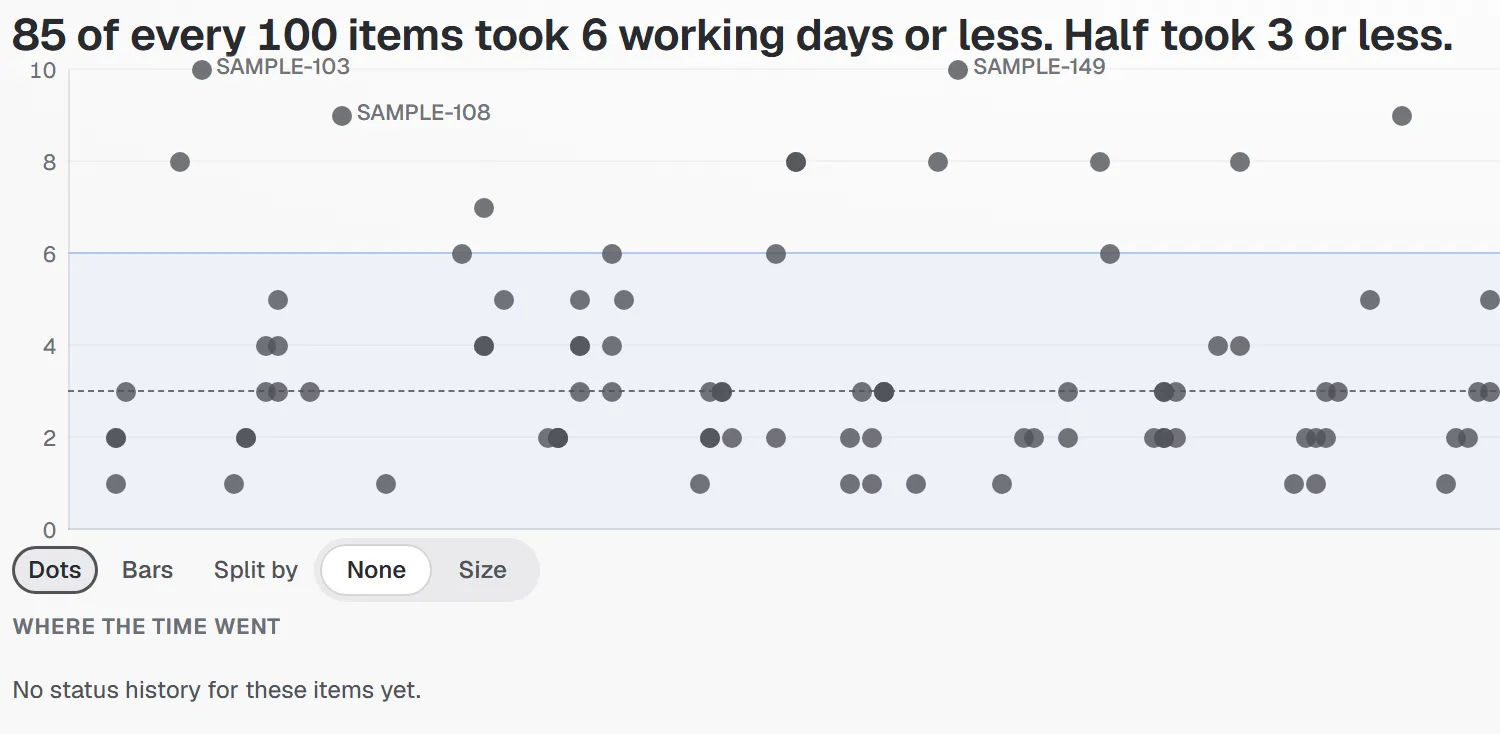
- See how long your estimates actually took Point at any card to see how long work with that estimate actually took on this board, in working days. Anyone. Anyone who can see the board. 1 minute
- Estimate without a meeting Let people vote when it suits them. Pick who votes and by when; Jira reminds them the day before, and the cards open at your time or after the last vote. Room host. Whoever runs the room. That is anyone in it, unless the room has a lead. 3 minutes
- Vote from phones on the big screen Put the table on the meeting room screen and let everyone vote from their phone by scanning a QR code. Anyone. Anyone who can see the board. 1 minute
- Sort a backlog by size Drag many work items into sizes together, then save them all at once. Add or split work items as you go. Room host. Whoever runs the room. That is anyone in it, unless the room has a lead. 4 minutes
Retros
Sprint retros, actions that come back, and the fun parts.
- Run a sprint retro Write hidden cards, show them all at once, vote, talk, and turn actions into Jira work items in two clicks. Open actions come back next time. Anyone. Anyone who can see the board. 5 minutes
- Fun, and how to make it calm Reactions, stickers, table looks and the little Bunlings, and the switches that turn them off for you or for everyone. Anyone. Anyone who can see the board. 2 minutes
For admins
Settings, privacy, and fixes for when something’s off.
-
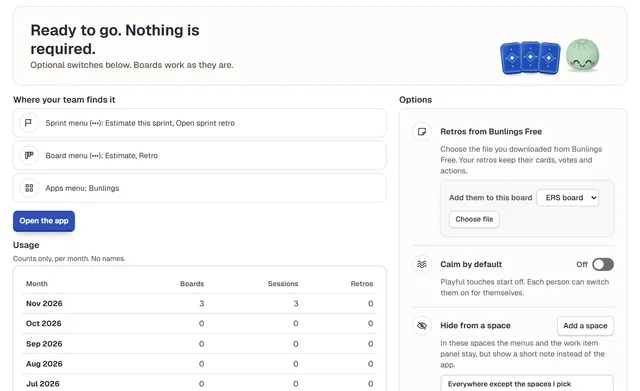 Settings for Jira admins Hide Bunlings from spaces, start everyone calm, see who can do what, and the other optional switches on the admin page. Jira admin. Someone with Jira admin rights. 3 minutes
- Privacy, data and uninstall Where Bunlings keeps its data, what it reads and writes in Jira, how closed accounts are handled, and what happens when you uninstall. Jira admin. Someone with Jira admin rights. 3 minutes
- Troubleshooting The messages Bunlings can show, what each one means, and how to fix it. Anyone. Anyone who can see the board. 4 minutes
Sprint Forecast and Sprint History
Two companion apps for Jira. Sprint Forecast tells you if a sprint fits and when epics will be done. Sprint History shows what your sprints really delivered. Both read your boards and never write to Jira.
Sprint Forecast
Will this sprint fit, and when will it be done?
-
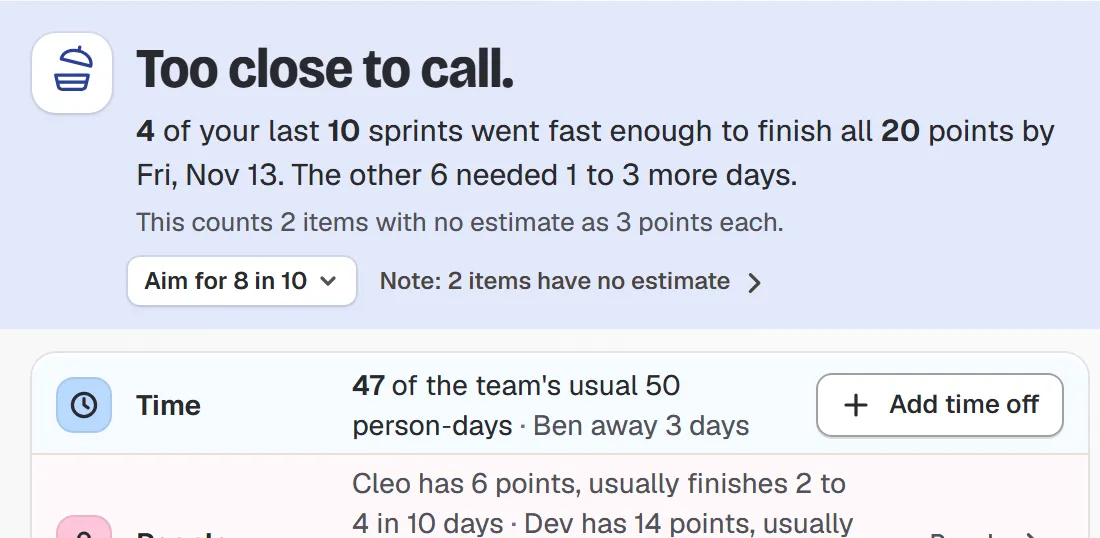 Sprint Forecast: get started Open Sprint Forecast from a sprint menu in Jira and read its first answer, “Will this sprint fit?”, in about a minute. Anyone. Anyone who can see the board. 2 minutes
-
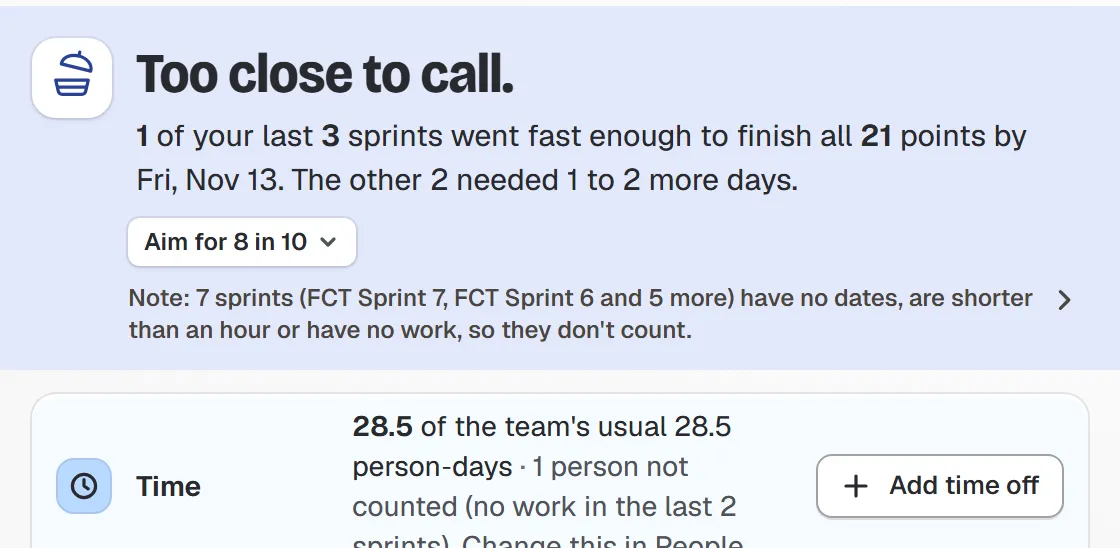
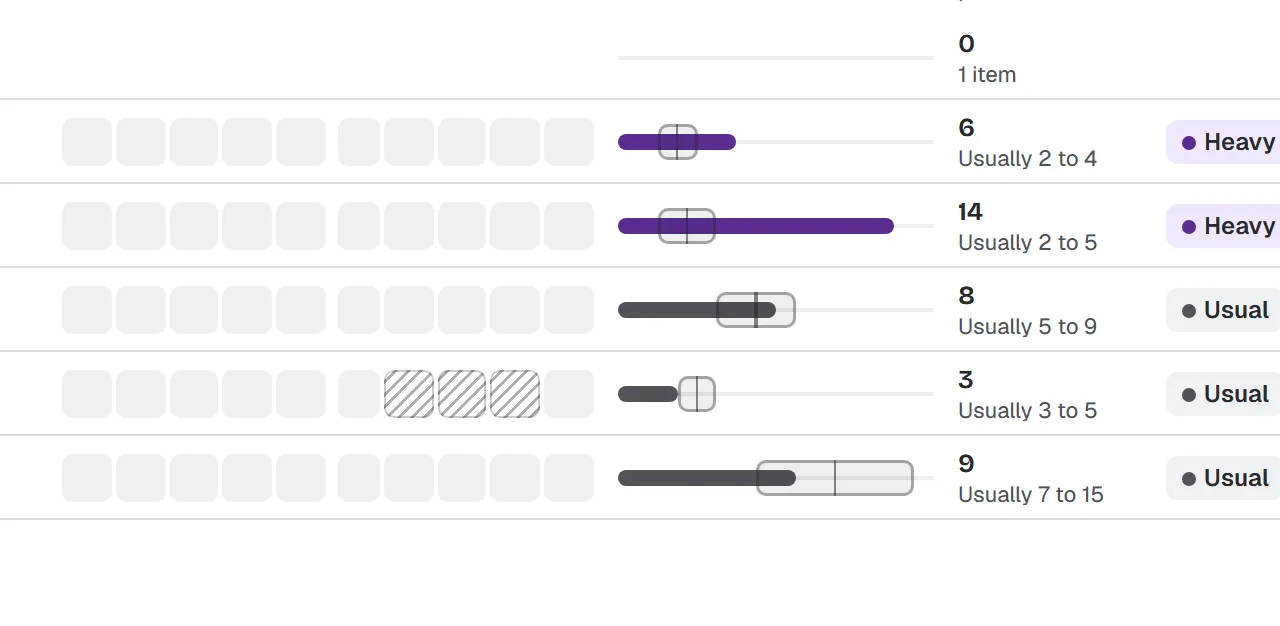 Sprint Forecast: read every part of the answer What each part of Sprint Forecast means: the answer, the picture, the cut line, time and people, and why it moved. Anyone. Anyone who can see the board. 6 minutes
-
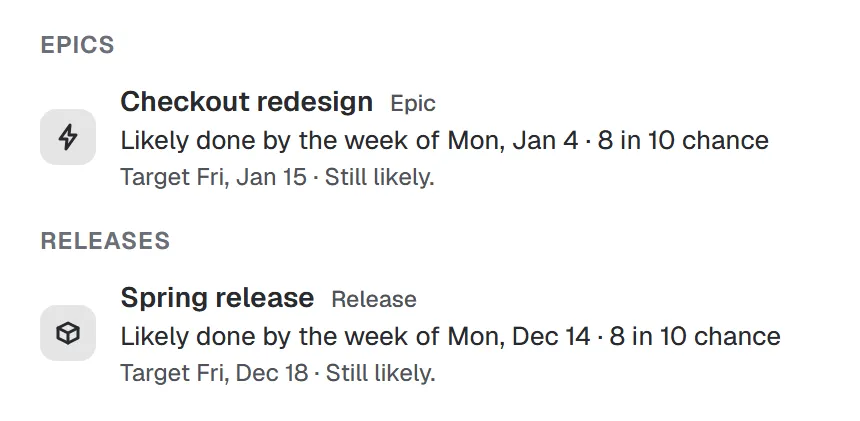 Epic and release forecast: when will it be done? How Sprint Forecast gives a likely finish date for epics, releases and saved filters, and how it moved. Anyone. Anyone who can see the board. 6 minutes
-
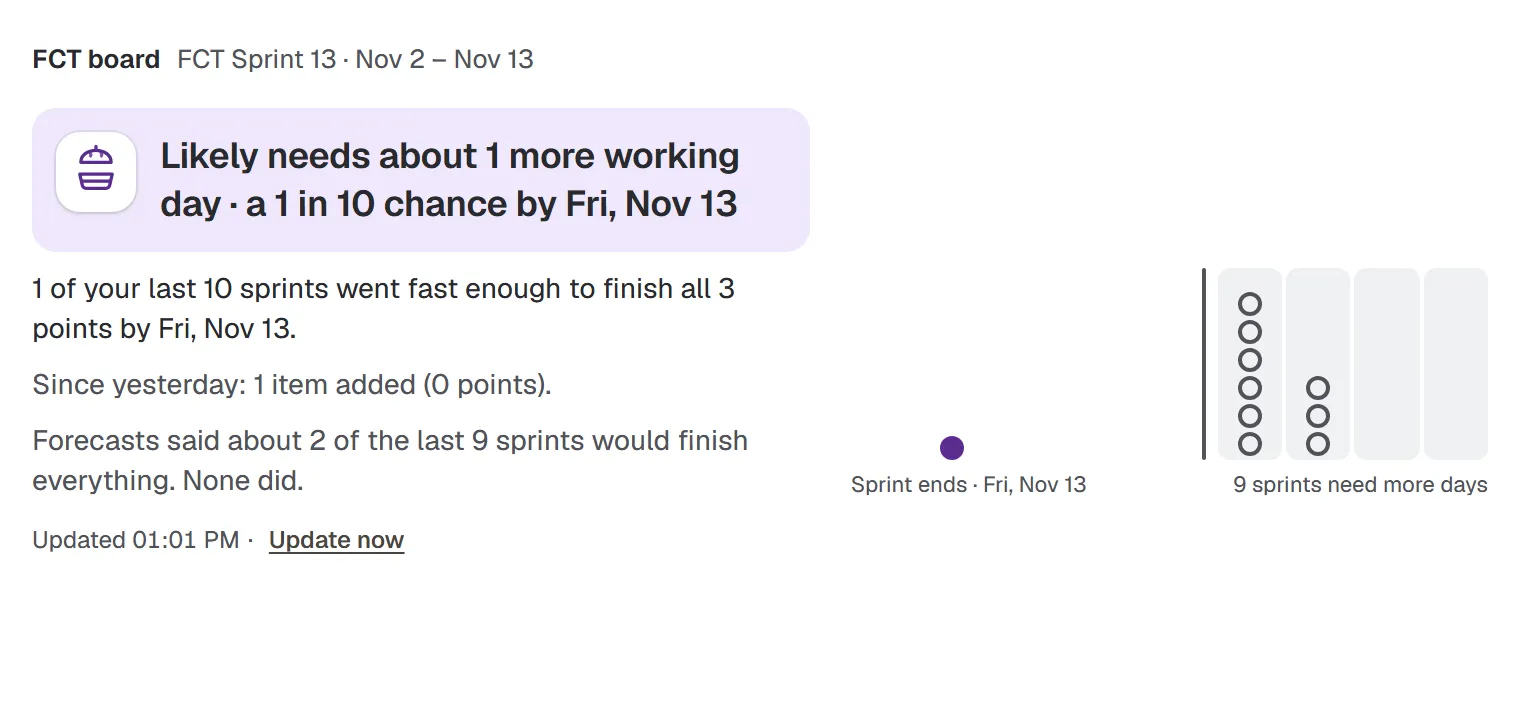 Sprint Forecast gadgets for Jira dashboards Add the “Will this sprint fit?” and “When will it be done?” gadgets to a Jira dashboard, choose a board, and see what each size shows. Anyone. Anyone who can see the board. 3 minutes
-
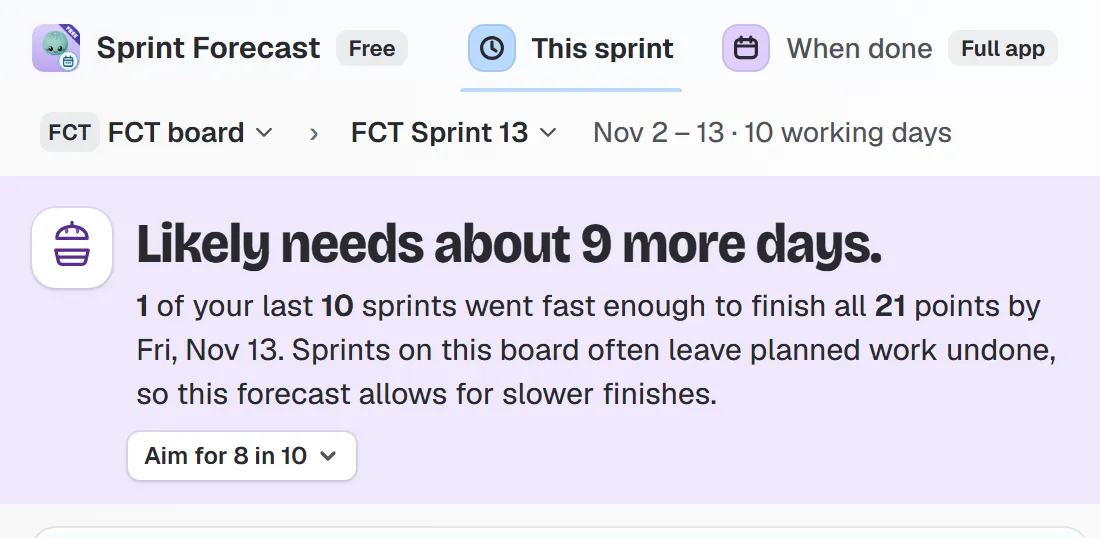 Sprint Forecast: Free and full What Free Sprint Forecast does, and what the full Sprint Forecast adds. Anyone. Anyone who can see the board. 2 minutes
Sprint History
What your team really finishes, and how long work takes.
-
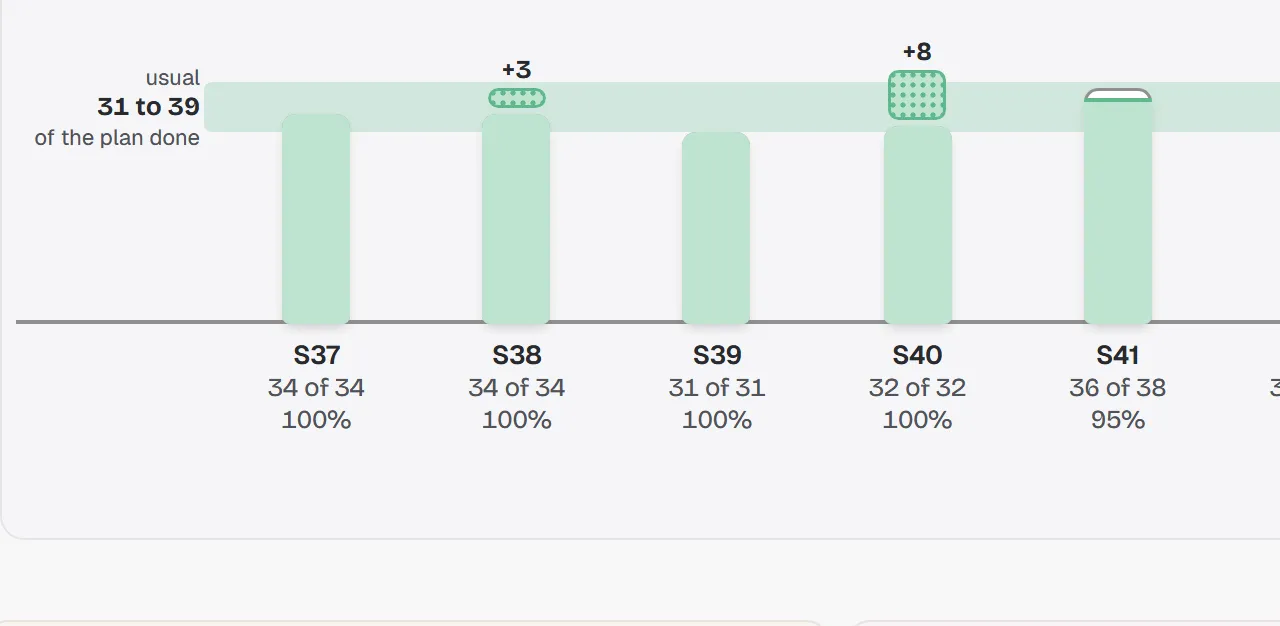 Sprint History: get started Open Sprint History from a sprint menu in Jira and read what your team usually finishes, in percent of its plan. Anyone. Anyone who can see the board. 2 minutes
-
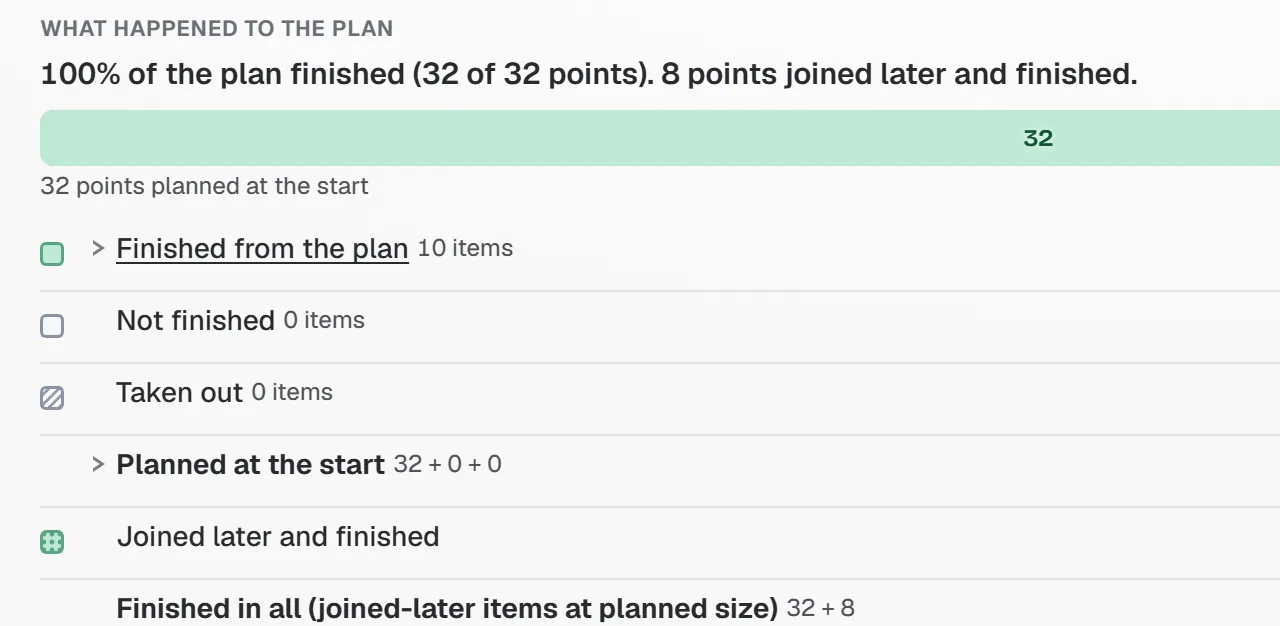 Sprint History: read every chart What each Sprint History chart shows and how it is worked out, from the plan shelf to cumulative flow. Anyone. Anyone who can see the board. 8 minutes
-
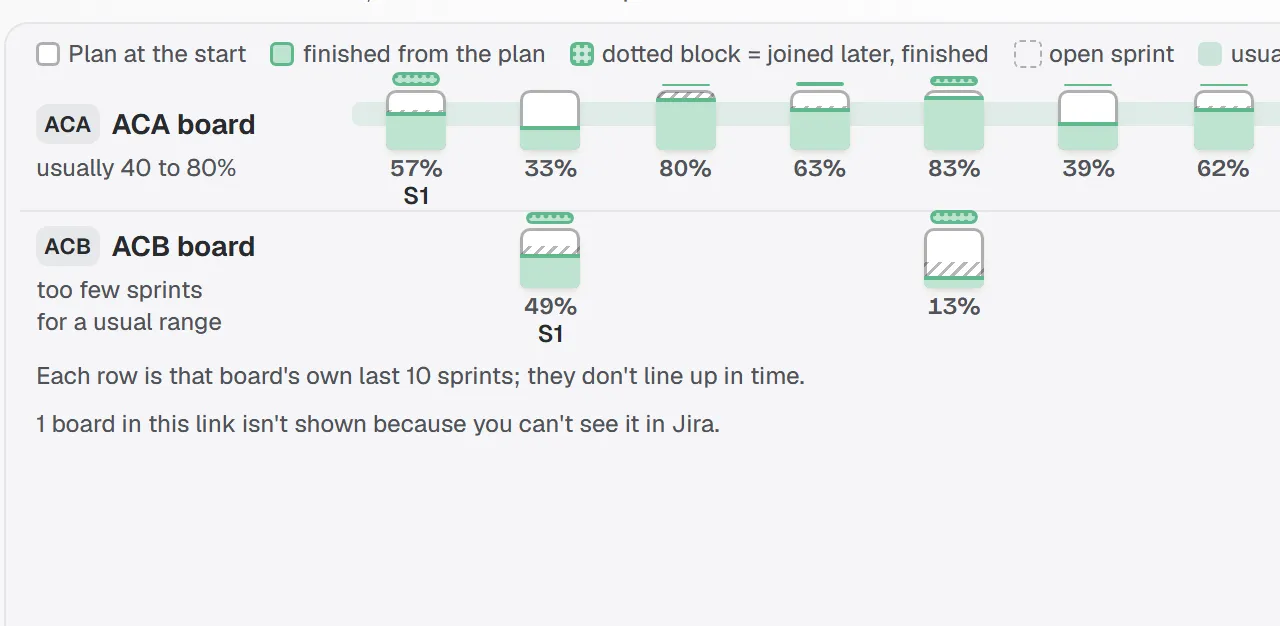 Sprint History: compare several boards side by side Put up to four boards in one Sprint History view, how each is compared with its own plan, and why points are never added across teams. Anyone. Anyone who can see the board. 3 minutes
-
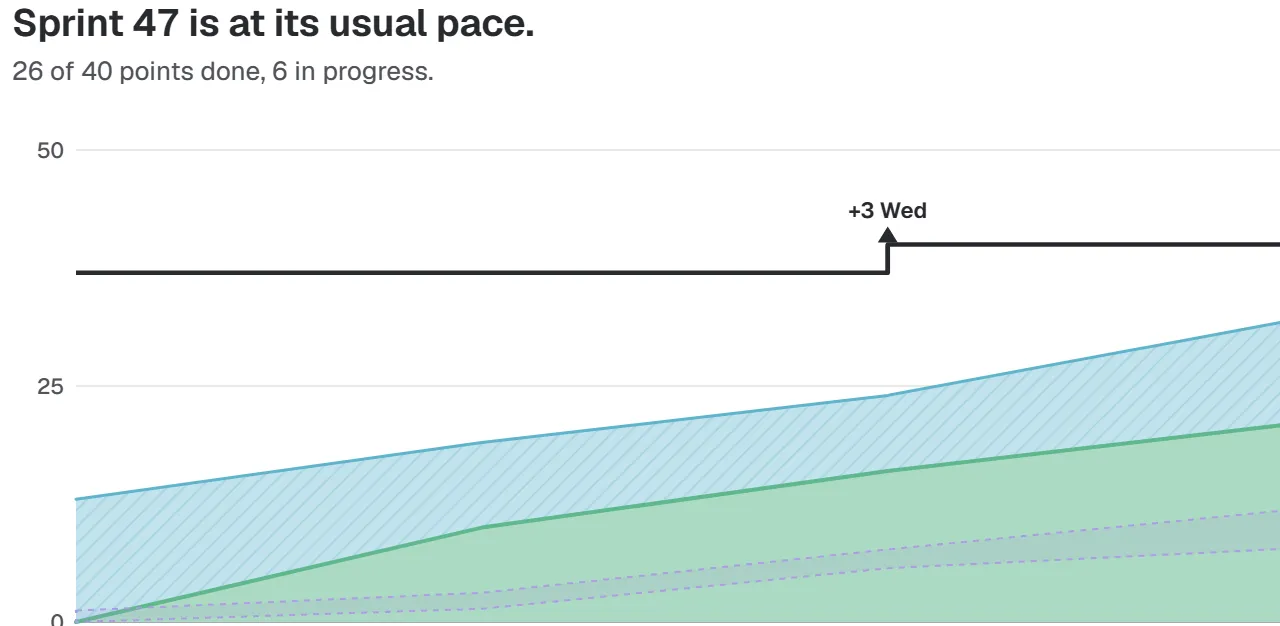 Sprint History gadgets for Jira dashboards Add Sprint History gadgets to a Jira dashboard: six charts in the full app, and the Velocity chart in Free. Anyone. Anyone who can see the board. 3 minutes
-
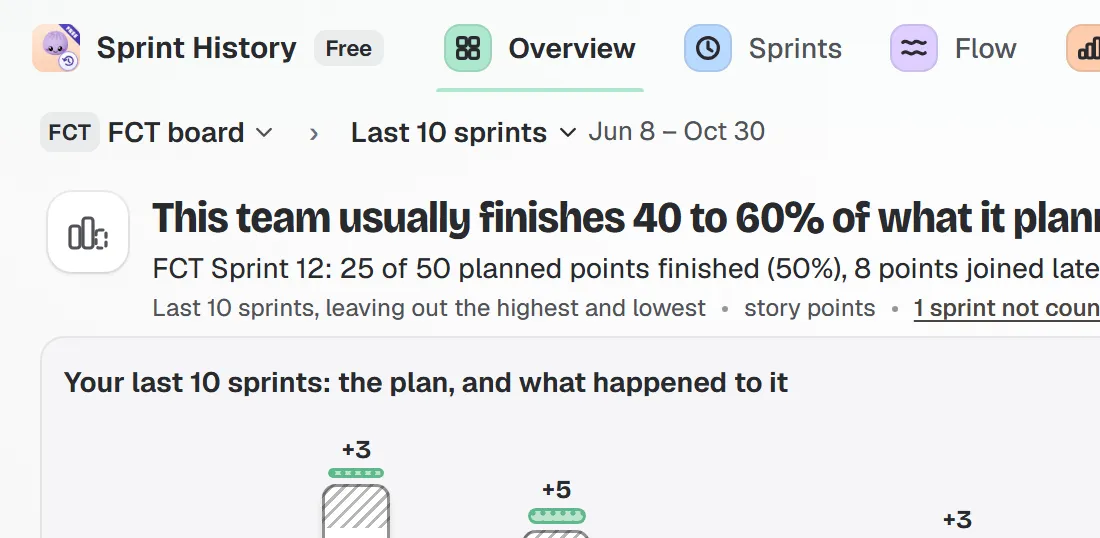 Sprint History: Free and full What Free Sprint History does, and what the full Sprint History adds. Anyone. Anyone who can see the board. 2 minutes
Both apps
How things are counted, board types, admin settings and answers.
-
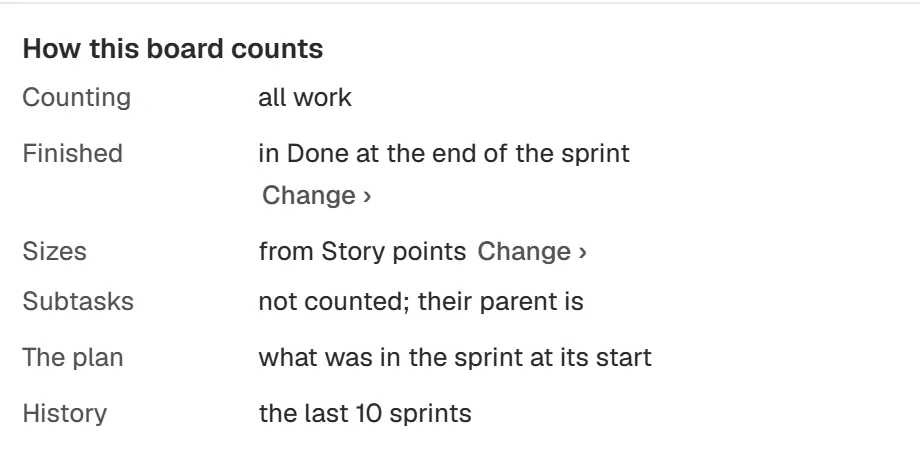 How it’s counted: planned, finished, joined later, taken out What “planned”, “finished”, “joined later” and “taken out” mean, and why a number can differ from Jira’s sprint report. Anyone. Anyone who can see the board. 5 minutes
-
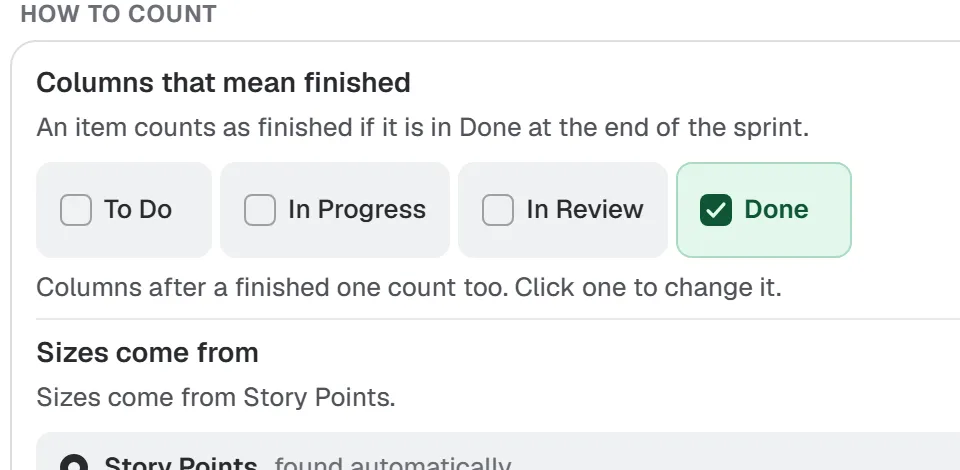 Choose the finished columns and the size field Tell the apps which board columns mean finished and which field holds your sizes, when your board is set up differently. Board admin. Someone who can change the board’s settings in Jira. 3 minutes
-
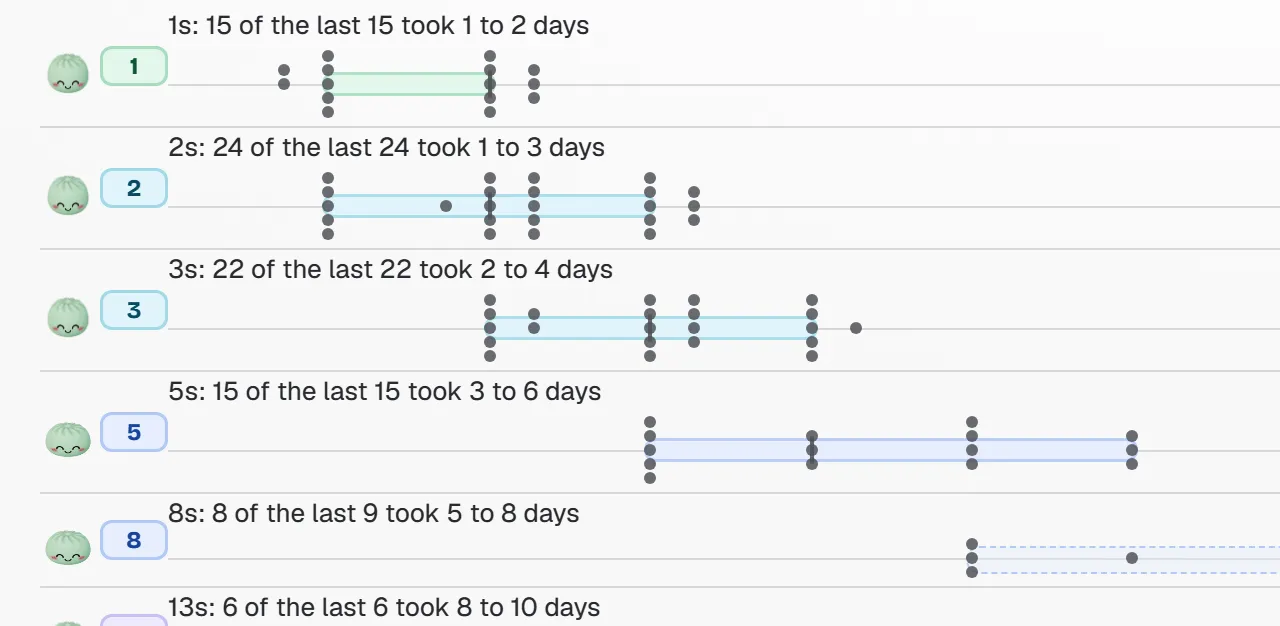 Points, items or hours: count the way your team works Count in story points, work items or hours, switch between them, and see what happens when few items have an estimate. Anyone. Anyone who can see the board. 3 minutes
-
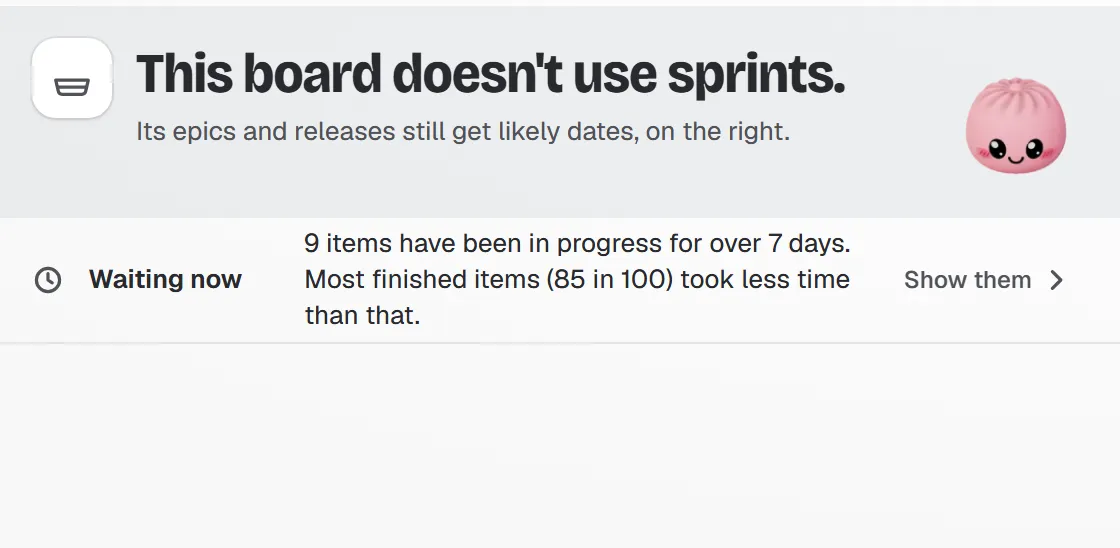 Scrum, Kanban and team-managed boards What Sprint Forecast and Sprint History do on Scrum boards, Kanban boards and team-managed boards, and what changes on each. Anyone. Anyone who can see the board. 3 minutes
-
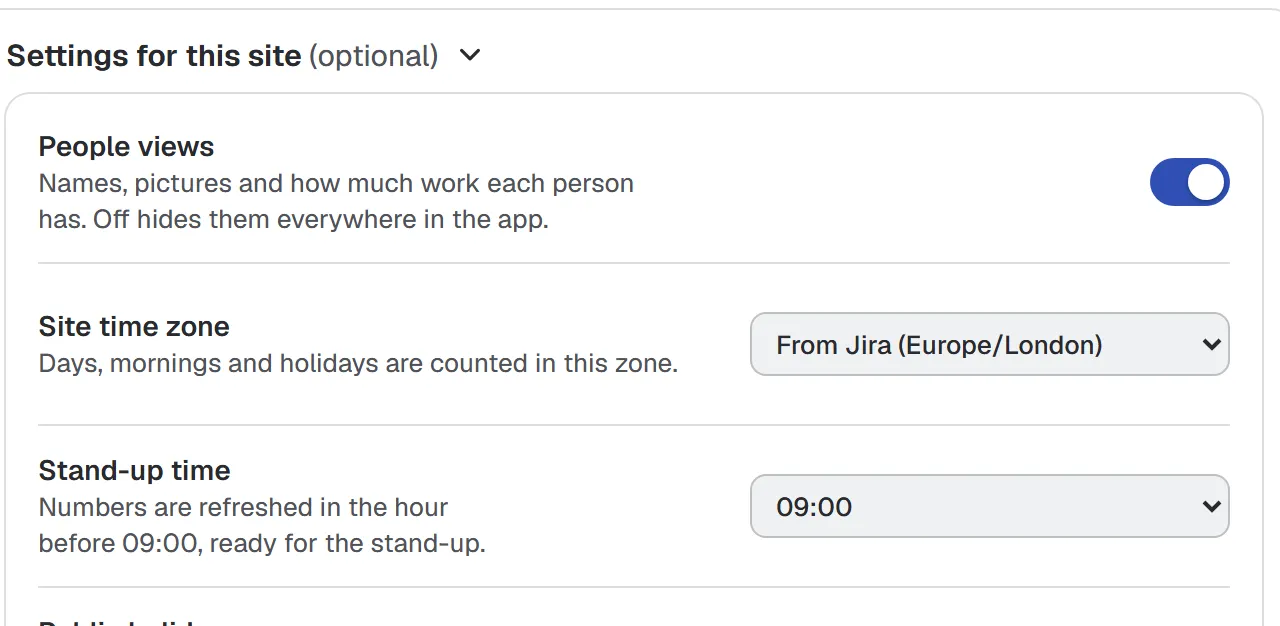 Settings for Jira admins, privacy and uninstall Install the apps, set the few site settings, and see what they read, what they keep and what happens on uninstall. Jira admin. Someone with Jira admin rights. 5 minutes
-
 Troubleshooting Sprint Forecast and Sprint History Fixes for the messages people see: Jira is busy, can’t see the board, first read, nothing finished yet, gadget shows no board. Anyone. Anyone who can see the board. 3 minutes
-
 Questions people ask about Sprint Forecast and Sprint History Short answers: why numbers differ from Jira, no estimates, Kanban, privacy, Free versus full, and gadgets. Anyone. Anyone who can see the board. 5 minutes
Still stuck?
Write to support@unitlane.net. Tell us what you clicked and the exact words you see.
Also from Unitlane Apps: RequestOps: see who every Jira Service Management request is waiting onSeatwise: find the Jira licenses nobody uses and handle leavers.