
 Bunlings: sprint apps for Jira





Scrum poker takes one rule: nobody sees a vote until everyone has voted. The hard part is the Jira bit: a second tab, a second login, and someone copying the number back by hand while everyone waits.
This guide walks through one round from the sprint menu to the estimate field, plus the two questions that come up next: phones in the meeting room, and teams that can’t meet at the same time.
What is scrum poker in Jira?
Scrum poker is a way for a team to estimate work items together. Everyone picks a card in private, the cards are shown at the same moment, and the team talks about any gap before settling on one number.
In Jira, that number belongs in the board’s estimate field, such as Story Points. Jira gives you the field and a board setting that decides which field counts. What it doesn’t give you is a table to vote at. So the vote usually happens somewhere else, and the result gets typed back in.
Why do the cards stay hidden until the reveal?
Because the first number said out loud becomes the room’s number.
Refinement, 10:02. Someone says “8?” and the room nods. Nobody lied. They just heard an 8 before they had finished thinking.
Hidden votes fix that. Nobody can lean towards the loudest voice, because nobody has heard it yet. When the cards flip together, you see what each person really thought, and a 3 next to a 13 stops being awkward. It’s the most useful thing in the meeting.
More on this in how anchoring skews estimates.
How do you run a scrum poker round in Jira, step by step?
Here’s a round in Bunlings, a Jira Cloud app for scrum poker and retrospectives.
- Open the room. On a sprint, open the menu and pick Estimate this sprint. On the board it’s Bunlings, then Estimate; on the backlog, Estimate backlog. Your work items are already in the room. Nothing to create, nobody to invite to a new tool.
- Everyone picks a card. Decks include Fibonacci and T-shirt sizes. Cards stay face down, and the list on the left shows who has voted, never what they picked.
- Reveal together. Press Reveal now and every card flips at once.
- Talk about the gap. Five 5s and a 3? Ask the 3 what they spotted. A 3 and a 13? That’s the conversation the meeting exists for. Press Vote again when you’re ready for another go.
- Agree. One click on Agree saves the number to your board’s estimate field.
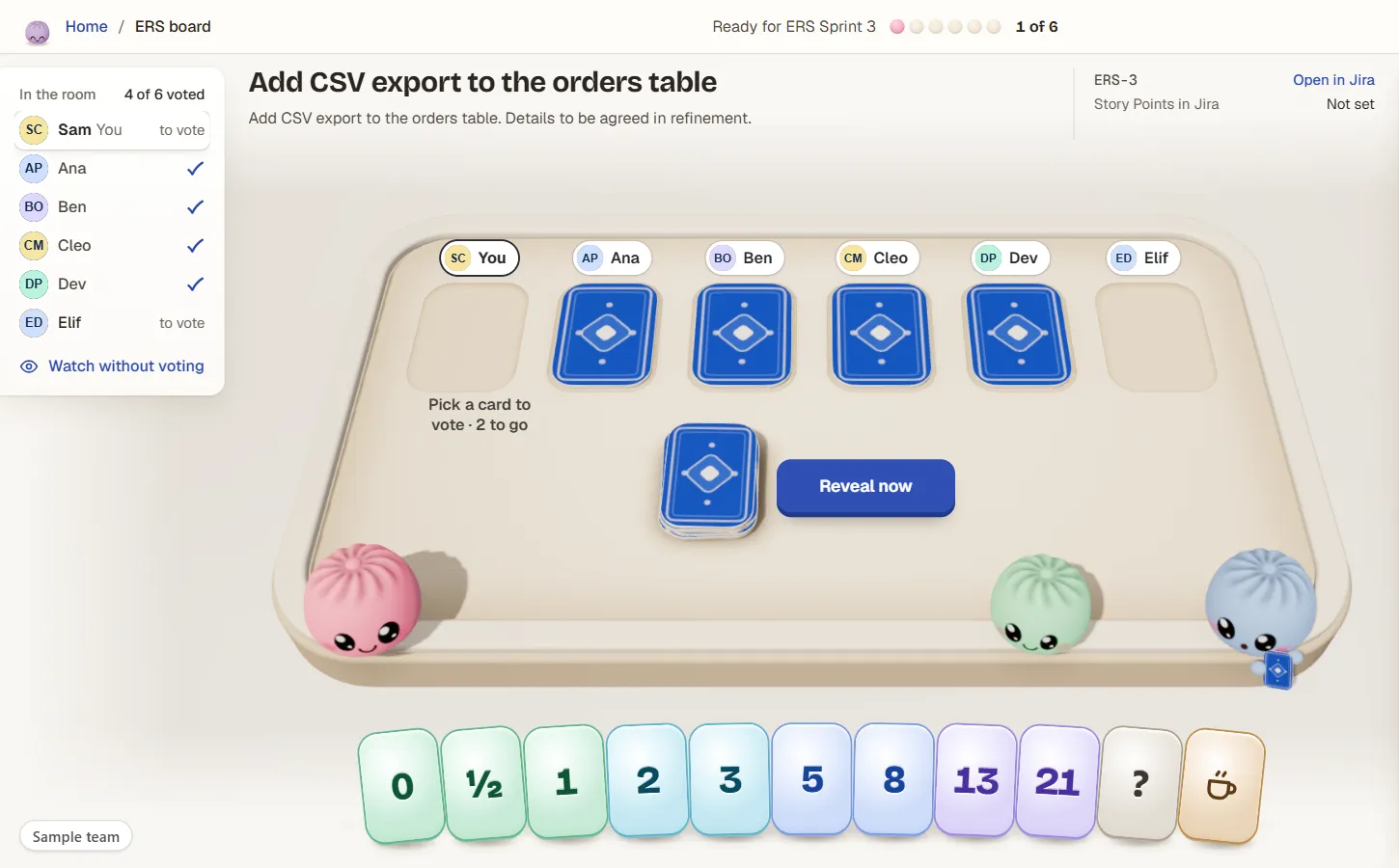
Step 2: cards stay face down while people pick. The list on the left shows 4 of 6 voted. Sample team, not real data.
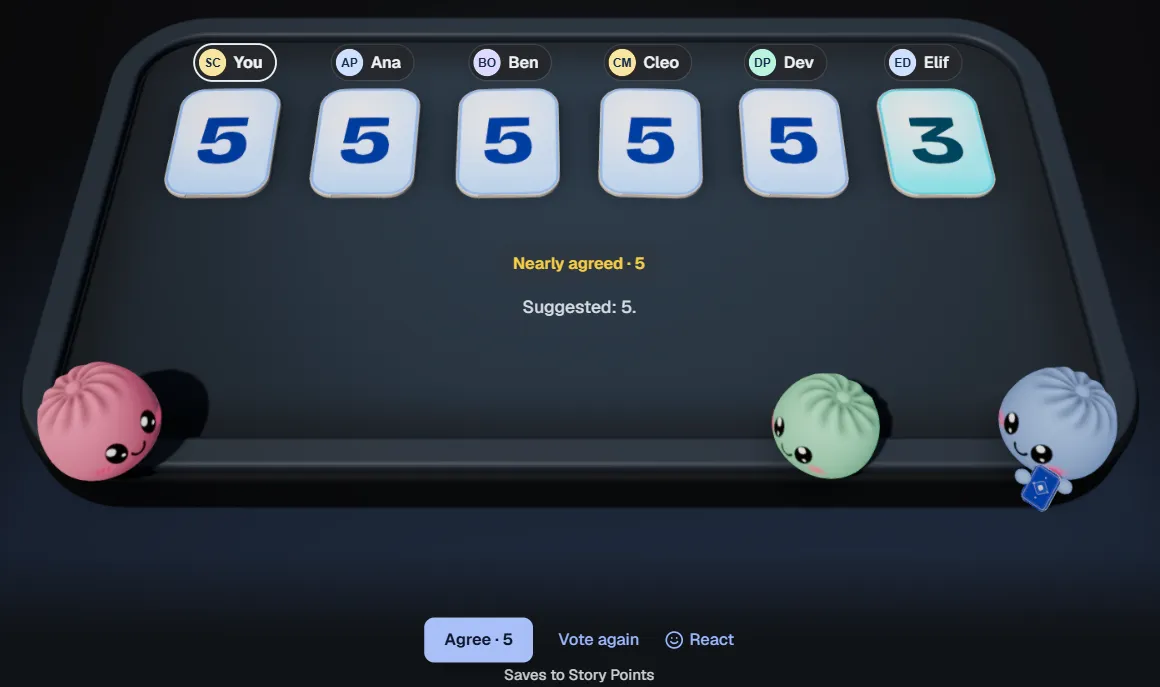
Steps 3 to 5: the cards have flipped, one person said 3, and Agree · 5 is ready. The line under the buttons names the field it will write to. Sample team.
The little dumplings at the table are the Bunlings. They peek, count along, hold their breath and dance when you agree. If you’d rather keep it quiet, Calm for me turns them off on your screen.
What happens to the number after you press Agree?
It lands in your board’s own estimate field, such as Story Points, and Jira shows it on the work item like any other edit. Bunlings reads which field your board uses from the board setup, so nobody has to choose it.
Three details are worth knowing:
- It’s saved as you. Jira’s History shows the name of the person who pressed Agree.
- You get 10 seconds to undo. Agreed on the wrong number? Undo is right there.
- Only people who can edit the work item can save. If you can’t, the room offers to ask a teammate who can.
Nothing is written to Jira until someone clicks. Until then, it’s just a conversation.
No estimate field on your board at all? Check the board’s estimation setting first: why the Story Points field goes missing shows where it lives.
Can everyone vote from their own phone?
Yes. Put the table on the big screen and open Vote on your phone. A QR code appears; everyone scans it with their phone’s camera and votes from there, while the big screen stays as the table.
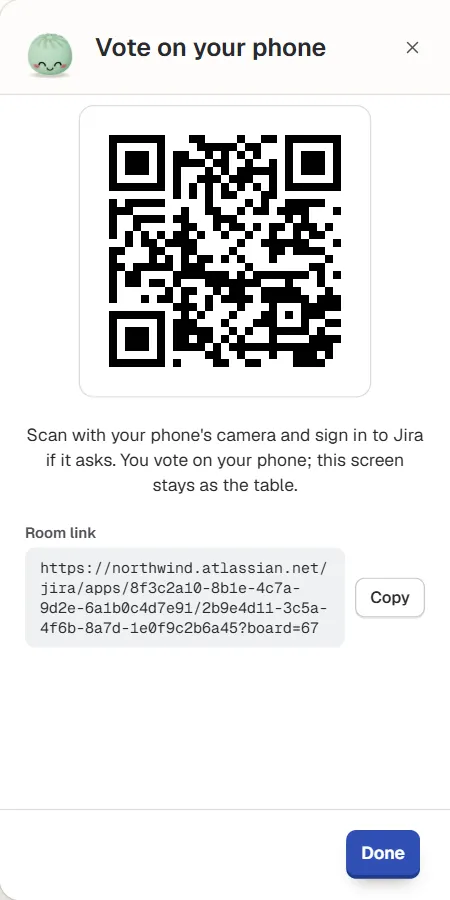
Vote on your phone: a QR code and a room link. Sample team.
Everyone still signs in to Jira, so there are no separate accounts, and people only see what Jira lets them see.
What if the team can’t meet at the same time?
Then skip the meeting. With Estimate without a meeting, you pick who votes and by when. People vote when it suits them, and Jira reminds them the day before. The cards open at the time you set, or when the last person has voted. Then you decide what gets saved.
Reminders are Jira notifications, and they need a reveal time to be set. The full walkthrough is in how to estimate without a meeting.
Can you run scrum poker in Jira without an app?
Yes. Vote with physical cards or a shared sheet, then type each agreed number into the estimate field by hand. Here’s how the three usual options compare.
| Physical cards | A shared sheet | An app inside Jira | |
|---|---|---|---|
| Votes hidden until the reveal | If everyone plays fair | Hard to keep hidden | Yes |
| How the number reaches Jira | Someone types it | Someone types it | Agree saves it to the estimate field |
| Estimate without a meeting | No | By hand, with chasing | Pick who votes and by when; Jira reminds them |
| Team in different places | Awkward | Possible | Everyone votes from their own screen or phone |
| Setup | A deck | A sheet to prepare | Install once |
A deck of cards is fine for one team around one table. The cost shows up when the team is remote or the backlog is long, because someone has to type every agreed number into Jira by hand. For the trade-offs, see estimating story points in Jira Cloud and the side-by-side comparison.
What makes a round go well?
- Vote in your board’s unit. A board on Story Points gets a points deck. A board on Original Time Estimate votes in hours, and Agree writes them to Jira. If the team isn’t sure what a 5 means, story points explained is a good warm-up.
- Reveal first, talk second. Any discussion before the flip brings the anchoring straight back.
- Let the outliers speak first. The 3 and the 13 know something the 5s don’t. What to do when votes are far apart goes through it.
- Don’t argue a work item to death. If it still splits the room after another vote, split the work item or park it.
Two more things Bunlings shows at the table. Point at any card on your laptop to see how long work with that estimate actually took on this board, in working days, from your own finished work. It’s a look back, not a promise. On a Kanban board there are no points to vote on: vote Fits or Too big instead, and see a likely finish date from the board’s recent weeks.
Try it on your next sprint
Bunlings runs inside Jira Cloud, with no outside servers and no new login. It’s free for up to 10 users. Install it, open the menu on your sprint, and your next round is ready.