
 Bunlings: sprint apps for Jira





Refinement starts in five minutes. You open the first work item to type in the estimate, and the Story Points field isn’t there.
Good news: it’s probably the wrong field, not a missing one. Jira Cloud has two estimate fields, each behind its own switch. Here’s how to find yours before the meeting starts.
New to the idea itself? Start with Story points, explained.
Why is the Story Points field missing on my work item?
Short answer: your space uses the other estimate field, or the field is switched off, or it isn’t on the screen.
Three suspects, in the order worth checking:
- You’re looking for the wrong name. Team-managed spaces call it Story point estimate. Company-managed spaces call it Story Points.
- Estimation is off in a team-managed space. Atlassian says it’s off by default there.
- The field isn’t on the screen in a company-managed space. The field exists. Nobody put it on the screens that space uses.
Is it called Story Points or Story point estimate?
Short answer: both exist. Which one you get depends on how the space was created.
| Team-managed space | Company-managed space | |
|---|---|---|
| Field name | Story point estimate | Story Points |
| Where you switch it on | Space settings, Features, Estimation | Board settings, Estimation |
| Who can change it | Space admins | Space or board admins (scrum boards) |
| Usual reason it’s missing | Estimation is off | Not on the screen, or not set up for that work type |
| JQL for empty ones | "Story point estimate" is EMPTY | "Story Points" is EMPTY |
They’re two separate fields. A number in one never shows up in the other. That’s why a report that works fine in one space comes back blank in the next.
Atlassian tracks a request to merge them (JRACLOUD-94950, currently Under Consideration). Until that ships, plan for two.
Not sure which kind of space you’re in? In the sidebar, next to Spaces, select More actions (the three dots), then Manage spaces. The Type column says Team-managed or Company-managed for each space.
How do I turn on Estimation in a team-managed space?
Short answer: Space settings, Features, switch on Estimation, then pick Story points.
The steps, from Atlassian’s Configure estimation and tracking page:
- Go to your team-managed space.
- Next to the space name in the sidebar, select More actions (the three dots), then Space settings.
- Select Features and turn on Estimation.
- Choose Story points (or Time, if your team estimates in hours).
Turning Estimation on changes a few things in the space, so read that page before you flip it on a space people already use.
Once it’s on, Story point estimate appears on your work items and in the backlog. Refresh the work item. Yes, it was behind a switch the whole time.
How do I fix the missing field in a company-managed space?
Short answer: set the board’s estimation method to Story points, then make sure the field is on the screen and set up for that work type.
Start with the board:
- Next to the board name, select More actions, then Board settings.
- Select Estimation.
- Under Estimation method, choose Story points.
This setting exists on company-managed scrum boards, and you need to be a space admin or board admin to change it.
Board looks right and still no field? Then it’s in Jira’s admin settings. Two things to ask your Jira admin about:
- Screens. The Story Points field has to be on the screens the space uses to create, edit and view work items. Your admin finds Screens under the work item settings in Jira’s admin area.
- Field context. The Story Points field has contexts that say which work types it applies to. If it’s set up for Story but not Task, a Task won’t show it.
Only admins can change either. Send them this page and the name of the space. Bonus points for sending it before refinement, not during.
How do I check which field my board uses?
Short answer: read the board’s Estimation setting, then open a work item estimated last sprint and see which field holds the number.
A two-minute check, once per space:
- Open the board settings (company-managed) or space settings (team-managed) and read the Estimation setting.
- Open a work item the team estimated last sprint. Note the name of the field that holds the number.
- Search for work items that have a number in that field:
"Story Points" is not EMPTY(or"Story point estimate" is not EMPTY). If work items come back, that’s the field your reports read. - Nothing comes back? Your team may be estimating in the other field, or not at all. Good topic for the next refinement.
Moved work items between a company-managed and a team-managed space? Check where their numbers landed. The two spaces use different fields, so estimates can quietly stay behind.
What if the field is there but half the backlog is empty?
Short answer: list the empty ones with JQL and save it as a filter.
Sometimes the field shows up fine, and plenty of work items still have nothing in it. Jira’s search finds them:
"Story Points" is EMPTY AND sprint in openSprints()In a team-managed space, swap in "Story point estimate". Save it as a filter, put it on a dashboard, and empty estimates stop hiding.
A long list usually means the number was agreed out loud and typing it in was nobody’s job. Five people nodded at a 5. Nobody opened the work item.
Which field should an estimation tool write to?
Short answer: the one your board already uses, so the number lands where your sprint reports and sprint planning look.
An estimate saved to a field your board doesn’t read makes a quiet mess. The room says 5, the sprint report says nothing, and someone finds out at the sprint review.
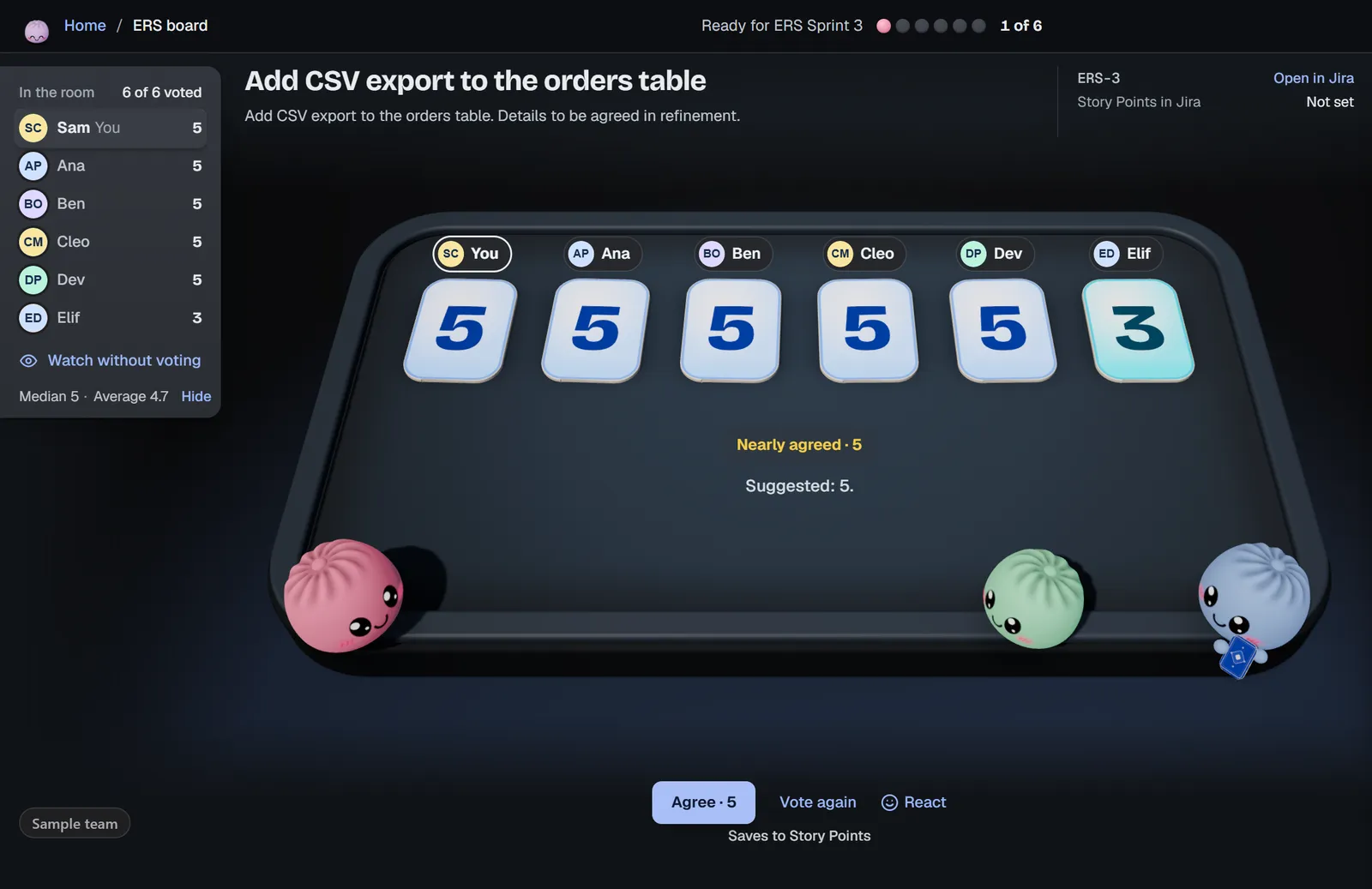
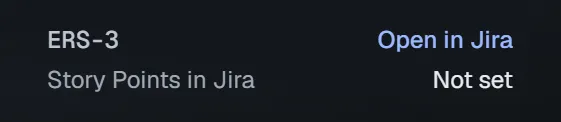
Bunlings, our estimation and retro app for Jira, reads the estimate field from your board’s own setup, so nobody has to pick one. The work item header in the room names the field and shows its current value:
The team votes, the cards flip together, and one click on Agree saves the number to that field. The line under the button tells you where it goes before you press it:

Sample team. Agree names the field before anything is saved.
- Written as you. Jira’s History shows the name of the person who clicked, and you get 10 seconds to undo.
- Jira’s permissions apply. Can’t edit the work item? Ask a teammate who can to save it.
- Time boards work too. When the board estimates in Original Time Estimate, the room votes in hours and Agree writes them to Jira.
One honest limit: Bunlings can’t switch on a field that’s off or put it on a screen. Do that first. What it removes is the typing afterwards.
What should I do next?
If the field is missing, go in order: the right name, the Estimation switch, the screen, the work type. Then run the empty-estimates JQL once and save it as a filter, so nothing slips through next sprint.
If you’d rather the agreed number land in the right field without anyone typing it, Bunlings runs the vote inside Jira and Agree saves it, as you. Free for up to 10 users, Jira Cloud only.
Get Bunlings on the Atlassian Marketplace
Want to see it first? Watch the demo or read about Bunlings.