
 Bunlings: sprint apps for Jira





Sprint ends on Friday. On Monday someone asks, “Where do we do the retro?” Three people give three answers: a Confluence page, a whiteboard, “just make some work items”. Here is what each one does well, and what it leaves to you.
How do you run a sprint retrospective in Jira?
Pick a place for the cards, run the same few steps every time, and turn what you decide into work items. Jira holds the sprint and the work items. The cards and the talk have to live somewhere, and you have four realistic choices: a Confluence page, a Confluence whiteboard, a board of work items, or a retro app inside Jira.
What does Jira offer for retrospectives out of the box?
A Confluence page or whiteboard, created from the sprint. Jira has no retro screen of its own.
When you complete a sprint in a company-managed space, Jira can offer to create a retrospective in Confluence, as a page or a whiteboard, and link it to the sprint. The link then shows up in the sprint report, under linked pages. For this, your Jira site has to be connected to Confluence. Menu names move around, so check yours.
Atlassian’s own advice is to bring Jira’s reports into the page, such as the velocity or burndown chart, so the talk starts from facts and not from memory.
What you get: a ready template, a link back to the sprint, and everything in Atlassian’s own tools. What you do by hand: write the cards, decide who sees them when, read the chart, and carry actions to the next retro.
Is a Confluence whiteboard enough for a retro?
Often, yes. It fits teams who like to move things around.
Atlassian’s whiteboard retro guide lists four ready templates: the simple retrospective, 4 Ls, sailboat and root cause analysis. Whiteboards have sticky notes, a timer and stamps you can use to vote. Atlassian also says stickies and shapes can be turned into Jira work items right on the board.
Things to check on your own whiteboard before the first retro:
- Who can see a note while you write? If notes are visible as they appear, the first few shape the rest. Look at how private mode works in your plan.
- How does voting work? Stamps are a free-for-all, so decide the rules yourselves, for example “three stamps each”.
- Where do last sprint’s open actions go? Someone has to remember to look.
None of this is a flaw. It is a blank board, and a blank board needs someone to set the rules each time.
Can you run a retro with a board of work items in Jira?
Yes. Make a space, add a work item for each card, and use a status or a label for the columns.
The upside is simple: it is all Jira, and everyone already has access. The cost is that a work item is made for tracking work, not for honest feelings. Every card has a reporter. Nothing says honest feedback like your name in the Reporter field. Nothing is hidden. And the retro cards sit next to real work in your backlog unless you keep them in a separate space and clean up after.
It works if your team is small and relaxed about names on cards. If someone ever writes “could be better” and then hesitates, you have found the limit.
How do the native options compare with an app?
The native options give you the room. An app inside Jira also gives you the rules: hidden cards, facts to start from, and actions that come back.
| What you want | Confluence page | Confluence whiteboard | Board of work items | Bunlings |
|---|---|---|---|---|
| A ready template | Yes | Yes | You build it | Yes, 50 formats |
| A link to the sprint | Yes, from the sprint | Yes, from the sprint | A link you add | Opens from the sprint menu |
| Sprint facts to start from | Embed a report, read it together | Embed or paste, read it together | Read the sprint report | Facts from your estimates when the retro opens |
| Cards hidden until everyone has written | Not built in | Check private mode | Not built in | Hidden until Show all |
| Actions as work items | Create from text | Convert stickies | They are work items already | Create a work item, then Create |
| Open actions back at the next retro | You remember | You remember | A filter you build | Still open from last time |
Read the table as a to-do list, not a verdict. Every cell that says “you” is a job someone on the team does every sprint, which is how retros slide into “we skipped it, again”.
The hidden-cards row is the one that matters most. When a card appears the second someone types it, the room starts to agree with whoever wrote first. Usually that is the person who types fastest, not the person who saw the problem.
What does a retro app inside Jira do differently?
It opens from the sprint, keeps the steps fixed, and starts from your sprint’s own numbers. That is the idea behind Bunlings.
Open the menu on a sprint and choose “Open sprint retro”. Nothing to set up, no new login: everyone signs in with the Jira they already use. Here is what it covers that the options above leave to you:
- Cards stay hidden. “Nobody else sees your cards until someone presses Show all.” Until then each card reads “Hidden until Show all”.
- The retro opens with facts from your estimates. For example “Votes were far apart on 4 items.” It is a place to start the talk, not a verdict on anyone.
- Actions become work items in two clicks. Choose “Create a work item”, then “Create”. The work item is created as you, so Jira’s History shows your name.
- Open actions come back. More on that below.
- The recap copies out. “Copy for your manager” and “Copy for Confluence”, so Confluence gets a copy and is not the place where the retro had to happen.
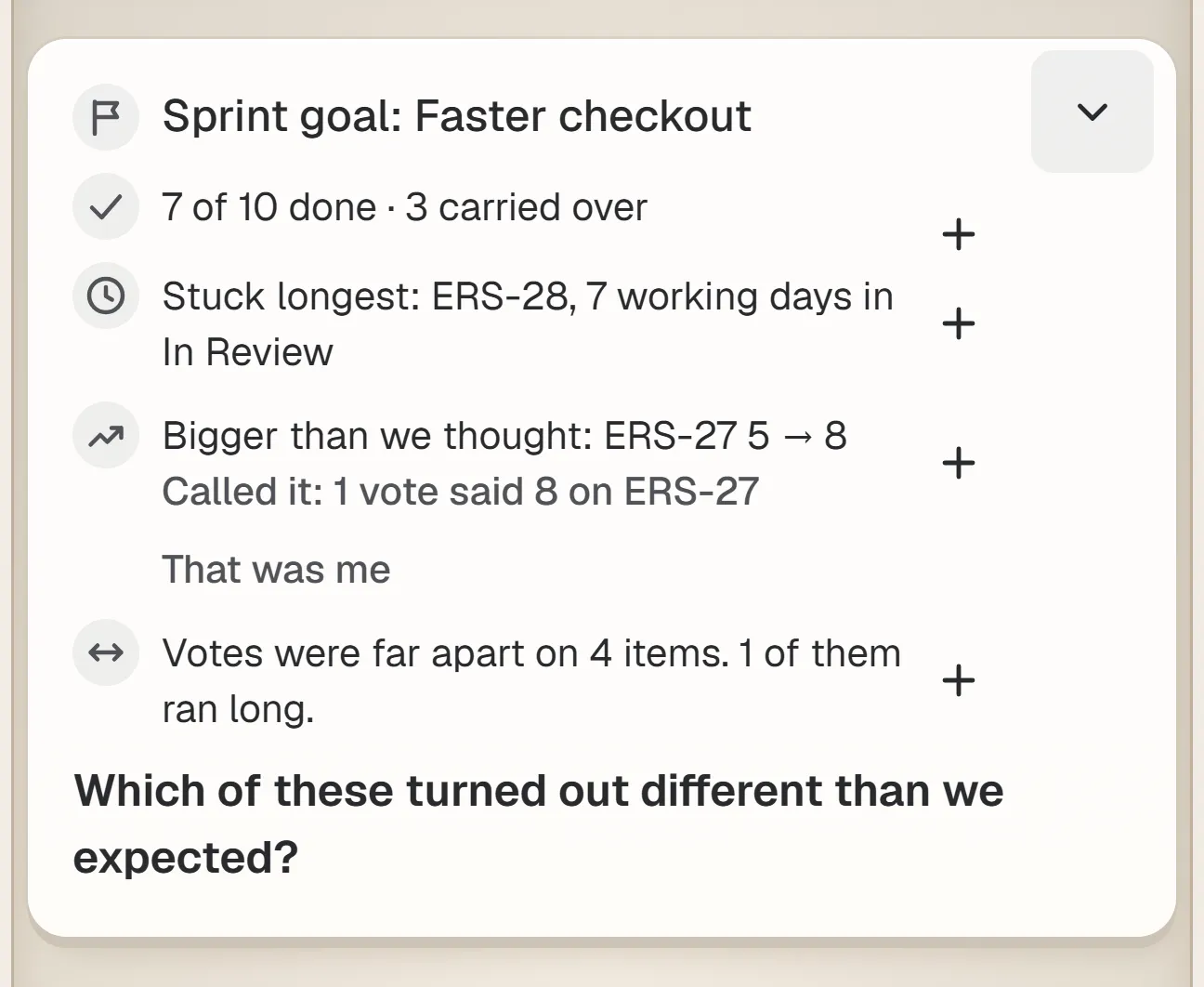
The retro opens with facts from the sprint’s estimates. Sample team and sample data.
There are 50 retro formats, from “Start, stop, continue” to “Starfish”, so you are not stuck with the same three columns. Start with a check-in (“What was the sprint weather?”) or an icebreaker from 30 work-safe questions. Answers are anonymous, and anyone can press Skip.
What it is not: a free-form whiteboard. The steps are fixed. If you want to draw arrows between sticky notes, a whiteboard is the right tool.
How do retro actions stay alive in Jira?
Put them where the team already looks, and show them again at the next retro. Both parts matter.
A retro action in a Confluence task is easy to forget, because that page rarely gets opened between retros. A retro action as a Jira work item sits on the board next to everything else, so it gets an owner and a status like any other work.
Showing it again is the part teams skip. In Bunlings, anything not finished comes back under “Still open from last time”, with Keep and Not needed next to it, and Done when it is already a work item. You close the loop in front of the people who agreed to it.
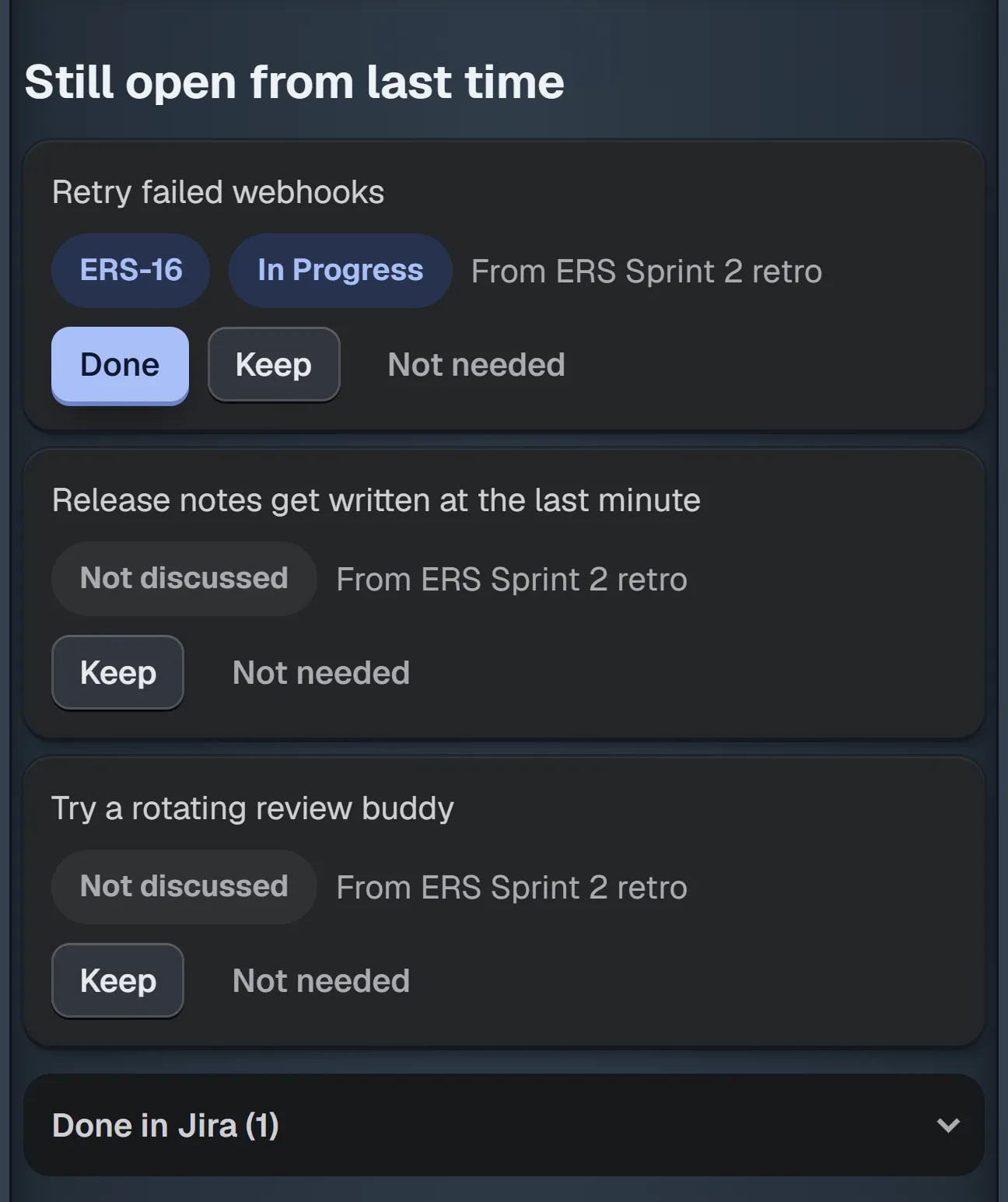
Last retro’s open actions are waiting when the next one starts. Sample team and sample data.
If you want more on this, see retro action items that get done.
Which option should your team pick?
Choose by what your team already does.
- You live in Confluence and like whiteboards: start with the whiteboard template Jira offers when you complete the sprint. Agree on private notes and a vote rule first.
- Your team is small and open with each other: a Confluence page or a board of work items is plenty.
- You want hidden cards, sprint facts and actions that come back, without building any of it: use an app inside Jira.
- You are not sure: run one retro on the whiteboard and one in an app, then ask the team which one they would run again.
Whatever you choose, keep the order the same:
- Write alone.
- Show together.
- Vote.
- Talk.
- Decide.
The 45-minute retro agenda has the clock for it, and retro formats and when to use each helps when the usual three columns feel tired. For the estimation side, see native Jira estimation vs Bunlings.
How do you try it?
Bunlings runs scrum poker and the sprint retro inside Jira Cloud. It is free for up to 10 users, then from $2.00 per user per month, and makes no calls to outside servers.
Get Bunlings on the Atlassian Marketplace, watch the short demo, or read more on the Bunlings page.