
 Bunlings: sprint apps for Jira





The customer’s printer is dead, and your team has done what it can. The part has been ordered from the supplier, who said “end of next week”. The agent sets the request to In progress, because there is nothing better, and moves on. Twelve days later the customer asks for an update and nobody knows what the supplier said.
Waiting on someone outside the company is a different kind of waiting. The customer has done nothing wrong, your team has nothing to do, and the next step belongs to a company you can’t see into. Jira has no word for it.
Build the wait from three parts
Community threads from 2025 and 2026 show agents asking for exactly this: how to handle a third party inside a request without the customer being copied on every message. These are the building blocks that members and Atlassian’s own documentation point to.
1. A status. Add a status such as Waiting for vendor to the workflow of the request types that need it. In Jira, choose Settings, then Work items, then Workflows, open the workflow with More actions and Edit, choose Add status, give it a name and a category, and then Update workflow. Add the transitions in and out. In a team-managed space, open Space settings, then Work types, choose the work type and Edit workflow.
The customer sees the status name from Space settings, Request management, Request types, Edit fields, Workflow Statuses. If you give the new status the same customer-facing name as the one before it, the customer does not see a change.
2. Two fields. A text field for the vendor’s own reference, and a date field for the date they promised. Without them, the promise lives in someone’s inbox.
3. A reminder for the date. A scheduled Automation flow with this search finds requests where the vendor is late:
status = "Waiting for vendor" AND "Vendor promised date" <= now()For each request it finds, add a comment that tags the assignee. Make that an internal note, so the customer does not get it. Run it once a day.
Sources: Atlassian, Add statuses to a Jira workflow, Customize the workflow statuses for a request type, Automation triggers and notifications, which says internal notifications go to agents and admins and never to customers.
Keep the SLA honest
If the vendor’s time should not count against you, add the new status as a pause condition on the SLA, the same way as for Waiting for customer. That is a decision about your commitment to the customer, so make it deliberately. The step-by-step is here.
Talking to the vendor
This is where the answers differ most. In the Community threads, the suggestions were:
- A linked work item for the vendor’s side. Create it with the vendor as reporter, so the email conversation is logged there, and link it to the request. Jira links work items with types such as is blocked by and relates to.
- A separate service space for vendors, with an Automation button that clones the request into it. The vendor then works there and never sees the customer’s request.
- A dedicated mailbox connected to the service space.
All three work, and all three need setup that someone has to own. None of them tells you, on the day, which vendor is late or how reliable they are.
Source: Atlassian, Link work items. The Community threads are Communication third-party vendor from JSM and How would you handle communication with a third-party vendor inside a JSM request?
Where the native setup stops
- The promised date is a field. Nothing records that the vendor promised twice and missed twice.
- Chasing is manual. The reminder is for your assignee, not for the vendor.
- The vendor can only answer in an email thread or in Jira, so a one-line “done” or “two more days” is hard to capture.
- I found no native report that splits waiting time by vendor.
Handling it in RequestOps
RequestOps has a vendor wait built in.
- Add the vendor once. Open Waiting on, then Vendors, and choose Add vendor. Add its contacts and how soon it usually promises a date.
- Start the wait on a request. Open the actions menu (the three dots), choose Wait on a vendor, pick the vendor, add their reference and the promised date, and choose Start waiting. The date can be up to 90 days ahead.
- The request shows the vendor as who it is waiting on. It leaves Needs you on Home and comes back on the promised date. If the vendor answers sooner, it comes back at once.
- Nudge the vendor. Choose Nudge, then Copy links. You get three links: Done on our side, Need 2 more days and Need one more week. Paste them into your own email, or post them in a comment that everyone on the request can see.
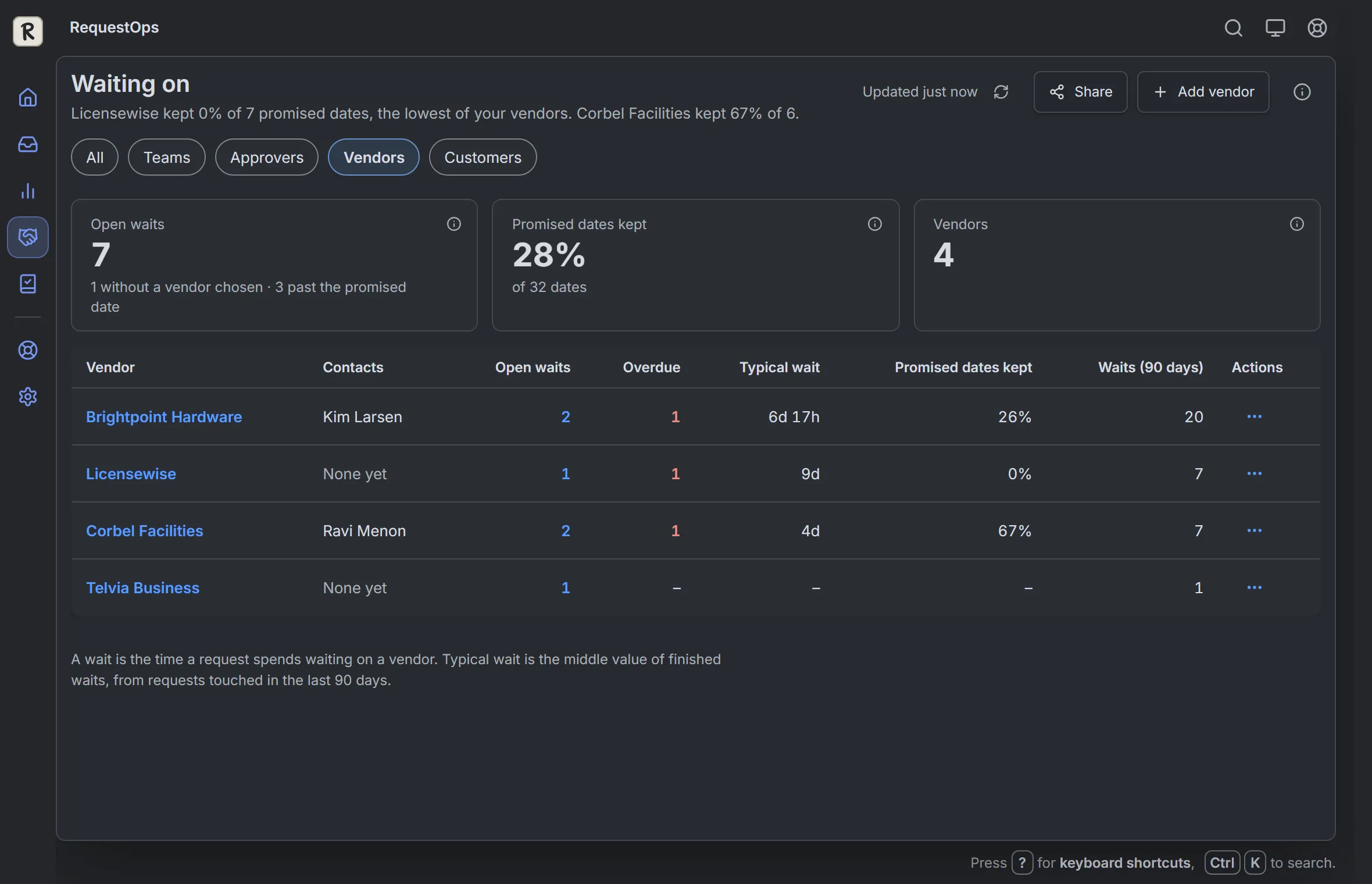
Waiting on, then Vendors. Sample data.
The vendor does not need a Jira account. Opening a link shows a confirm page, and nothing happens until they press the button. The answer is added to the request as a comment and updates the wait. Each link works once and expires after 14 days, and sending a new set makes the older ones stop working.
A few things to know:
- Copy links does not send an email. You send the links yourself, to the right person.
- RequestOps does not pause your SLA while a vendor holds a request. That stays in your SLA setup.
- It counts the wait by party. On Insights, vendors appear next to your team, customers, approvers and other teams, so you can see how much request time went to vendors. The Vendors page shows how often each vendor kept its promised date.
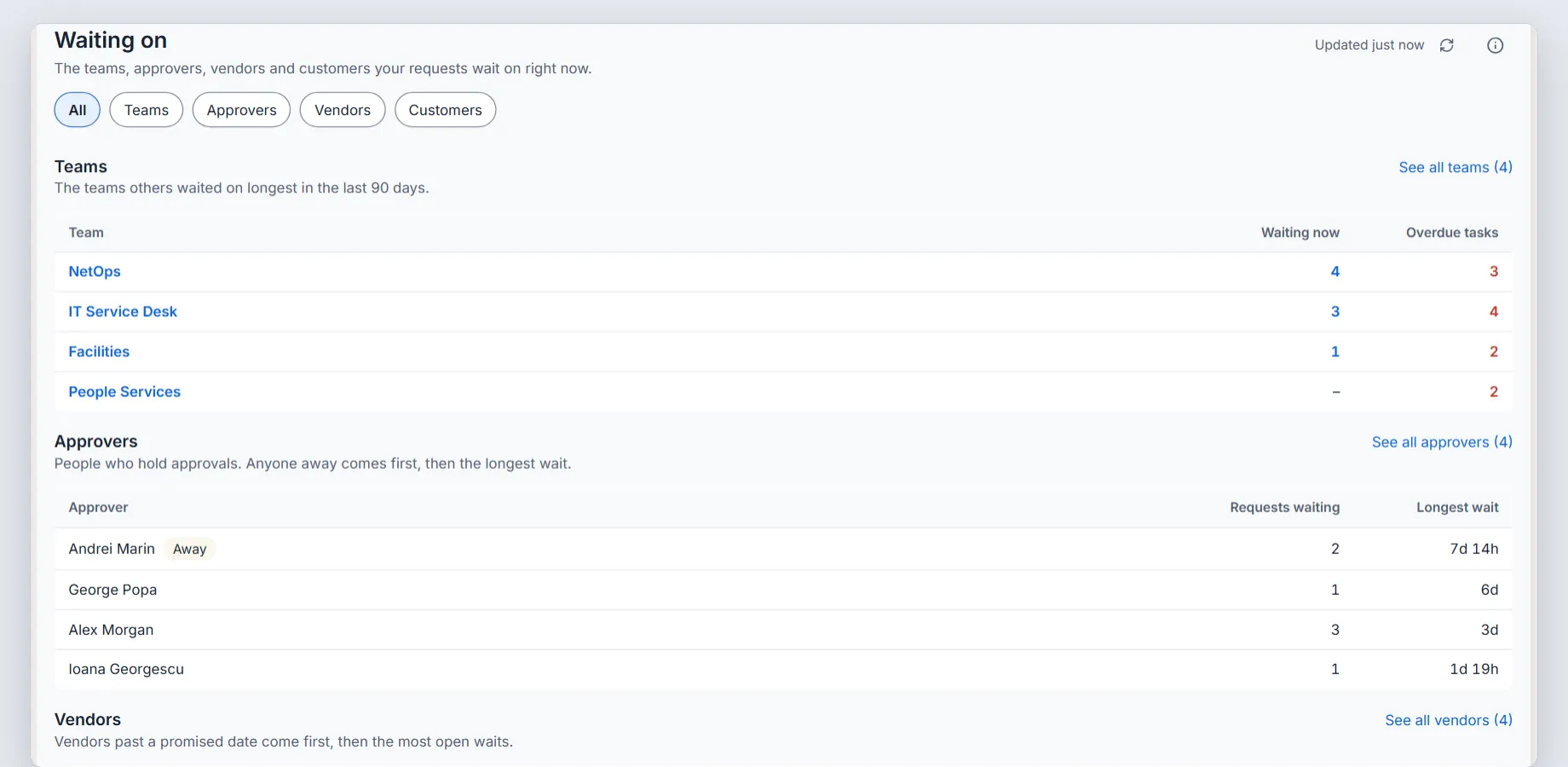
The Waiting on page. Sample data.
The setup guides are Vendors and nudges, Wait on a vendor until a date and One-click links for people outside Jira.
Before you start tracking vendor waits
- Agents know which status or action means “waiting on a vendor”, and use nothing else for it.
- Every vendor wait has a reference and a promised date.
- Someone looks at the late ones each morning.
- The vendor’s messages stay out of the customer’s view.
- You decided whether the vendor’s time counts against your SLA.