


RequestOps · Guide · 6 min read
Who is this Jira request waiting on? Another team's next step
By Jonas Nilsson · Published 13 October 2026
A request says In progress and has an assignee, so it looks handled. But the assignee may be waiting too: for a firewall rule from the network team, a contract check from Legal, or a desk from Facilities. Until someone asks the right team, nothing moves, and the customer only sees a request that has gone quiet.
Assignee versus next step
Two different questions get mixed up:
- Who owns the request? The assignee. They are responsible for getting it done and for talking to the customer.
- Who has the next step? Whoever must act before the request can move. That can be the assignee, but also the customer, an approver, a vendor, or another team.
When another team has the next step, it is usually visible in Jira as a linked work item: the request is blocked by a task in the other team’s space. The work is tracked there, in their queue, by their people.
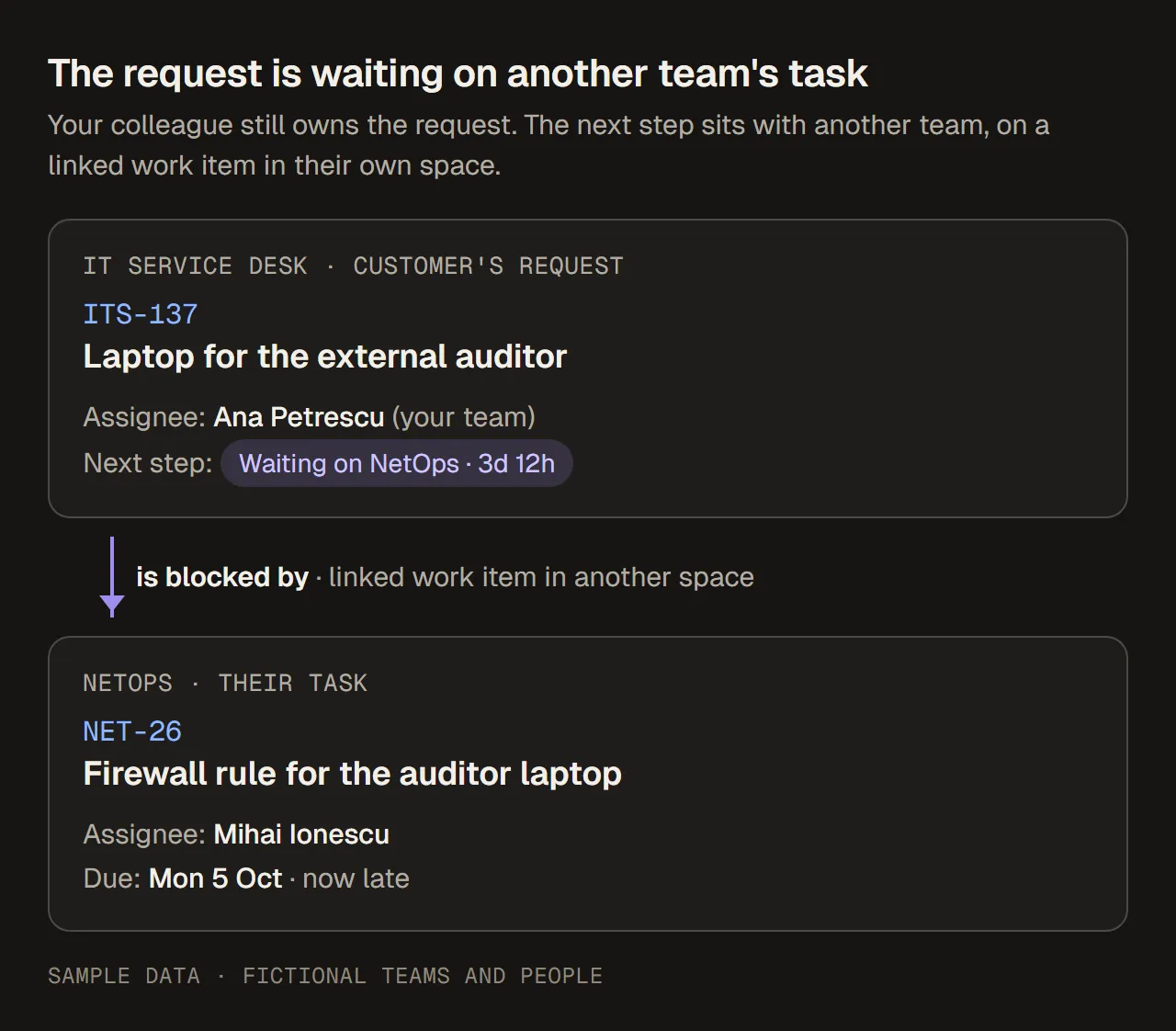
The request waits on another team’s task. Sample data, fictional teams and people.
Step 1: find out who has the next step
On the request, check in this order:
- The status. Waiting for customer or Waiting for approval already answers the question. In progress does not.
- Linked work items. Look for an is blocked by link (or your site’s own dependency link) that points to another space. An open linked task there usually means another team has the next step.
- The task’s own state. Is it assigned? Does it have a due date? Has it moved recently? A linked task with no assignee and no date is the one to act on first.
- The last comments. Someone may already have asked, and been told a date.
If nothing is linked but you know another team is involved, link their work item first. Without a link, nobody can see the dependency later, including you.
To add one, open the request, choose Link work item, pick is blocked by and search for their task. If you can’t find or open their task, you may not have access to their space: ask their space lead rather than guessing. To list every open request that is blocked, filter a queue with issueLinkType = "is blocked by" AND statusCategory != Done.
Step 2: ask them where they work
The fastest way to get an answer from another team is to ask on their task, not on the customer’s request. Their assignee gets the notification in their own queue, and the conversation stays with the work.
A good handoff note says:
- which customer request is waiting on this task,
- the date that matters (the customer’s expected date or the SLA),
- one clear question: what’s the expected date?
In Jira Service Management, post it as an internal comment so it can never reach the customer by mistake. If the other team’s space is a plain Jira space, every comment there is visible to everyone who can open the task, so keep it factual. A copyable wording is in Customer follow-up message templates (template 7).
Don’t chase in a chat message or an email that sits outside Jira. The next person to pick up the request won’t see it, and the other team has to look up which task you mean.
Step 3: follow the answer, and tell the customer
- If they give a date, ask them to set it as the due date on their task, or note it in a comment there. That is your new expected date, and you can tell the customer when to expect news.
- If the date passes, ask once more on the same task, then go to their team lead or space lead. One nudge per working day is plenty.
- When their task is done, check that your request has really moved on: the next step is now yours again.
For the customer, keep it simple and give a date, for example: “We’re waiting on another team to finish their part. We expect an update by Thursday.” Don’t name the team or the person; that is internal.
Common mistakes
- Reassigning the request to the other team. It hides the dependency and moves customer communication to people who don’t own it. Link, don’t reassign.
- Asking in the customer’s request. One wrong click on Reply to customer instead of Add internal note sends it to the customer. And even as an internal note, the other team isn’t notified, because they don’t watch your request.
- Asking without a date. “Any update?” gets “working on it”. “What’s the expected date?” gets a date.
- Losing track after the nudge. Make sure the promised date is on their task, as its due date or in a comment.
How RequestOps shows and handles it
RequestOps adds a What’s left panel to each request. It shows the checklist, who the request is waiting on, and since when. When a required checklist item depends on a linked work item that is still open in another space, the request is shown as waiting on that team, not on your team. An admin can also mark a status, such as Waiting on another team, so that requests in it count as waiting on another team.
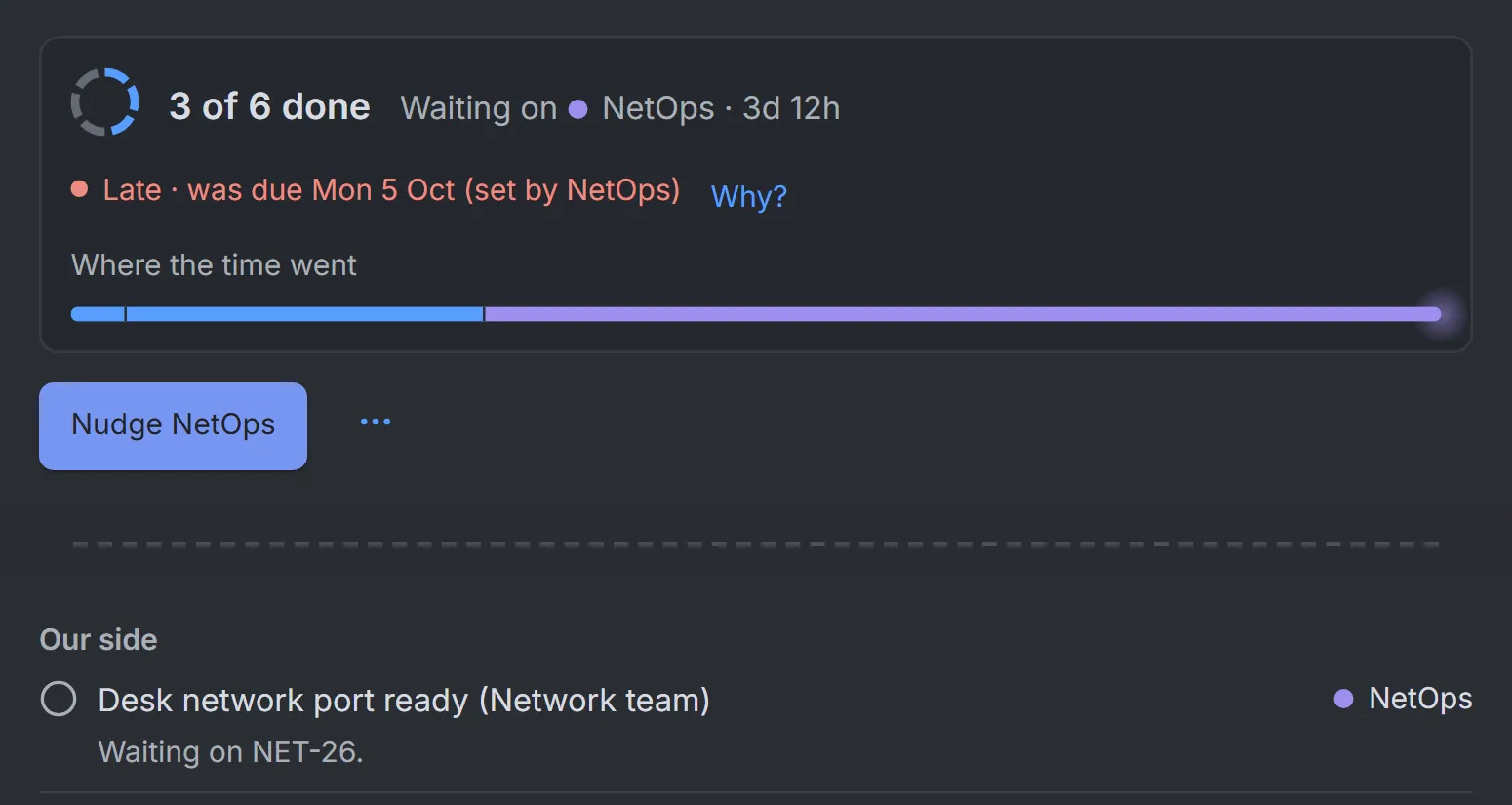
Two parts of the request panel: the summary with its Nudge button, and the checklist item that waits on the linked task. The item says what you need; NET-26 is the other team’s own task for it. Sample data.
From there, Nudge NetOps writes the handoff for you and shows exactly what will be posted before it goes:
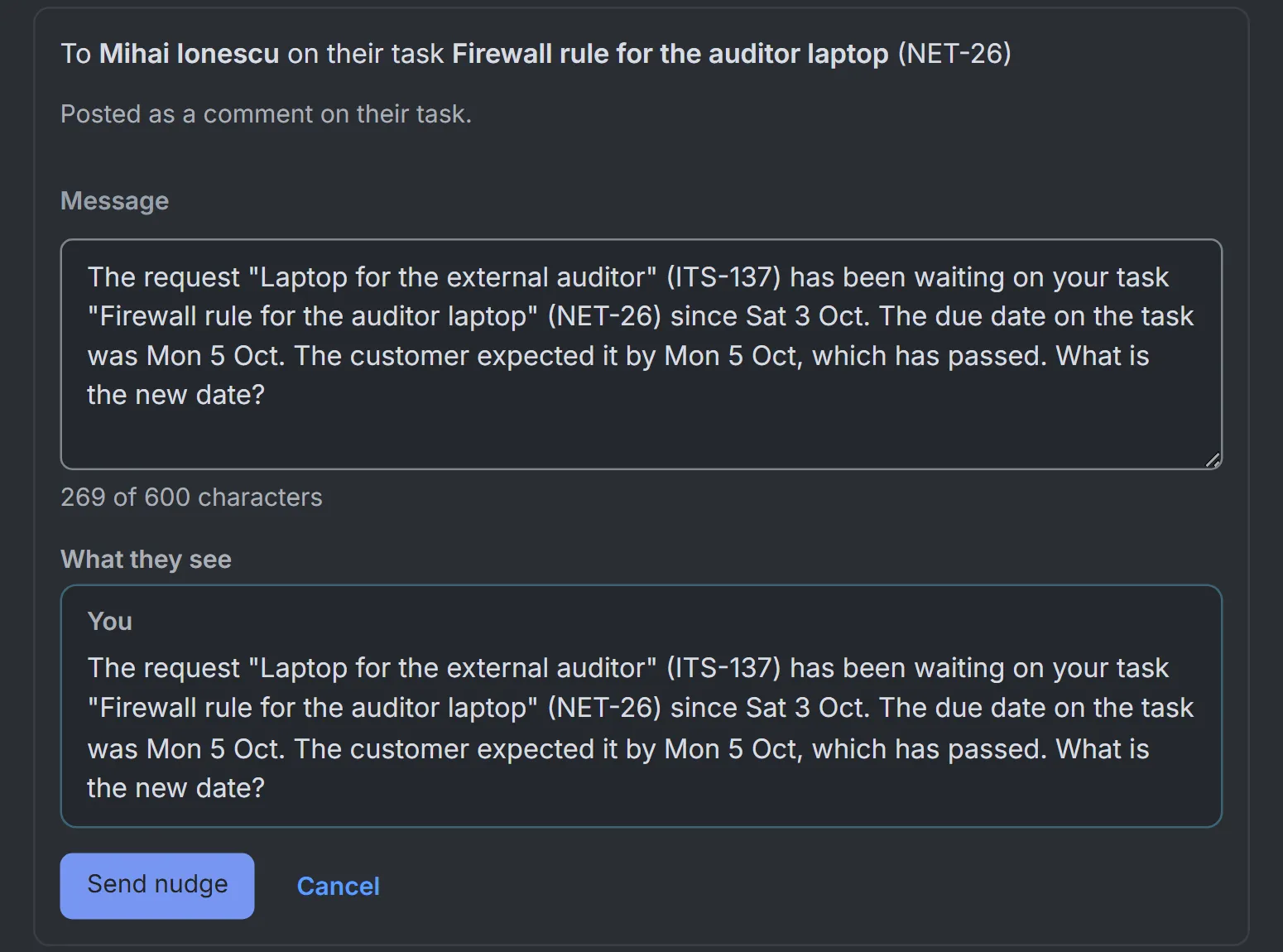
You can edit the words; the lower box is exactly what Mihai will see, on his own task. Sample data.
What happens around it:
- It’s an internal comment on the linked task that mentions its assignee. In a plain Jira space, Jira shows it as a normal comment.
- One nudge per team, per request, per working day, and only in working hours. If nobody answers after a set number of working days (2 by default), the next nudge goes to the team contact or space lead. If someone is marked as away in RequestOps, the nudge goes to whoever covers for them.
- A due date set on their task becomes the request’s new expected date. When the task is done, the request stops waiting on that team, and with Blocker alerts on, your assignee gets an internal note.
- Customers can see that you followed up, without names. With Show customers we nudged on, the portal says something like “We asked for an update today”, never which team or person.
A Jira admin turns each of these on or off in Settings › Messages. How quickly other teams answer shows up later on Insights › Waiting, under Nudges answered within a working day and Due dates kept. How that time adds up is explained in Waiting time versus SLA time.