


RequestOps · Templates · 6 min read
Customer follow-up message templates for Jira Service Management
By Jonas Nilsson · Published 13 October 2026
Many follow-ups go unanswered for a simple reason: the customer can’t tell what you want. “Any update?” or “Please provide the requested information” makes them scroll back through the request to work it out, and many don’t.
Each template below says, in a few lines:
- What is missing, named exactly (“the signed equipment form”, not “the documents”).
- Why you need it, when that isn’t obvious.
- What happens next, so the customer knows a reply is worth sending.
We wrote these examples for this page; they aren’t built into Jira. Change the wording to match your team’s voice.
How to use these templates
- Words in curly brackets, such as
{customer}, are placeholders. Replace them by hand, or let your tool fill them in (see the end of this page). - Put
{missing}on its own line, after a colon. Tools that fill it in usually insert a list, one item per line. - Ask for everything at once. If two things are missing, list both in one message rather than sending two.
- Don’t promise what your process doesn’t do. Only mention closing a request if your team really closes unanswered requests, and when. How to set that up is in Customer follow-ups in Jira Service Management.
- Check who will see it. Templates 1 to 6 go to the customer with Reply to customer. Templates 7 and 8 are for colleagues: post them with Add internal note, never Reply to customer.
1. First ask: missing information
Send as: Reply to customer. Use it when a request arrives without something you need to start.
Hi {customer},

Before we can start on your request, we need:
{missing}

As soon as we have it, we'll get started.

Thank you,
{agent}
Why it works: the missing items are a list the customer can answer one by one, and “we’ll get started” tells them the reply moves things along.
2. Missing file
Send as: Reply to customer. Use it when the request needs a file: a signed form, a screenshot, a quote.
Hi {customer},

Could you attach the following to your request?
{missing}

You can add it on your request in the portal, or reply to this message with the file attached. We need it to {reason}.

Thank you,
{agent}
Why it works: it says where to put the file, which is the step customers most often get stuck on. Replace {reason} with a few words, such as “order the laptop”. Only mention replying by email if your space accepts email replies.
3. First follow-up
Send as: Reply to customer. Use it a few working days after the first ask, when nothing has come back.
Hi {customer},

A quick reminder about your request "{summary}" ({key}). We're still waiting for:
{missing}

Your request is on hold until we have it. If you no longer need this, just reply and let us know.

Thank you,
{agent}
Why it works: “on hold” explains the wait without blaming anyone, and an easy way out lets customers close requests they no longer need.
4. Second follow-up
Send as: Reply to customer. Use it after another quiet period, and keep it as short as the first.
Hi {customer},

To continue with "{summary}" ({key}), we still need:
{missing}

If something is stopping you, reply and tell us. We're happy to help.

Thank you,
{agent}
Why it works: the request name gives context in a busy inbox, and offering help turns “I couldn’t find it” into a reply instead of silence.
5. Last call before closing
Send as: Reply to customer. Use it only if your team closes requests the customer never answers, and give the real date.
Hi {customer},

We haven't heard back about "{summary}" ({key}). Unless we receive the items below, we'll close it on {date}:
{missing}

If you still need help, reply to this message and we'll keep it open. You can also raise a new request at any time.

Thank you,
{agent}
Why it works: it is honest about what will happen and when, and it tells the customer exactly how to stop it.
6. Partial reply
Send as: Reply to customer. Use it when the customer sent some of what you asked for, but not all.
Hi {customer},

Thanks for your reply. We still need:
{missing}

We have everything else we need.

Thank you,
{agent}
Why it works: it thanks them, and lists only what is left, so they don’t resend everything.
7. Internal note: handing over to another team
Send as: a comment on the other team’s linked work item, not on the customer’s request. If that work item is in a service space, use Add internal note.
Hi {team},

The customer request {key} "{summary}" is waiting on this task. We need {what you need from them}. It is due by {sla-due}.

When do you expect to finish your part? If something is blocking you, tell us here.

Thanks,
{agent}
Why it works: it gives the other team the request, what you need, the date that matters and one clear question. More on handoffs in Who is this Jira request waiting on?
8. Internal note: nudging an approver
Send as: Add internal note, mentioning the approver.
@{approver}, this request needs your approval before we can continue: {key} "{summary}". It has been waiting since {waiting-since}.Why it works: one sentence, the item to approve, and how long it has waited. Type @ and pick the person from the list; a typed or pasted name doesn’t notify them. If the approver is a portal-only customer, they can’t see internal notes, so ask them with a public reply instead.
Mistakes to avoid
- Vague asks. “Please send the details” makes the customer guess. Name the item.
- Internal names in public replies. Customers don’t need to know which team or colleague is holding things up. “We’re waiting on another team” is enough.
- Too many reminders. Two follow-ups are usually enough. After that, call, or close according to your process.
- Sending without a preview. Read the message as the customer will see it, especially when placeholders are filled in automatically.
Saving templates in Jira Service Management
You don’t need an app to reuse these. Jira Service Management has Canned responses, which you open from Reply to customer or Add internal note:
- Personal responses: any agent can create them, up to 100 per person per space.
- Shared responses: space admins can share them with every agent in the space, up to 250 per space.
- Variables fill in values from the request. Map the placeholders like this:
| Placeholder in the templates | Canned response variable |
|---|---|
{customer} | Work item reporter |
{agent} | Current user |
{key} | Work item key |
{summary} | Work item summary |
{missing}, {waiting-since}, {sla-due} and the rest | No variable; type them by hand |
Save the internal notes (7 and 8) as canned responses too, and post them with Add internal note. Rovo can also draft a reply, with options such as Follow up and Request more info. It uses Rovo credits, so check what your plan includes.
Sources: Atlassian’s canned responses guide and Suggest replies using Rovo, checked 13 October 2026.
Using these templates in RequestOps
For the first ask, you may not need a template at all. RequestOps’s Ask the customer writes the message from the details still missing on the request’s checklist, the list of what that request type needs. You can edit the wording, and you see exactly what the customer will see. When you send, it waits about 10 seconds so you can undo it.
For your own wording, Settings › Messages › Replies keeps up to 300 saved replies, grouped in folders. Agents add one to a request in one click, and these placeholders fill in with that request’s details:
| Placeholder | Fills in |
|---|---|
{customer} | Customer name |
{agent} | Your name |
{key} | Request key |
{summary} | Request summary |
{missing} | Missing items, as a list |
{waiting-since} | Waiting since |
{sla-due} | Resolution due date |
{field:Name} | Any field, by name |
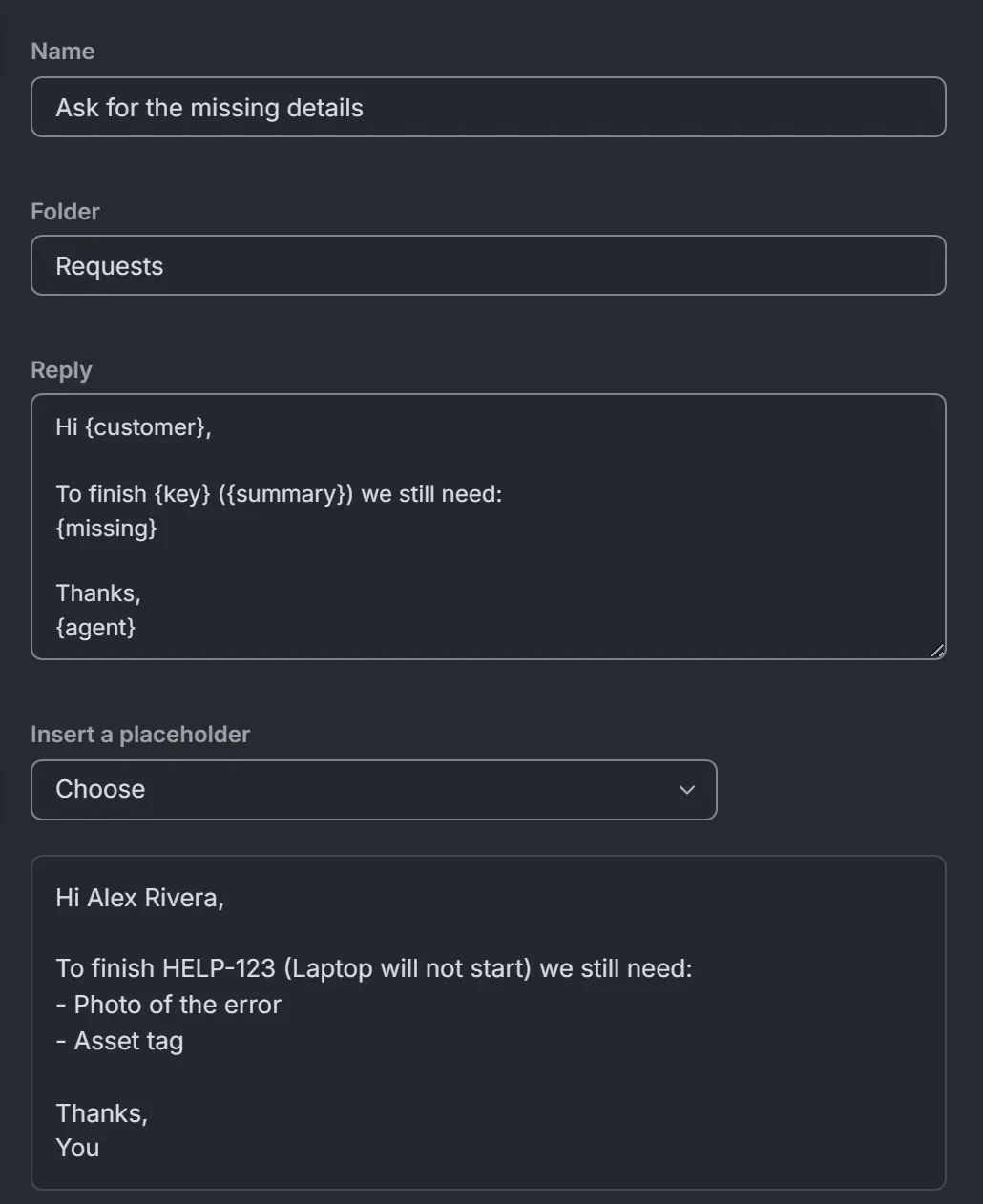
A saved reply, and the same reply filled in for one request. {missing} becomes one line per item. Sample data.
Two things to know before you save these templates there:
- Saved replies are posted as public replies that the customer can see. Don’t save the internal notes (7 and 8) in RequestOps; keep those as canned responses in Jira.
- Only the placeholders in the table fill in.
{reason}and{date}in templates 2 and 5 do not, and the reply is posted exactly as saved. Replace them with your own words before saving, or copy the reply and edit it in Jira’s reply box for that one request.
If you already keep saved replies in another app, you can import them from a JSON or CSV export. RequestOps maps common placeholders such as $reporterName$ and $issueKey$, and leaves any it doesn’t know as plain text for you to edit. The import shows a preview first and changes nothing on your requests.