


RequestOps · Guide · 8 min read
Customer follow-ups and auto-close in Jira Service Management
By Jonas Nilsson · Published 13 October 2026
Requests that wait on the customer are the easiest to fix and the easiest to forget. The agent asks a question, the status changes to Waiting for customer, and then nothing happens for days. A good follow-up process makes sure every request either gets an answer or reaches a clear end, without anyone having to remember.
What a safe follow-up process does
Whatever tool you use, the process has the same parts:
- Ask once, precisely. Name the missing items, not “more information”.
- Remind a few times, at a steady pace. For example, two reminders three working days apart.
- Stop as soon as there is a reason to stop: the customer replies, the items arrive, or the request is resolved or leaves Waiting for customer.
- Close only by a separate rule, with a longer delay than the reminders and a closing note that says how to reopen.
- Reopen when the customer replies after closing, for a limited time, for example 14 days.
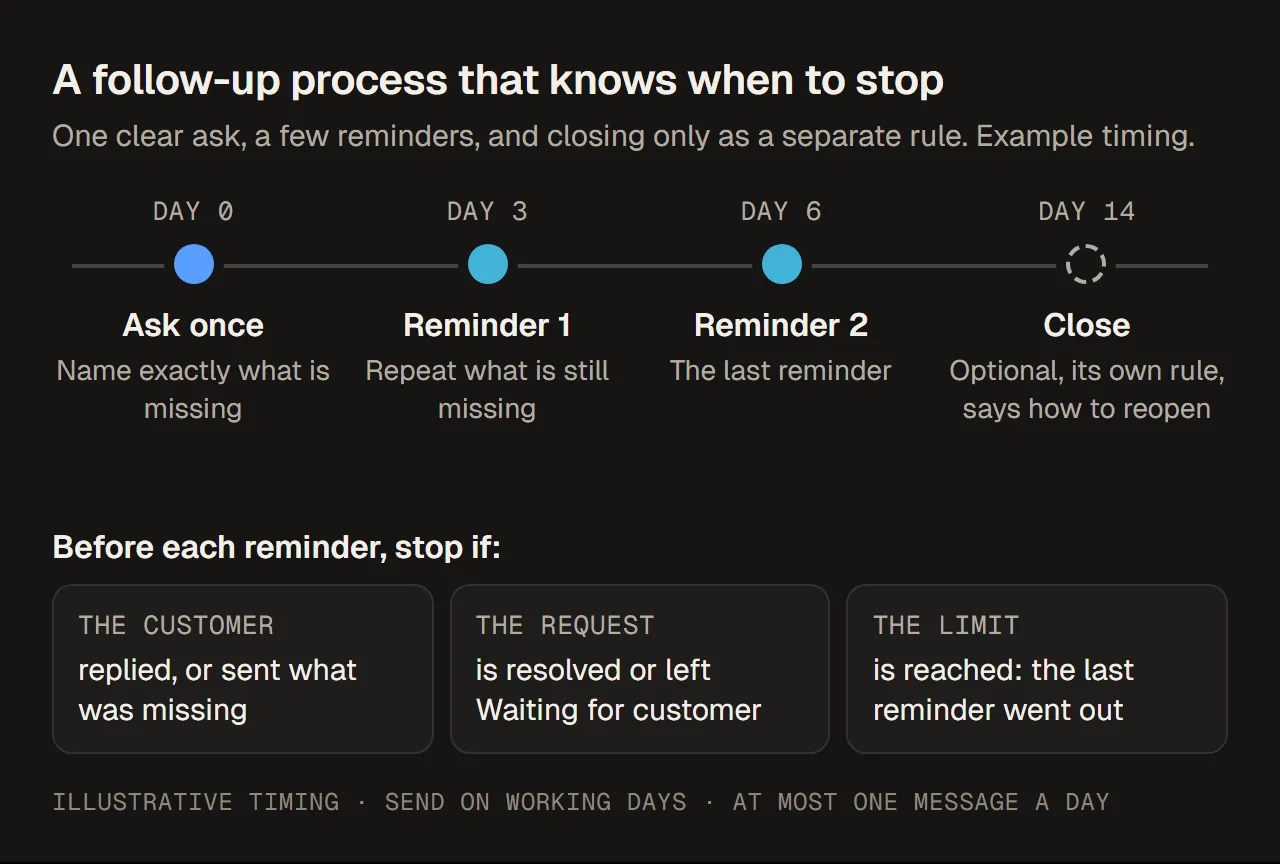
An example timeline. The days are a starting point, not a rule.
Start with one clear ask
The first message decides how fast the answer comes back. List each missing item on its own line, say why you need it when that isn’t obvious, and say what happens next. Ready-made wordings are in Customer follow-up message templates.
Post it with Reply to customer, not as an internal note, so the customer can see it on the portal and is notified.
A public reply is not the same as a delivered email. Jira emails the person who raised the request, people in organisations the request is shared with, and anyone added as a reporter, request participant or approver who has verified their email address. An address that bounced once goes on a suppression list and gets no more email until it is unblocked. The customer notification log only shows failed notifications, and only for 21 days. If something important depends on the reply, check the request rather than assuming the email arrived.
Sources: Atlassian, What notifications do my customers receive, bounced emails and customer notification logs.
Build it with Jira Automation
Jira Service Management has no single “follow up with the customer” switch, but an Automation flow (until recently called a rule) can do it. Atlassian documents the pieces:
| Piece | How Atlassian describes it |
|---|---|
| Moving the status when people comment | A flow on Work item commented: an agent’s public comment moves the request to Waiting for customer, and a customer’s comment moves it back to Waiting for support. Many service spaces use a flow like this. |
| Closing inactive requests | The template “Auto-close old Jira support issues”: a daily scheduled flow with the JQL status = "Waiting for customer" and updated < -5d, which transitions the request and adds a comment. |
| Reopening on reply | The template “Re-open issue if customer comments on a closed issue”, which Atlassian says often goes with auto-close. |
| Reminders before closing | Not a template. Atlassian’s follow-up article describes one scheduled flow with several stages and custom date fields, or separate SLAs and flows for each reminder. |
Sources: Auto-close template, Automate follow-ups in Jira Service Management Cloud, checked 13 October 2026.
Here is an outline of the staged approach, with two reminders and closing. Create two custom fields first, a number field “Follow-ups sent” and a date field “Last follow-up”, and test on a small JQL scope before turning it on for a whole space.
Flow 1: Customer follow-ups
Trigger: Scheduled, every weekday at 09:00, with this JQL:
  project = HELP AND status = "Waiting for customer"
  AND NOT status CHANGED DURING (-3d, now())
  AND ("Last follow-up" is EMPTY OR "Last follow-up" <= -3d)

If "Follow-ups sent" is empty:
  Add comment, shared with the customer (reminder 1)
  Set "Follow-ups sent" = 1 and "Last follow-up" = now
Else if "Follow-ups sent" = 1:
  Add comment, shared with the customer (last reminder)
  Set "Follow-ups sent" = 2 and "Last follow-up" = now
Else if "Follow-ups sent" = 2 and the status has not changed for 14 days:
  Transition to Resolved and add the closing note

Flow 2: Reset
Trigger: Status changed from "Waiting for customer"
  Clear "Follow-ups sent" and "Last follow-up"
An outline, not a tested export. Adjust the project, statuses and days to your space.
When you build it, watch these points:
- How replies stop the reminders. Follow-ups stop because the comment flow changes the status when the customer replies. Atlassian notes that the comment flow can fail for someone with two roles on the request, such as an agent who raised their own request. Test with a real customer account, and check that the status changes.
- “Updated” resets. A reminder comment updates the request, so a condition like
updated < -5drestarts its count after every reminder. The outline above avoids this by checking status changes and its own date field instead. - Public, not internal. The comment action must share the comment with the customer, or they never see the reminder.
- Only in the right status. Limit the JQL to Waiting for customer, and to the request types you mean, so requests waiting on approvers or other teams are never chased as if the customer were slow.
- Usage. Automation is metered in steps. Each trigger, condition and action that runs counts, including a scheduled flow that finds nothing. A scheduled search returns at most 999 work items. Check your plan’s allowance in Atlassian Administration.
- Who can change it. Space admins can manage flows for their own space; flows across several spaces need the Administer Jira permission.
Sources: Automation triggers, service limits, how usage is calculated, permissions.
If you have one or two spaces and simple request types, this is a sensible approach that costs nothing beyond your Automation usage. A side-by-side comparison with an app, on one defined scenario, is in JSM Automation vs RequestOps.
Or set it up in RequestOps
RequestOps builds the same process from each request’s checklist: the list of what a request still needs, such as “Line manager named” or “Signed form attached”, set up per request type. RequestOps suggests one from each space’s request types. Because it knows which items the customer still has to provide, it asks and reminds about exactly those.
The first ask. On a request, Ask the customer writes the message from the missing items. The agent can edit it, sees exactly what the customer will see, and sends it as a public reply. It waits about 10 seconds with an Undo button.
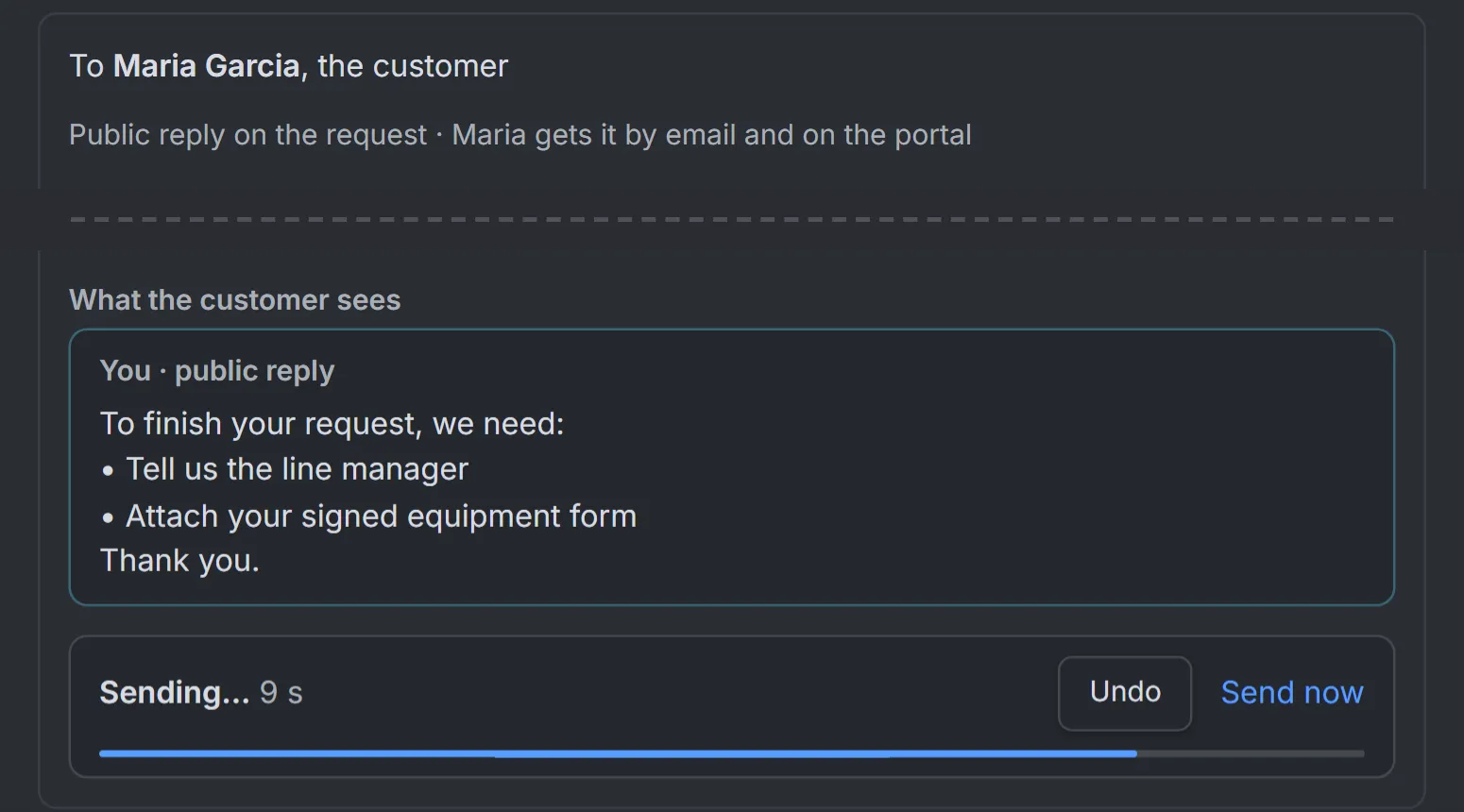
The first ask: what the customer will see, and the Undo bar. Sample data.
Reminders. A Jira admin turns on Ask customers again in Settings › Messages › Nudges and messages, and chooses the spaces, the delays and how many times:
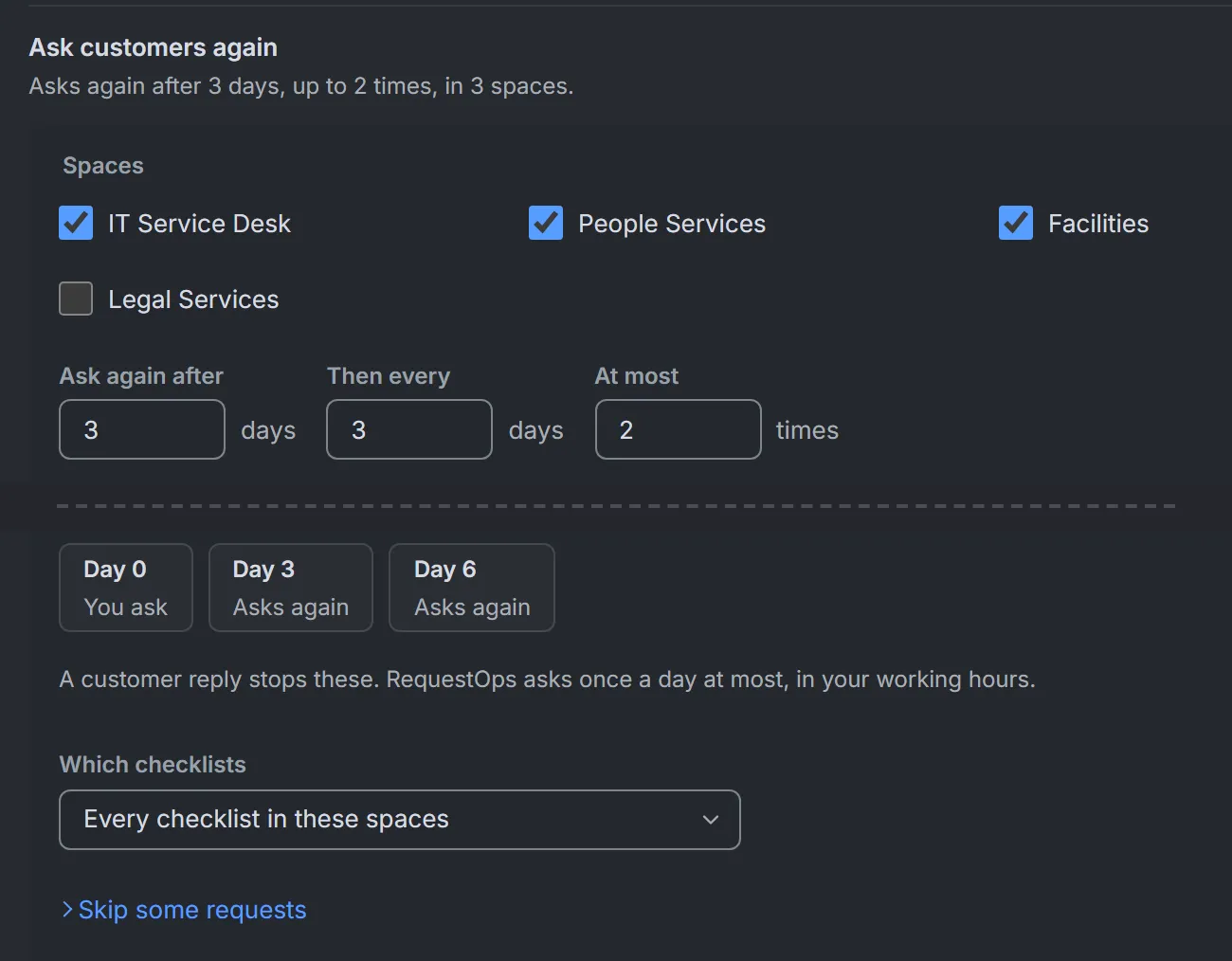
Reminder settings at their default timing: after 3 days, then every 3 days, at most 2 times. They stay off until an admin turns them on. Sample data.
How the reminders behave:
- They only follow an ask sent from RequestOps. Reminders start only after an agent used Ask the customer; a normal reply in Jira doesn’t start them. Each reminder lists only the items from that ask that are still missing.
- They stop by themselves when the customer replies publicly, when the asked items are done, when the request is resolved, when it moves to a status or work type you excluded, or when the limit is reached. If someone other than the customer replies publicly, reminders stop too, to be safe.
- They are posted once a day at the start of your working day, on working days only. The delays are counted in calendar days. They go out under the app’s name, never a person’s.
- Each one appears in the request’s history with the reason it was sent.
Closing. Close unanswered requests is a separate switch, with its own delay (14 days by default), which must be later than the first reminder. It stays off until you have chosen, for each checklist, the transition that closes a request. RequestOps lists the transitions into a done status; a transition that asks for fields it can’t fill, other than a resolution, can’t be chosen, and the screen says why. It checks your choice against an open request when you choose it, and again on each request before closing.
It closes a request only when nothing else is pending: no approvals, no vendor wait, no open item waiting on someone other than the customer. Before closing, it posts a note that tells the customer how to get help. With Reopen when the customer replies on, the note says a reply will open the request again, and it does; otherwise it says to reply or raise a new request.
The setup guide is in the RequestOps documentation.
Before you switch anything on
- The first ask names the missing items and goes out as a public reply.
- Reminders only run in the statuses where the customer really has the next step.
- A customer reply stops reminders, tested with a real customer account.
- Reminders are limited in number, and sent on working days.
- Closing has a longer delay than the last reminder, and a note that explains how to reopen.
- A reply after closing reopens the request, or the note tells the customer what to do instead.
- You know who in your team can change these flows or settings, and where.