
 Bunlings: sprint apps for Jira





It is Thursday morning and the SLA on a request has turned red. You look closer: your agent asked the customer a question on Monday. Nothing has happened since, and the clock kept running the whole time. The customer is the one who is late, but the report will say you were.
An SLA is not a stopwatch. It counts the time your rules say should count, and a pause condition is the rule that stops it while the ball is with the customer. It takes two minutes to set up. The part that goes wrong is everything around it.
Where to set the pause
You need to be a space admin.
- In your service space, choose Space settings, then Request management, then SLAs.
- Find the SLA, for example Time to resolution, and choose Edit.
- Scroll down to Conditions.
- Next to Pause counting time when, choose the plus icon and add the condition. Atlassian describes this condition as optional, and gives waiting for a customer to respond as the example.
- Choose Save.
In a team-managed space the path is the same, but the SLA form has three fields called Start, Pause on (optional) and Stop. With several conditions in one field, the SLA acts when any one of them is met.
Atlassian’s page does not list the conditions you can choose, and what you see depends on your space. For this job the usual choice is the status your workflow uses while the customer has the next step. Many service spaces call it Waiting for customer. Pick whatever your agents really use.
Sources: Atlassian, Set up SLA conditions, Create and edit an SLA and Create and edit SLAs in team-managed spaces.
What you will see
On a request and in queues, a paused SLA shows a pause icon instead of a running clock. Atlassian lists waiting for a customer as a typical reason for it. Time counts again as soon as no pause condition applies.
Editing an SLA also affects requests that are already open. Atlassian says an SLA you create applies to all relevant work items, open and closed. When you edit one, completed cycles stay as they are, and ongoing cycles are recalculated with the new setup. Depending on what you changed, an open cycle can restart or disappear. Change one SLA at a time and look at a few open requests afterwards.
Source: Atlassian, About service level agreements (SLAs), Create and edit an SLA.
Four traps
1. Nothing moves the request back when the customer replies. If the status stays Waiting for customer after the customer answers, the pause condition is still met and the clock stays stopped. In spaces created before 30 August 2021, Atlassian’s preset flow Comment updates reply status does this: a customer comment moves the request to Waiting for support, and a comment from your team moves it to Waiting for customer. In newer spaces you build the same thing in Automation with the Work item commented trigger. Test it with a real customer account, not an agent. Atlassian warns that giving the same person the Reporter and the Assignee role can make SLAs behave inaccurately.
2. The status is used inconsistently. A Community thread from April 2025 describes it well: an SLA set to pause on one status paused on some requests and not on others, and the thread never found out why. If you see this, open a request that behaved wrongly and check its history. Did it ever enter that status? Which transitions did it take?
3. The calendar is a separate rule. A pause stops the clock. The SLA calendar decides which hours count when it runs. A request paused over a weekend and one not paused can look the same, so check both when numbers surprise you.
4. The pause makes the wait invisible. This is the quiet one. A request can wait nine days for the customer and still show a perfect SLA. That is correct, and it is also why the SLA can’t tell you how long people really waited, or whether Waiting for customer is used as a parking spot. To see those requests, run a search in Jira:
status = "Waiting for customer" AND NOT status CHANGED DURING (-3d, now())It lists requests that have been in that status for at least three days. Atlassian uses the same pattern in its follow-up guide. To see every request whose SLA is paused right now, whatever the reason, Jira has a search function for it:
"Time to resolution" = paused()Use the name of your own SLA. Save either search as a filter or as a queue, and open it once a week.
Sources: Atlassian, Available preset automation flows, Automation triggers, Automated follow-ups, Set up SLA calendars, JQL functions. The Community thread is SLA keeps counting even after Pause during status was set up. More on how the two clocks relate: Waiting time vs SLA time.
Where the native setup stops
Jira pauses the clock. It does not tell you who the request is waiting on, how long the customer has had it, or whether a breach happened on your side or theirs. And it can’t nudge anyone. For that you read a pause icon and guess.
Seeing the wait next to the SLA in RequestOps
RequestOps does not change your SLA clocks. It only reads them. What it adds is the context around them.
First, you tell it what each status means. An admin opens Settings, then Time, then Waiting time, and under Who each status waits on sets each status to Customer, Your team, Approver, Another team, Vendor or Not waiting. The default, Auto, guesses from the status name.
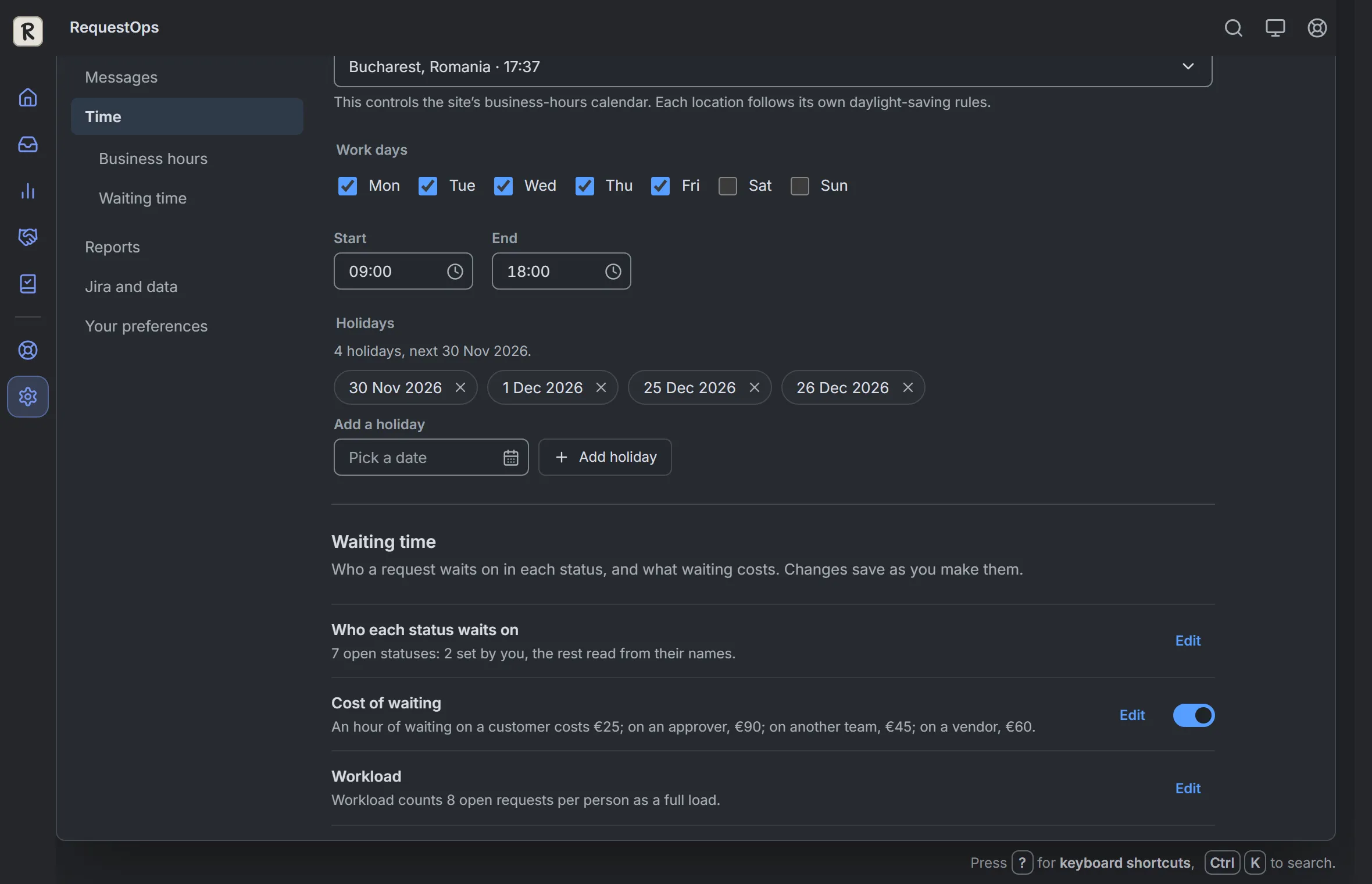
Settings, then Time, then Waiting time. Sample data.
Then the SLA report at the bottom of Insights, Overview, shows how often each SLA was met and who the breached requests were waiting on: your team, a customer, an approver, another team or a vendor.
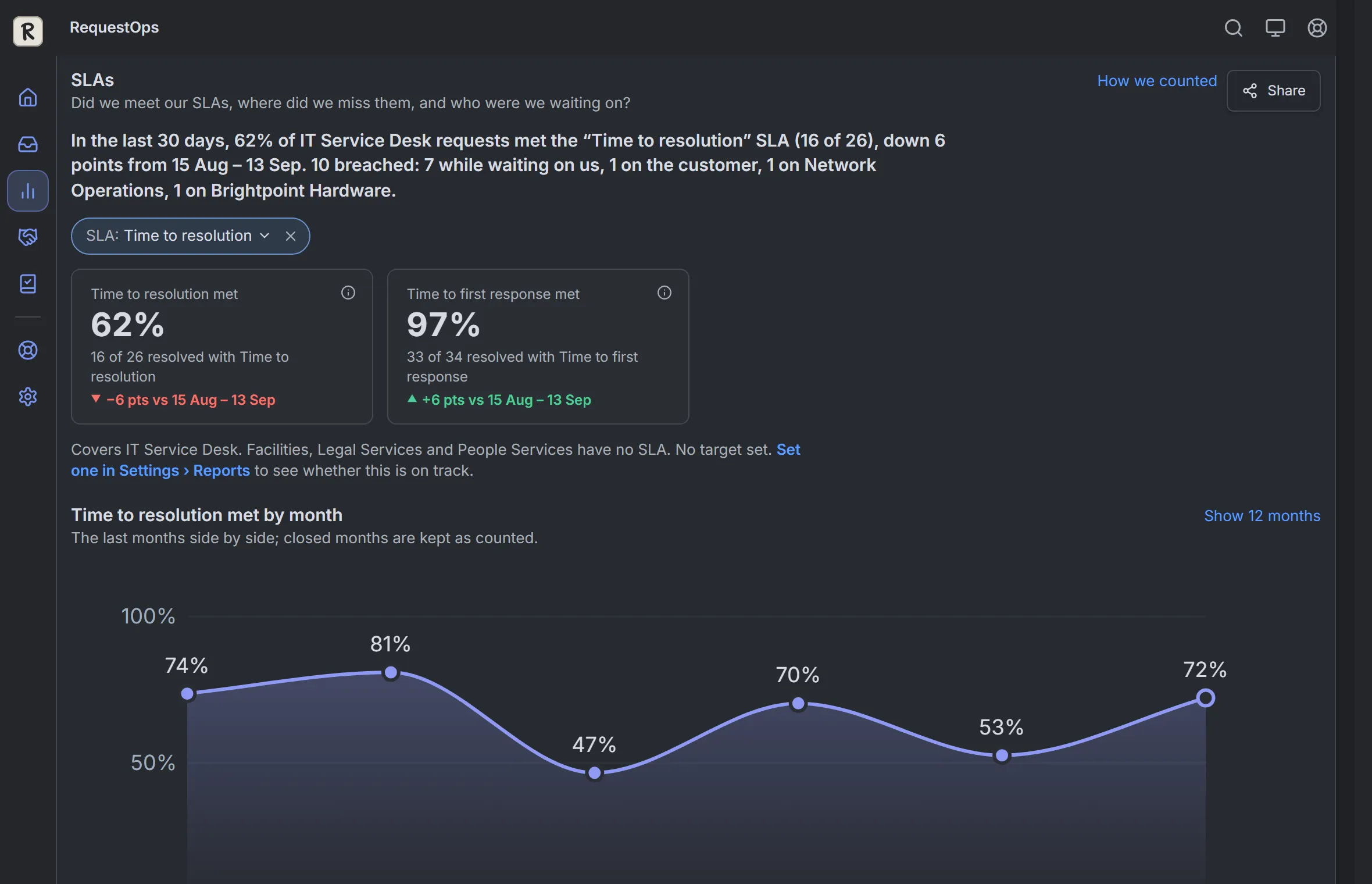
The SLA report in Insights. Sample data.
Above it, Breached or about to breach lists open requests close to their limit with who holds each one and an Ask or Nudge button. Details are in The SLA report and Tell RequestOps what a status means.
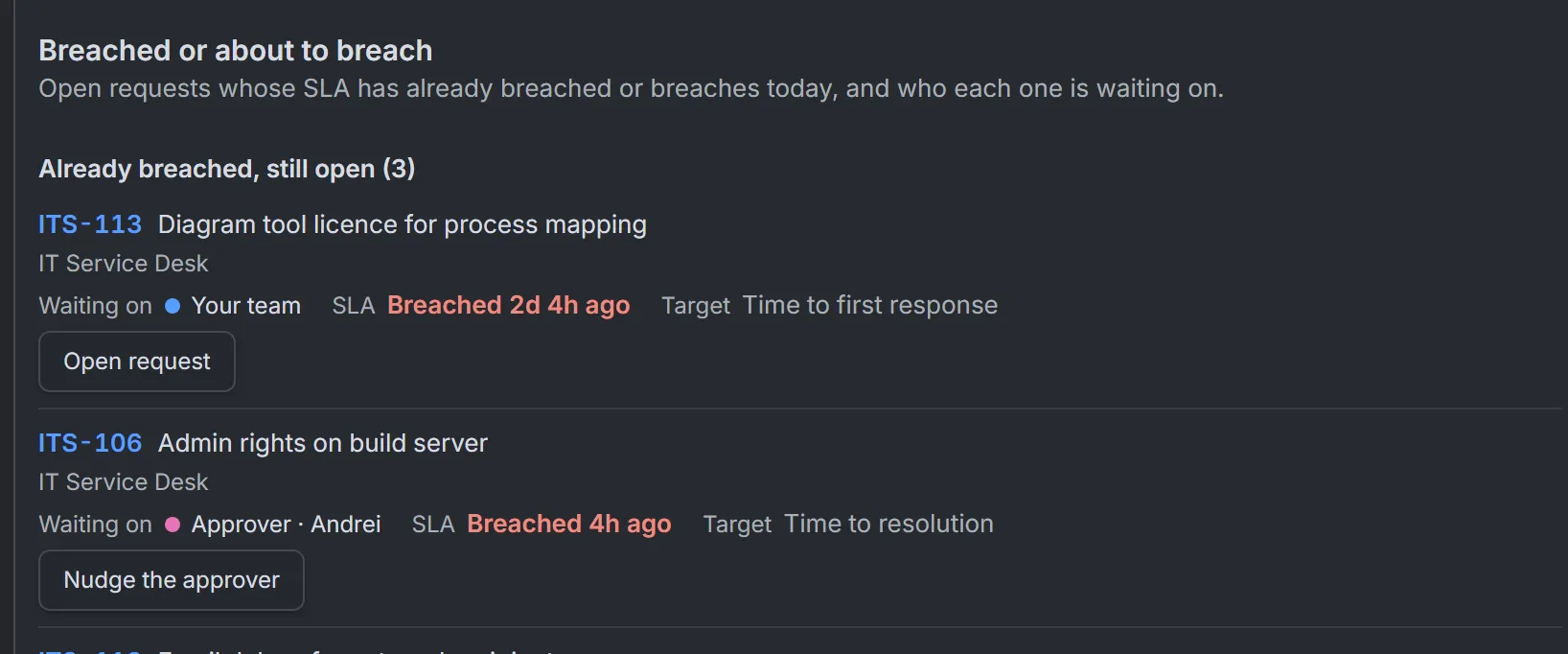
Breached requests with who each one waits on. Sample data.
One difference to know about: RequestOps counts requests, where Jira’s own reports can count every SLA cycle. A reopened request can count twice in Jira and once in RequestOps, so the percentages may differ a little.
Before you save the pause
- The pause condition names a status that agents really use for “waiting for the customer”.
- Something moves the request back when the customer replies, tested with a real customer account.
- The Reporter and Assignee on your test requests are different people.
- You looked at a few open requests after editing the SLA.
- A saved search shows requests that stay in the waiting status for days.