
 Bunlings: sprint apps for Jira





An offboarding request can reach Done while the person still has access somewhere. Usually nobody did anything wrong: each team closed its own task, and nobody looked at the whole picture. Weeks later someone asks “was her access really removed?”, and the answer is spread across five tasks, two systems and someone’s memory.
This checklist keeps one request in Jira Service Management as the place where everything meets, and for every step it keeps three questions apart: was it done, is there a record, and has someone checked that record.
Done, recorded and checked are not the same
| What it means | Example | |
|---|---|---|
| Done | The owner says the step is finished. In Jira, their task moved to a done status. | IT’s task “Remove access” is Done. |
| Recorded | A record exists that someone else can open later. | The person’s page in Atlassian Administration shows no app access. |
| Checked | Someone looked at that record and noted what they saw, and when. | The Jira admin opened the user in Atlassian Administration on the last day and wrote down the result. |
Most offboarding gaps sit between the first and the last column. A step can be done with no record: the laptop came back, but nobody wrote down which one. A record can exist that nobody checked: the person left one group, but another group still gives them Jira access (see why removing a user from a group did not remove Jira access).
Not every step needs all three. Decide up front which steps must be checked, usually access to systems with sensitive data, and accept “done” for the rest.
Who owns each part
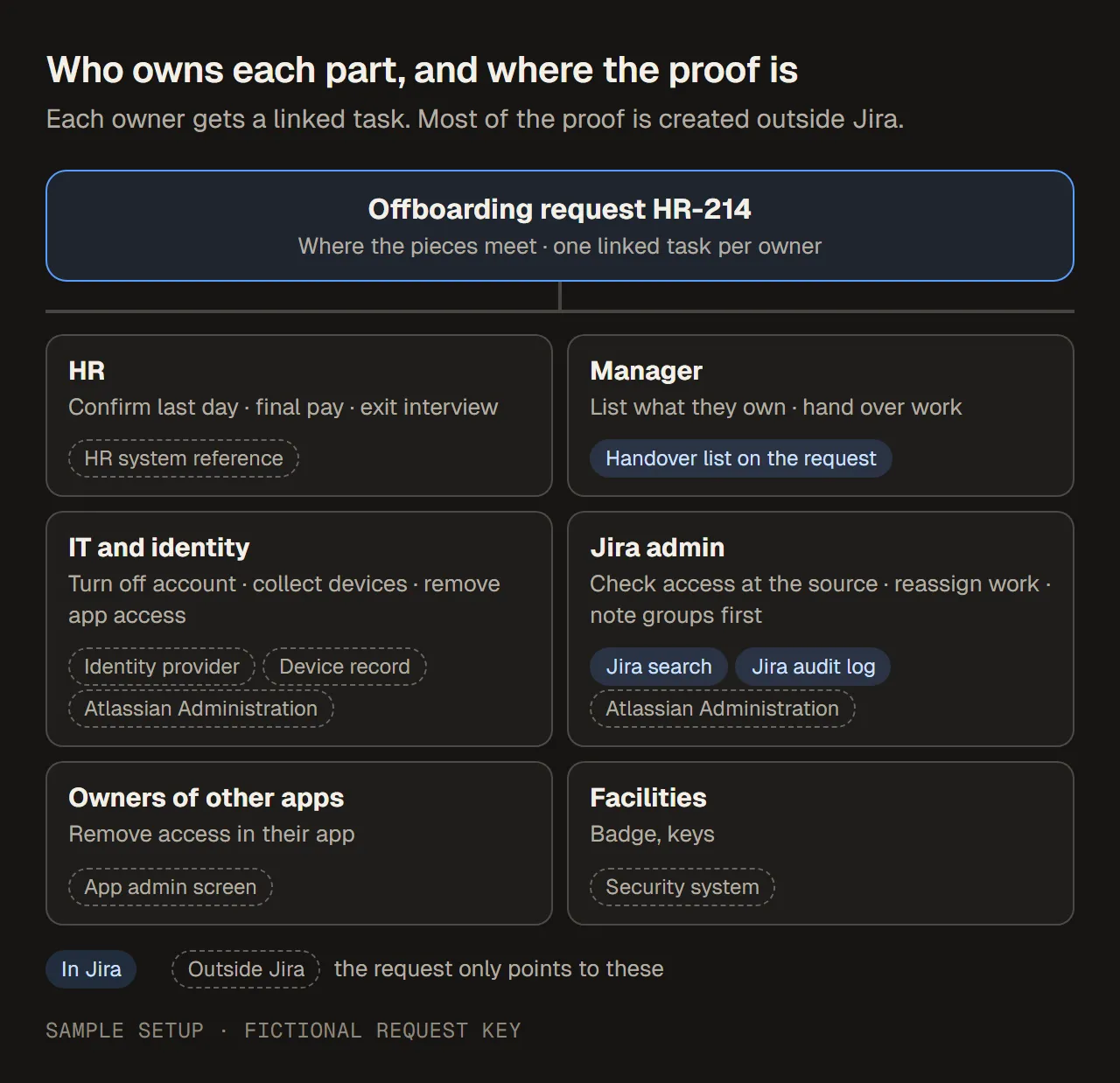
Who does what, and where each kind of proof lives. Most of it is created outside Jira. Sample setup.
| Owner | Steps | Where the proof is |
|---|---|---|
| HR | Confirms the departure and last day, runs final pay, holds the exit interview | HR system (outside Jira), plus a reference on the request |
| Manager | Lists what the person owns or runs, hands over their work | A handover list on the request |
| IT and identity | Turns off the account in the identity provider or Atlassian Administration, collects devices, removes access in apps IT runs | Identity provider and device records, Atlassian Administration |
| Jira admin | Checks Atlassian access at the source, reassigns open work items, notes group memberships before they disappear | Atlassian Administration, Jira search, Jira audit log |
| Owners of other apps | Remove access in systems IT doesn’t run, such as finance or sales tools | That app’s own admin screens |
| Facilities | Badge, keys, desk | The building or security system |
The request is where these pieces meet. It is not where most of the proof is created. Say that plainly in the request, rather than letting a closed request suggest that Jira holds everything.
The checklist
Copy this into your request type’s description, a Confluence page or your own checklist. Each line names the owner and the proof to point to.
OFFBOARDING CHECKLIST
Request: ________   Person: ________   Last day: ________

BEFORE THE LAST DAY
[ ] HR       Departure and last day confirmed
             Proof: HR system reference noted on the request
[ ] Manager  What the person owns or runs is listed
             (work items, shared files, recurring jobs, apps they administer)
             Proof: handover list on the request
[ ] Manager  Open work items reassigned or handed over
             Proof: a Jira search shows none still assigned to the person
[ ] IT       Devices and accessories to collect are listed
             Proof: device or asset record
[ ] Admin    Current groups and app access written down
             Proof: list copied from Atlassian Administration, with the date

ON THE LAST DAY
[ ] IT       Account turned off in the identity provider, or access
             suspended or removed in Atlassian Administration
             Proof: identity provider record, or the user's page in
             Atlassian Administration
[ ] IT       Access removed in the other apps IT runs
             Proof: each app's admin screen
[ ] Owners   Access removed in apps run by other teams (one task each)
             Proof: the owner's confirmation on their own task
[ ] Fac.     Badge and keys returned or turned off
             Proof: building or security system record

AFTER THE LAST DAY
[ ] IT       Devices returned, or recovery started
             Proof: device record with the date
[ ] HR       Final pay run
             Proof: payroll reference only (no amounts in Jira)
[ ] HR       Exit interview held or declined

CLOSING REVIEW
[ ] Admin    Access removal checked at the source, not only the task
             Proof: what was checked, by whom, when
[ ] Admin    Steps that could not be checked are listed, with the reason
[ ] Owner    Request closed only when every linked task is done
Two habits keep it useful. Write proof as a pointer (“asset record LT-0457, returned 5 Oct”), not a copy of the record. And keep personal detail out of Jira: the reason someone left, pay amounts and HR notes belong in the HR system, not in a request many agents can open.
Set it up in Jira Service Management
- One request type for offboarding. Atlassian’s HR service management template comes with request types and workflows for processes such as onboarding and offboarding, or you can add your own request type to an existing service space. Ask for the person, the last day and the manager on the form.
- A linked task for each team. Each team works in its own space, so create a task there and link it to the request with is blocked by. That keeps their work in their queue and the dependency visible on the request. You can link by hand with Link work item, or build an Automation flow, as outlined below.
- Approvals, if HR or a manager must confirm. An approval step holds the request until someone approves it. Approvers don’t need a Jira Service Management licence; they only need to be customers of the service space. The request’s activity then shows who was involved in the approval and when they decided.
- Internal notes for internal detail. The person who raised the request, often HR or the manager, sees public replies on the portal. Notes about access, devices and gaps go in Add internal note.
- Close last. The request is done when every linked task is done and the closing review is written, not when IT’s task closes.
Automation flow: Offboarding tasks
Trigger:   Work item created
Condition: Request type is "Offboarding"
Actions:   Create work item in the IT space
             "Remove access for <person>"
           Link work items: the request "is blocked by" that task
           Create work item in the Facilities space
             "Turn off badge for <person>"
           Link work items: the request "is blocked by" that task
           (repeat for each team)
An outline, not a tested export. Adjust spaces, work types and wording to your site.
A flow that creates work in several spaces must cover those spaces, and flows across several spaces need the Administer Jira global permission. Test it on one sample request before you turn it on.
Sources: Atlassian, HR service management template, What are approvals?, View the different types of activity on a work item, Automation triggers, Automation actions and Automation permissions, checked 13 October 2026.
Turn off Atlassian access: suspend, remove or deactivate
Atlassian Administration gives you three ways to stop someone’s access. In the centralized user management experience, go to Directory, then Users, find the person, open the more actions menu (•••) and choose:
| Action | What it does | Coming back |
|---|---|---|
| Suspend access | Stops access to your organization’s apps. They aren’t billed. | Restore access brings back their roles and group memberships. |
| Remove user | Stops access. They aren’t billed. Atlassian notes that removing a user removes some of their content. It doesn’t delete their Atlassian account. | You invite them again and reassign roles and groups by hand. |
| Deactivate account | Only for managed accounts. The account can no longer be used to sign in to apps in any organization. Personal data is kept. | Reactivate account restores it. |
If your organization provisions users from an identity provider, deactivate the person there instead. In the original user management experience, the same actions are on your site’s Users page and apply to that site only. Organization admins can do all of this; site admins (original experience) and user access admins (centralized experience) can do some of it. The differences are explained in suspend vs remove user access in Atlassian.
Then find what the person still has assigned. In the work item search, assignee = <their account ID> AND statusCategory != Done lists their open work items, ready to reassign.
Sources: Atlassian, Remove user or suspend their access, Deactivate a managed account, JQL operators, checked 13 October 2026.
Check the removal, not only the task
A done task means someone said the step is finished. For the steps you decided must be checked, look at the source and write down what you saw.
- The user’s page in Atlassian Administration. Open it after the change and note in an internal note what access remains, with the date and time.
- Write down group memberships before the change. Removing a user drops their roles and groups, so afterwards you can’t see which groups they were in. A list made beforehand is often the only record.
- The Jira audit log is in Jira under Settings, then System, then Audit log, for people with the Administer Jira global permission. It records configuration changes that affect users and spaces, and you can export up to 100,000 events as a CSV file. It isn’t available if all your Jira apps are on the Free plan, and Atlassian notes a known problem: for changes made on the user management pages, it may not show who made them.
- The organization audit log in Atlassian Administration, under Insights, then Audit log, needs Atlassian Guard (Standard or Premium) or an Enterprise plan. Without one, it stores nothing. It shows the last 7 days by default and up to 180 days if you change the dates.
For everything outside Atlassian (the identity provider, laptops, other apps), Jira only knows what someone wrote or attached. Point to those records; don’t pretend the request holds them.
Sources: Atlassian, Audit activities in Jira and View audit log activities, checked 13 October 2026.
Worked example: a filled task-to-evidence table
Here is the table for one fictional offboarding, as it stood at the end of Monday 5 October 2026, one working day after the last day. The request is HR-214 in the People Services space. Sample data: fictional company, people and keys.
| Step | Owner | Task | Done | Proof, and where it is | Checked |
|---|---|---|---|---|---|
| Departure and last day (Fri 2 Oct) confirmed | HR | HR-214 | Yes | HR system reference, noted on HR-214 | Not needed |
| Open work items handed over | Manager | HR-214 | Yes | Jira search: 0 open items assigned, 2 Oct 16:10 | Yes, Jira admin |
| Groups and app access written down | Jira admin | HR-214 | No | Not done before the account was removed | Gap |
| Atlassian access removed | IT | ITS-881 | Yes | User page in Atlassian Administration: no app access, 2 Oct 17:05 | Yes, Jira admin |
| Identity provider account turned off | IT | ITS-881 | Yes | Screenshot of the identity provider record, attached to ITS-881 | Partly: screenshot only |
| Finance app access removed | Finance app owner | FIN-77 | Yes | Owner’s comment on FIN-77 | No: confirmation only |
| Laptop returned | IT | ITS-882 | Yes | Asset record LT-0457, returned 5 Oct | Yes, IT lead |
| Badge turned off | Facilities | FAC-310 | No | Due Mon 5 Oct, now late | Open |
| Final pay run | HR | Outside Jira | Yes | Payroll reference, outside Jira | Not needed |
The “Checked” column is the one that matters later. Three rows can’t honestly say Yes, and the request should say so in a closing note, for example:
Open points, HR-214 (internal note, Mon 5 Oct 2026, Jira admin)
1. Groups before removal were not written down, and our plan does not
   include the organization audit log. We can show that she has no
   access now, not which groups she was in.
2. Finance app: removal confirmed by the app owner on FIN-77, not
   checked in the finance app itself.
3. Badge: FAC-310 is late. HR-214 stays open until it is done.
Point 3 gets resolved; points 1 and 2 stay as known limits. That is fine, as long as they are written where the next reader will find them. The evidence handoff template turns this table into a one-page record at closing.
Common mistakes
- Closing the request when IT’s task closes. HR, the manager and other app owners may still have work open.
- One big task for “IT” that hides five systems. Give each system owner their own task, so each one can be done, late or checked on its own.
- Proof in chat or in someone’s head. If it isn’t on the request or a linked task, the next reader can’t find it.
- Assuming a group change removed access. Another group, or a direct grant, may still give access. Check the user, not only the group.
- Pasting HR detail into the request. Point to the HR record instead.
- Only offboarding Jira. Atlassian access is one system among many. The checklist covers the others because the request is where they meet.
How RequestOps helps
RequestOps adds the structure without replacing your request type.
- An Offboarding journey. Started from a request’s actions menu (…) with Start journey, or automatically for the request types you choose, it creates a task in each team’s space and links it to the request. The built-in Offboarding template has four tasks: remove access and collect the laptop (IT), run final pay and hold the exit interview (HR). The laptop task is created once access removal is done. A Jira admin first picks the space and request type for each team, and due dates can count in working days from a date on the request, such as the last day. If a task couldn’t be created, the tracker says so and offers Try again.
- An Offboarding checklist. The template has seven items: Last day is set, Manager is named, Departure confirmed by HR, Access removal confirmed, Devices returned, Tasks for other teams are done and Completion reviewed. The first two watch fields on the request. Tasks for other teams are done marks itself done when every linked work item is done. The others are confirmed by a person in the request panel. You can also stop the request moving to Done while required items are open.
- An Evidence summary of the request, from its history, with the checklist, approvals and key dates.
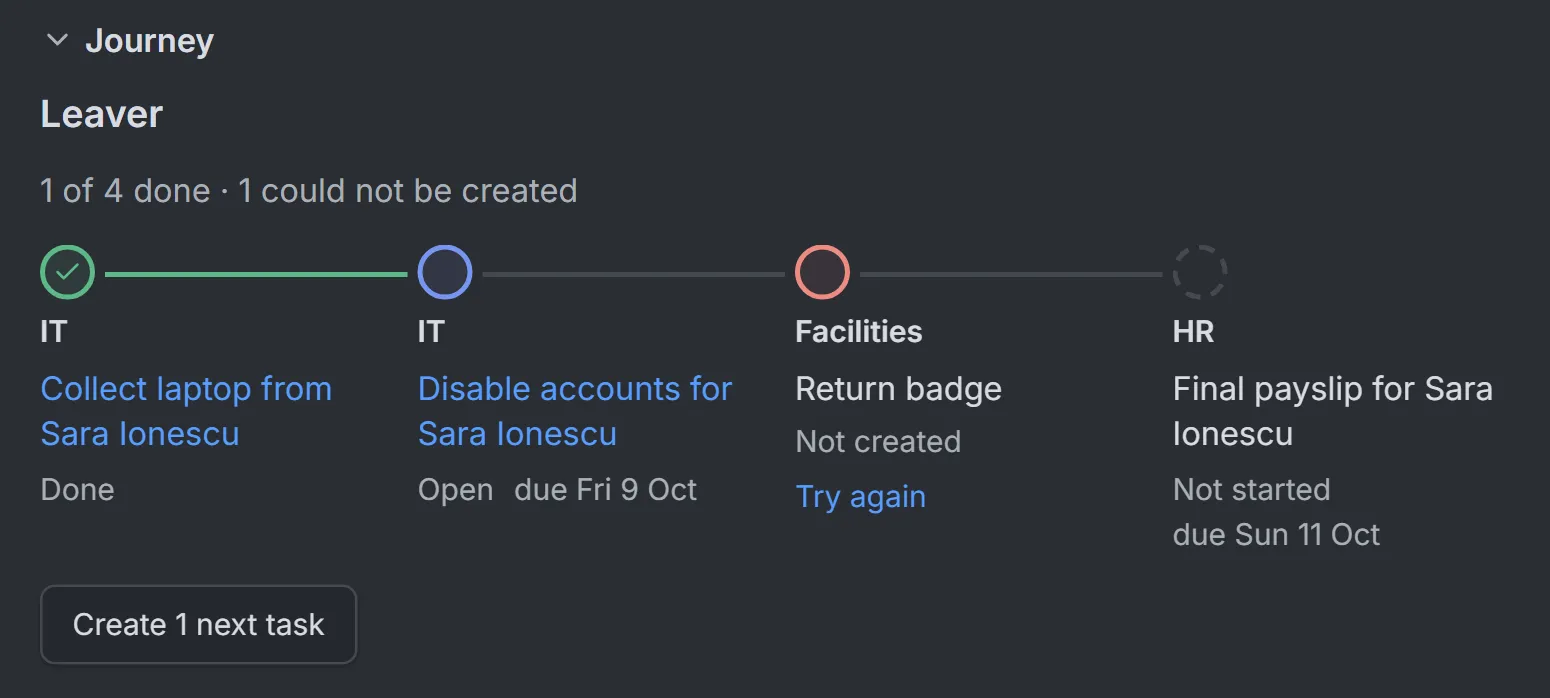
A leaver journey on another sample request, with the step names that team chose. One task couldn’t be created, and the tracker says so instead of hiding it. Sample data.
What it doesn’t do: RequestOps doesn’t remove anyone’s access, and it doesn’t read your HR system, identity provider or device records. Access removal confirmed records that a person confirmed it. Checking at the source, and writing down what you couldn’t check, stays with your team.
The setup guides are Start onboarding or offboarding and Build a journey template.