


A manager asks for a former analyst to lose Jira. You remove them from the Jira users group. The next morning the manager says they can still open Jira. The removal wasn’t wrong, just incomplete. Jira access in Atlassian Cloud is built in layers, and one group is rarely the only path.
There are two different situations, and the checks differ:
- Access never went away: another path still gives Jira.
- Access came back: something added it again after you removed it.
There is a third possibility: it isn’t Jira app access at all.
Atlassian’s admin pages now call this app access. Older pages and many admins still say product access. They mean the same thing.
First: is it really Jira app access?
“They can still see Jira” can mean three different things. Find out which one before you remove anything else.
| What the person can do | What it is | Where to look |
|---|---|---|
| Open Jira and work in it | App access survived | This article |
| Open Jira, but sees a space (formerly project) or work item they shouldn’t | Permissions inside Jira, not app access | Jira’s Permission Helper: Settings › System › Admin Helper › Permission Helper (Jira admins) |
| Not open Jira, but still gets emails or follows old links | Notifications or links sent before the change | Ask what they actually see, and when |
If the person should keep Jira but lose one space, removing more groups is the wrong fix. Check the space’s permissions instead.
Sources: Use the Jira Admin Helper, checked 13 October 2026.
The one check that sorts it out: the Apps tab, now and later
Open the person’s profile:
- Centralized user management: Atlassian Administration › Directory › Users › select the person › Apps tab.
- Original user management: Atlassian Administration › select the site › Users › select the person › Apps tab.
Then compare two moments:
- Jira is still listed right after you removed the group. Access never went away. Another path is active. Go to the next section.
- Jira was gone, then reappeared hours or days later. Access came back. Go to Reasons access came back.
- Jira is not listed, but the person says they can still get in. Go to When the Apps tab says no but the person says yes.
Sources: Remove app access for users, checked 13 October 2026.
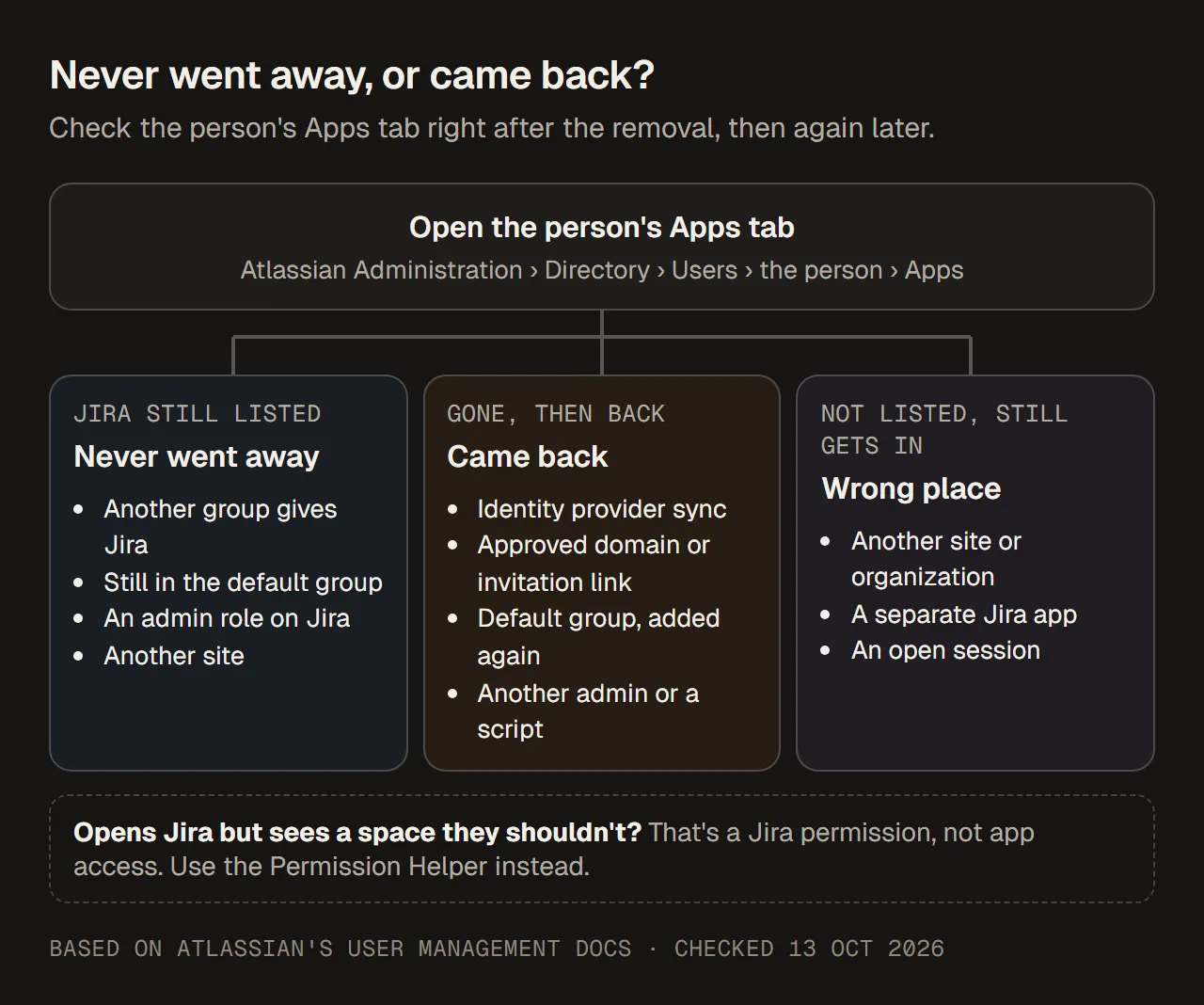
Which branch you are on decides what to check next.
Reasons access never went away
1. Another group also gives Jira
This is the most common reason. Groups grant apps, and people belong to many groups. A group called finance-reporting or all-staff can give Jira even though its name doesn’t say so. Atlassian is explicit: people in a group keep access if they are in other groups that give the same app.
How to check:
- List every group that gives Jira. Centralized: Apps › Atlassian apps › Manage app for Jira. Original: App access, then find Jira.
- Open each group (Directory › Groups › select the group) and look for the person on the Members tab.
- Don’t trust names. To see which apps a group gives, open the group’s Apps tab.
How to check which groups give Jira access walks through this in detail.
2. They are still in Jira’s default group
Every app role has at least one default group. Atlassian adds people to it automatically when you give them access to an app or a new role. That includes the times someone was given Jira “directly” from their profile: that grant put them in the default group.
Atlassian also notes that people using your site for the first time, or people mentioned in Jira or Confluence, can be added to default groups automatically. Atlassian warns this can cause unexpected licence use.
How to check: in the app’s group list from step 1 above, default groups are marked. Centralized shows a tick in the Default group column. Original labels them Default access group. Default group names vary by site, because admins can rename them.
For Jira Service Management, everyone in the default group uses an agent licence. Jira Service Management is a separate app from Jira, so check it separately on the person’s Apps tab.
3. They hold an admin role for the app
If the person is an admin of the app, Atlassian asks you to remove that admin role before you can remove their app access.
How to check: look at the roles listed for Jira on the person’s Apps tab.
4. You removed them from the wrong place
- Another site: in original user management, removal works per site. The person keeps access to other sites in your organization. Use the Site filter on the Users page to check each site.
- Another organization: the same Atlassian account can use a partner’s or client’s Jira. Nothing you do in your organization removes that. Ask for the address in their browser. If it isn’t your site, it isn’t your access to remove.
About nested groups
Atlassian Cloud does not support nested groups. If your company directory nests groups (for example, “Finance” inside “All staff”), the sync either flattens them into direct memberships or drops the parent memberships. Either way, a membership you see in Atlassian may be there because of a nested group in your directory. Fix it in the directory.
Sources: Remove app access for users, What are default groups in Atlassian?, Give users access to apps, Remove or suspend a user, Understand problems with nested groups, checked 13 October 2026.
Reasons access came back
1. Your identity provider synced the membership again
With user provisioning (SCIM) from an identity provider such as Okta or Microsoft Entra ID, users, groups and memberships come from the identity provider. Synced groups are read-only in Atlassian. Atlassian’s guidance is to manage memberships in the identity provider and make sure each change syncs. A change made only in Atlassian is not where the source of truth lives.
How to check: open the group in Directory › Groups and see whether it is synced from your identity provider. If it is, ask the identity provider’s owner to remove the person from that group, wait for the sync, then check the Apps tab again. If your company uses Google Workspace sync, the same principle applies.
2. They let themselves back in
Under Apps › App access settings, you can approve email domains. If the Required box is not ticked for an app, people from that domain join it instantly, without an invitation. The Any domain setting does the same for other domains. Invitation links let anyone with the link join, for up to 30 days. People who join this way become licensed users.
How to check: look at the approved domains, the Any domain setting and any active invitation links for Jira.
3. They were added to the default group automatically
See reason 2 above. First-time access, or being mentioned in Jira, can put someone back into a default group.
4. Someone or something granted it again
Another admin, an onboarding request, or a script using Atlassian’s APIs (such as the grant-access and assign-roles APIs) can put access back. Ask the other admins, and check any automation that adds people to groups.
Sources: Understand user provisioning, Remove app access for users, Control how users get access to apps, How does app access work?, checked 13 October 2026.
When the Apps tab says no but the person says yes
If Jira is not on the Apps tab and you have checked every site, there are three things left:
- Wrong Jira. Ask for the exact web address they open. It may be another site or another organization.
- Wrong app. They may be using Jira Service Management or another Jira app, each with its own access.
- An old session or page. Atlassian’s admin documentation doesn’t say how quickly an already-open browser tab notices the change. Ask the person to sign out, sign in again and reload, then tell you what they see.
A worked example you can follow
Sample data: a fictional person and fictional group names.
Sam left the finance team. The admin removed Sam from jira-software-users, Jira’s default group on this sample site. The next day Sam could still open Jira.
| Step | Where | What the admin found | What it means |
|---|---|---|---|
| 1 | Directory › Users › Sam › Apps | Jira still listed, straight after the removal | Never went away: another path |
| 2 | Apps › Atlassian apps › Jira › Manage app | Groups with Jira: jira-software-users (default), finance-reporting, all-staff | Three paths to check |
| 3 | finance-reporting › Members | Sam is a member | Path 2 is active |
| 4 | all-staff › Members | Sam is a member. The group is synced from the identity provider. | Path 3 is active, and owned outside Atlassian |
| 5 | Sam’s Apps tab › Jira › Remove access | Sam is taken out of every group that gives Jira | Atlassian-managed paths closed |
| 6 | Identity provider | The identity provider’s owner removes Sam from all-staff | Stops the sync from adding Sam back |
| 7 | Sam’s Apps tab, after the next sync | Jira not listed | No path left |
| 8 | Ask Sam to sign out, sign in and open the site | Sam can no longer get into Jira | Confirmed with the affected person |
Two notes on the decisions:
- Don’t simply remove Jira from
all-staff. That would cut Jira for everyone in it. Decide per path: should this person leave the group, should the group stop giving Jira, or is this a valid exception? - Keep checking. If Jira reappears a week later, you are on the “came back” branch. Check approved domains and other admins.
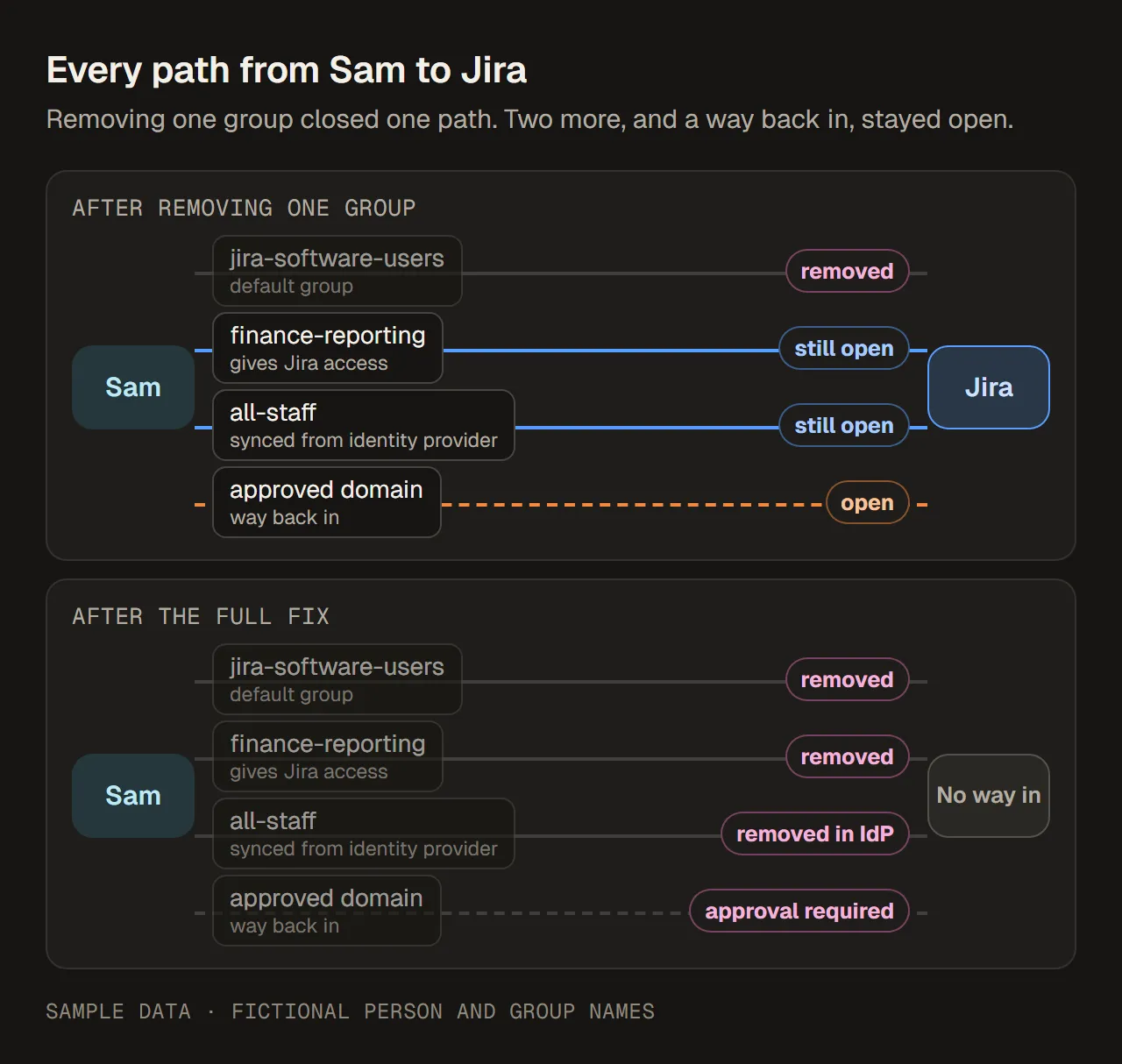
Every path to Jira for one person, before and after. Sample data.
Confirm it is really gone
Close the ticket only when all of these are true:
- The person’s Apps tab shows no Jira, on every site that matters.
- They are not in any group from Jira’s group list, including default groups.
- If an identity provider is involved, the Apps tab still shows no Jira after the next sync.
- The person (or their manager on their behalf) confirms they can no longer sign in to Jira at your site’s address.
- You recorded which paths existed, who approved each change, and any exception you kept.
About the bill: a plan’s user count includes everyone with access to at least one app under that plan. So the person keeps counting for Jira as long as any path remains. On monthly plans, Atlassian bills the highest user count in the billing period. Removing someone partway through lowers the next bill, not the current one.
Sources: Monitor your plan’s user counts, How maximum quantity billing works, checked 13 October 2026.
Common mistakes
- Assuming the group with “jira” in its name is the only path.
- Removing more groups at random instead of listing every group that gives Jira.
- Forgetting the default group that a direct grant put the person in.
- Editing a synced group in Atlassian and wondering why the change doesn’t stick.
- Leaving an approved domain open without the Required box, so people can rejoin by themselves.
- Treating a space-permission question as an app-access problem and removing access the person actually needs.
- Closing the ticket before the next sync or before the person confirms.
Checklist
- Recheck the person’s Apps tab right after the removal.
- List every group that gives Jira, and find the person in each.
- Check default groups and admin roles.
- Check other sites (original experience) and confirm which address the person opens.
- Find out which groups sync from an identity provider, and route those changes to its owner.
- Review approved domains, the Any domain setting and invitation links.
- Use Remove access on the Apps tab to leave every Atlassian-managed group at once.
- Recheck after the next sync, and confirm with the person.
- Record the paths you found and what you decided for each.