


Someone asks why a former contractor can still open Jira. Or finance asks why the Jira user count went up. The answer is nearly always a group. People get Jira because they are in a group that has a role for the Jira app, and one person can be in several of those groups at once.
This guide shows how to list the groups that give Jira access, how to describe each one so you can act on it, and how to see which of them one person is in.
Product access is not the same as Jira permissions
Atlassian splits access into two layers:
- App roles, set in Atlassian Administration. A role for the Jira app lets a person use Jira at all. This is what most admins call product access.
- Permissions inside Jira, set by Jira admins: global permissions, permission schemes, space roles and similar settings.
Groups are used for both layers, which is why the same group name turns up in very different places. A person can have product access and see no spaces. A person can lose a space role and still have product access.
This page covers the first layer. For the second, see How to find where a Jira group is used.
Who can do this. Organization admins. User access admins can too, but only for the apps they administer. Exporting users (Step 3) needs an organization admin.
Which admin experience you have. If Users and Groups sit under Directory in Atlassian Administration, your organization uses centralized user management. If Users sits inside a site, it uses the original experience. The steps below are for the centralized experience, with the original one noted where it differs.
Sources: How does app access work?, Export users from a site, checked 13 October 2026.
Step 1: list every group that gives Jira access
Start from the app, not from group names. A group called jira-old may give nothing, and a group called eng-all may give Jira to hundreds of people.
- Go to Atlassian Administration and select your organization.
- Select Apps, then Atlassian apps.
- Find Jira and select Manage app.
The page lists the groups that have a role for Jira. Default groups have a checkmark in the Default group column.
In the original experience, select App access and find Jira. To see the default groups there, select More actions (•••) next to the app, then View App: they are labelled Default access group.
Save the list with today’s date. Then repeat it for every other Jira app you use, such as Jira Service Management, because each app has its own roles and groups.
Giving one person access still uses a group. When you grant a person a role directly, Atlassian adds them to that role’s default group. So the group list also covers people who were given access one by one.
Sources: Give users access to apps, What are default groups in Atlassian?, Remove app access for users, checked 13 October 2026.
Step 2: describe each group before you change anything
A list of names isn’t enough to act on. Open each group from Directory, then Groups: the Members tab shows who is in it, and the Apps tab shows every app it gives. Then fill in a short map like this one.
| Group | Jira role | Default group | Other apps it gives | Managed in | Owner |
|---|---|---|---|---|---|
jira-users-example | User | Yes | None | Atlassian Administration | IT admin team |
eng-all | User | No | Confluence | Identity provider (synced) | Identity team |
migration-2024 | User | No | None | Atlassian Administration | Unknown |
support-leads | User | No | Jira Service Management | Atlassian Administration | Support manager |
Sample data: fictional groups on a fictional site.
What each column tells you:
- Default group. Atlassian adds people to a default group automatically when they are given access to the app or a new role. Each role needs at least one default group, so you can’t remove the access of the only default group for a role, or delete it. Atlassian warns that a careless default group setup can use up licences you didn’t mean to use.
- Other apps it gives. If a group gives Jira and Confluence, any change to it affects both. A user access admin who only administers Jira can’t remove access through a default group that also gives other apps.
- Managed in. Groups synced from an identity provider are read-only in Atlassian Administration. See the section on synced groups below.
- Owner. The person who can say who belongs in the group. A group with no owner is the first one to ask about, not the first one to delete.
- Members. A small group can still matter if new starters are added to it.
Default group names depend on when the app was added to your site, and admins can rename them. On sites that added Jira after August 2021 they look like jira-users-<site>; older sites may have jira-users or jira-software-users. Trust the Manage app page, not the names.
Sources: What are default groups in Atlassian?, Remove app access for users, Edit a group, checked 13 October 2026.
Step 3: see which of these groups one person is in
There are three ways, from quick to thorough.
Check the person’s apps. Go to Directory, then Users, select the person and open the Apps tab. It shows whether they have Jira. Atlassian’s documentation doesn’t say this tab shows which group the access comes from, so use it to answer whether, not why.
Export users with their groups. This is the most complete native view. It needs an organization admin.
- Go to Directory, then Users. In the original experience, select the site, then Users.
- Select the icon next to Export users. In the original experience, select Export users.
- Choose all users, or Users from selected groups only and pick the groups from Step 1.
- Tick Group membership and App access. Pivot to column puts each group in its own column, which is easier to filter in a spreadsheet.
- Select Export users. Atlassian emails you when the file is ready: select Download CSV file.
In the file, compare each person’s groups with your Step 1 list. Every match is one path to Jira. The Role - <app name> - <workspace name> columns show the role each person has.
Check group members. If only a few groups give Jira, open each one under Directory, then Groups, and look for the person on the Members tab.
Sources: Export users from a site, Remove app access for users, Edit a group, checked 13 October 2026.
When a person is in more than one Jira group
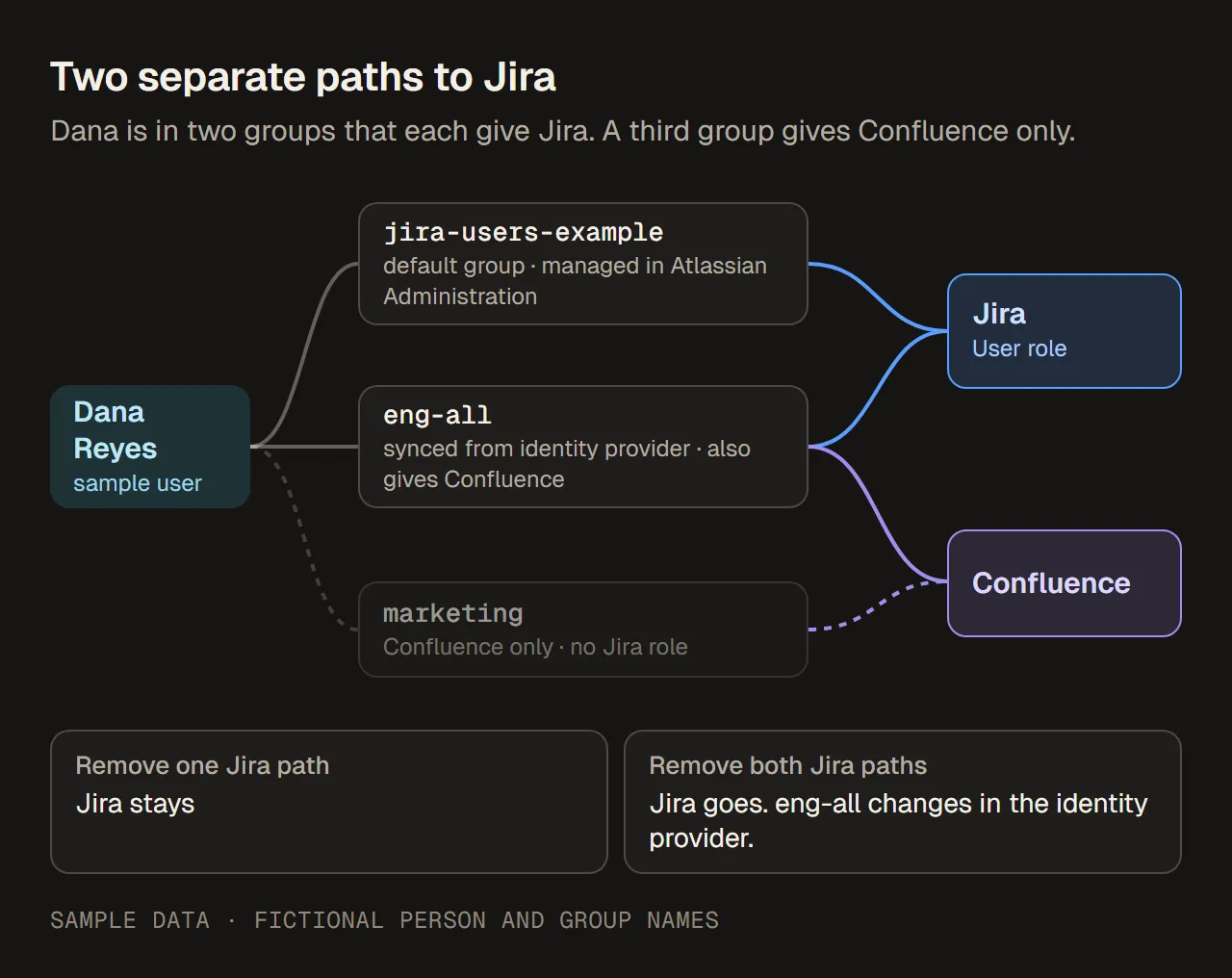
Two separate paths to Jira for one person. Removing either one alone leaves Jira in place. Sample data, fictional people and groups.
Atlassian is clear about this: when a group loses access to an app, its members keep the app if they are in another group that gives it. The same goes for taking a person out of one group. To remove Jira from someone, every path has to go.
In the sample, removing Dana from jira-users-example doesn’t end her Jira access, because eng-all still gives it. And eng-all is synced, so that change has to happen in the identity provider.
For the full troubleshooting steps, see Why removing a user from a group did not remove Jira access. To stop someone’s access without deleting their account, see Suspend vs remove user access in Atlassian.
Source: Remove app access for users, checked 13 October 2026.
Groups synced from an identity provider
If your organization provisions users from an identity provider such as Okta, some groups come from there. They behave differently:
- They are read-only in Atlassian Administration. You change their members in the identity provider, not in Atlassian.
- They can still be given app access, so they can be a path to Jira.
- They can’t be default groups. Atlassian suggests a group managed in Atlassian Administration as the default instead.
- Deleting one in the identity provider removes it from your Atlassian directory.
- A group can’t be synced if a group with the same name already exists in your organization. The push fails with an error.
In your map, mark these groups as “change in the identity provider”. The person who runs the identity provider owns the fix, so send the request there instead of opening a Jira ticket.
Sources: Understand user provisioning, What are default groups in Atlassian?, checked 13 October 2026.
Jira Service Management has its own groups
Jira Service Management is a separate app with its own roles, so check its Manage app list on its own. Atlassian points out two things:
- Members of its default agent group (
jira-servicemanagement-users-<site>on newer sites) count toward the agent licence. Check who is in it before you change the default. - Members of
jira-servicemanagement-customers-<site>can use the help center without agent access or agent billing.
Source: What are default groups in Atlassian?, checked 13 October 2026.
Checklist
| What to check | Where | What to look for |
|---|---|---|
| Groups that give Jira | Atlassian Administration › Apps › Atlassian apps › Manage app (Jira) | Every group with a Jira role |
| Default groups | Same page, Default group column | Groups people are added to automatically |
| Other apps per group | Directory › Groups › the group › Apps tab | Groups that also give Confluence or another app |
| Members | Directory › Groups › the group › Members tab | Size, and whether a given person is in it |
| Synced groups | Your identity provider’s provisioning settings | Groups pushed to Atlassian: change members there |
| One person’s access | Directory › Users › the person › Apps tab | Whether they have Jira |
| One person’s groups | Directory › Users › Export users, with Group membership and App access | Which Jira groups they are in |
| Other Jira apps | Manage app for Jira Service Management and any other Jira app | Their own role groups |
Common mistakes
- Searching for groups with “jira” in the name instead of starting from Manage app.
- Removing one group and expecting Jira to go, while another group still gives it.
- Forgetting the default group. Anyone given Jira later is added to it automatically.
- Changing a group that also gives Confluence without checking its Apps tab first.
- Trying to clean up a synced group in Atlassian Administration. Its members change in the identity provider.
- Treating product access and permissions as the same thing. A person who sees no spaces can still have Jira.
Next: where the group is used inside Jira
Knowing which groups give Jira tells you who can get in. Before you delete, rename or replace one of those groups, also check where Jira uses it: in permission schemes, space roles, filters and more. That is covered in How to find where a Jira group is used.