
 Bunlings: sprint apps for Jira





Your finance lead points at a name on the bill. “Who gave this person Jira, and when?” You open the user. It shows a role, a group, a last active date. It doesn’t show a giver.
That’s not you missing a button. Jira access isn’t stored as “person X gave it to person Y”. It arrives through groups, and the only trace of who or when is the audit log. Here’s how to get as close as you can, and where you’ll hit a wall.
First question: how does this person have access?
Before you look for a name, find the path. Access comes from a group that carries a Jira role, or from a role the person holds directly.
- In Atlassian Administration, select your organization, then Directory › Users, and select the person. The Apps tab shows which apps they can use and their role in each.
- Go to Apps › Atlassian apps and select Manage app for Jira. It lists every group that gives access.
- Check which of those groups the person is in. Note the default group. People are added to the default group automatically when they’re given access to the app, which is how a lot of “nobody gave it to them” access arrives.
Our article on how to check which groups give Jira access walks through this with an export for many people at once.
Second question: when were they added?
You have two logs, and they cover different things.
The Jira audit log
- In Jira, select Settings, then System, then Audit Log.
- You need the Administer Jira global permission. The audit log isn’t available if all of your Jira Cloud apps are on the Free plan.
- Look for the person being added to a group. Atlassian’s page says it records when users are added to or removed from projects, groups or roles.
You can export up to 100,000 events as a CSV file (the newest, if you have more), and you set how long events are kept in Audit Log Settings.
Invited people. When someone is invited for the first time and given access, there is no log line saying they were added to the default groups. Atlassian’s own workaround, from its feature request ACCESS-1653: search the Jira audit log for the User created event for that person, then look near the same time for a User added to group event.
The organization audit log
- In Atlassian Administration, select your organization, then Insights › Audit log.
- You need to be an organization admin, a site admin or a unit admin. Site admins don’t get the search bar.
- Atlassian says organization-level logs need Atlassian Guard (Standard or Premium) or at least one Enterprise plan. Without those, they don’t store or display any events, and upgrading doesn’t bring back events from before.
- The last 7 days show by default. Change the date range for older events, and search with an exact term such as a name, an email or an activity name.
How long events are kept depends on your plan, and Atlassian’s pages don’t agree: one gives 180 days, another up to one year with Guard. Check the retention shown in your own admin before you promise anyone a date.
Where it stops
This is the honest part. Even with both logs, you often don’t get a clean “X gave Y access at 14:02”:
- The author can be empty. Atlassian lists a known issue where the Author field in the Jira audit log doesn’t show the username for changes made on the user management pages. A user added to a group there may show no author.
- Group changes don’t list who they affect. The organization log records when a group is granted or loses product access, but doesn’t show which people it affected (Atlassian ticket ACCESS-2225, 2 votes on 6 November 2026, no workaround).
- Removing access may leave no group log. One reported case: revoking a person’s Confluence access removed them from a group that also gave Jira Software, with no
user_removed_from_groupentry (Atlassian ticket AX-888, 5 votes, long-term backlog). - Old events are gone. Whatever the retention, anything older isn’t recoverable.
So the realistic answer is often a group and an approximate date, not a name. If you need the name, ask the team lead or the manager who approved the person, and write the answer down this time.
Where Seatwise helps
Seatwise isn’t an audit log, so it can’t tell you who added someone. What it does show is how each person got their seat, on one screen: the person, each group that gives them Jira, and the product behind it. Where two groups give access, it says so, because both have to go before the seat is freed. Its History page records every change made through Seatwise itself, with who made it and the result, so cleanups you run from now on are traceable.
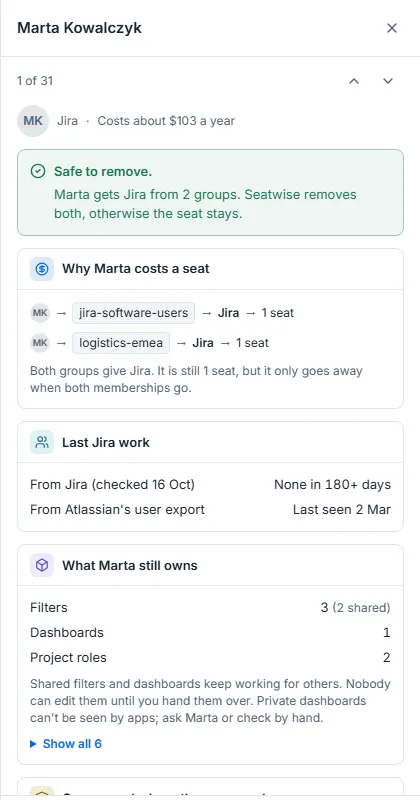
One person, two groups, one seat. Sample data.
It reads your site as it is now. It doesn’t record changes other people make in Atlassian Administration. Seatwise only covers Jira and Jira Service Management seats.
Checklist
☐ Open the person’s Apps tab and note their role ☐ List the groups that give Jira, and the groups they are in ☐ Mark the default group and any identity provider groups ☐ Search the Jira audit log for the person being added to a group ☐ If they were invited, find their User created event first ☐ In the organization audit log, check the date range (and your plan) ☐ If the log is silent, ask the manager and record the answer
Sources: Atlassian: audit activities in Jira, Atlassian: view audit log activities, Atlassian: access audit log activities, Atlassian: give users access to apps, Atlassian ticket ACCESS-1653, Atlassian ticket ACCESS-2225, Atlassian ticket AX-888. Checked 6 November 2026.