
 Bunlings: sprint apps for Jira





Someone asks in the budget meeting: “Are the bots on that list costing us money?” You open the user list and see names like automation-bot, deploy-sync and a handful you don’t recognise. Some are free. One of them might be a person-shaped account that costs a full seat.
The answer depends on what kind of account it is. There are three that look alike and bill differently.
Three accounts that look alike
| Account | Counts as billable? | How you know it |
|---|---|---|
| Service account | No. Atlassian says that when you give one access to Jira or Confluence, it doesn’t count towards your user limit. | Listed under Directory › Service accounts. Made for services, integrations and apps, with no person behind it. |
| App (bot) user | No. Atlassian’s developer documentation says these users appear in user management but don’t count against user licenses. | Created automatically when an app is installed. |
| Ordinary account used by a script | Yes, while it has Jira access. | An account you made with a work email, a shared mailbox or a name like jira-integration, then gave Jira access. It’s a normal user. |
Two more groups people ask about, so you don’t have to look them up:
- Jira Service Management customers who only use the help center don’t take an agent license. Their group doesn’t count toward your bill unless they hold another billable role.
- Guests are free within Atlassian’s limit. See are Jira guest users free?.
The one that costs you: the account made for a script
This is the trap. Picture an integration set up years ago. Someone gave it its own Atlassian account so it didn’t depend on a person, and added that account to the group that gives Jira access. As far as Atlassian is concerned, it’s a user. It counts like anyone else, and it keeps counting while nobody uses it, because access is what’s billed, not activity.
Atlassian prices Jira by “the number of users who can access the app”, and users are counted once product access is granted. A script that never logs in still counts. The bill doesn’t care that it isn’t a person.
How to find them
- Export the users. In Atlassian Administration, go to Directory › Users and use Export users. Include Group membership and App access so you can see each person’s Jira role.
- Look for accounts that aren’t people. Names with “bot”, “integration”, “service” or “automation”, shared mailboxes, accounts nobody can match to a name.
- Check the Apps tab on each one. If Jira is listed, it counts.
- Ask who owns it. An account nobody owns is the first one to question. An account an integration still depends on is the one to move carefully.
What to do with each one
If the account really is a service and you’re an organization admin, create a service account instead: Directory › Service accounts › Create a service account. Atlassian describes it as an account that isn’t associated with a person. It doesn’t need a password to log in. You manage its permissions, and you create credentials for it.
Then:
- Switch the integration to the new service account’s credentials, and test it.
- Only after it works, remove the old account’s Jira access.
- Keep a note of who owns the new one.
Check that the integration supports service account credentials before you start. A service account can’t be provisioned from your identity provider, and its email can’t be changed after you create it.
How many can you have? Atlassian’s page says each organization gets 5 free service accounts, with up to 250 on Atlassian Guard Standard and up to 1,000 on Enterprise. The same page lists Guard Standard and Enterprise under plans, so check what your own organization can create.
Where this stops
- Atlassian’s service accounts page covers Jira and Confluence. It doesn’t say how a service account is billed under other products, or under Atlassian Guard or Enterprise plans, so check Billing if you use those.
- Service accounts are managed by organization admins. If you’re a site admin only, you can’t create them.
- Removing an old account that an integration still uses will break the integration. That is why the order above matters.
Where Seatwise helps
An ordinary account used by a script shows up in a seat list like any person. Seatwise lists everyone who holds a Jira seat and the group behind it, so you can spot the accounts that look like machines. In its Settings you can add people to a Keep list, with a reason, and protect groups. Seatwise never removes anyone on the Keep list or from a protected group, and the Settings page suggests this for admin and service groups.
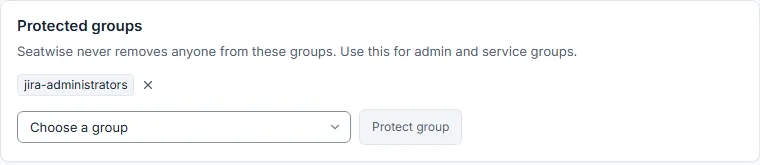
Protected groups in Seatwise. Sample data.
App users and customer accounts aren’t counted as seats in Seatwise, and neither are deactivated accounts. It only looks at Jira and Jira Service Management seats, so it can’t tell you about Confluence or Atlassian Guard counts.
Checklist
☐ Export the users with groups and app access ☐ Mark the accounts that aren’t people ☐ Check which of them have Jira access ☐ Find an owner for each one ☐ Replace real services with service accounts, test, then remove the old access ☐ Check the Jira count under Billing after the next billing period
Sources: Atlassian: understand service accounts, Atlassian developer documentation: Jira Cloud architecture overview, Atlassian: cloud licensing, Atlassian: manage users and user tiers, Atlassian: understand default groups, Atlassian: export users from a site. Checked 6 November 2026.