
 Bunlings: sprint apps for Jira





You counted your service team: twelve agents. Atlassian Administration says you’re paying for seventeen. Nobody can name the five extra people, and the Jira Service Management group only has twelve members.
The group you’re looking at isn’t the only one. Jira Service Management counts everyone who has agent access through any group, so the missing five are sitting in another group that carries the same access.
The short version
The agent license follows access, not the name of a group. Atlassian’s own help article on this exact problem says it plainly: licenses are counted across every group that gives Jira Service Management agent access, not just the default agent group.
Customers are a different matter. People who only use the help center to send requests don’t take an agent license. Their group, jira-servicemanagement-customers-yoursite, lets members use the help center without acting as agents, and Atlassian says its members don’t count toward your bill unless they hold another billable role.
So the extra names are agents by access, not by job. Here is where they usually come from.
Where the extra agents come from
An admin group. The site-admins group (also called org-admins) gives access to all the apps on the site, Jira Service Management included. Everyone in it counts as an agent, whether or not they ever open a service space.
This one catches people out. In one Community thread, an admin couldn’t take the Service Management license away from two organization admins. The tooltip said product access can’t be removed for an organization admin. The cause was the site-admins group, which carried the agent role. It also contained a number of suspended ex-colleagues. Once the role came off that group, the licenses were free.
A group from your identity provider. If Okta, Microsoft Entra ID or another provider syncs groups into Atlassian, a group it maps to Service Management access gives every member a license. Atlassian’s article says to check those mappings so only the people you want land in agent groups.
The default group. Every app has a default group, and anyone given access to the app is added to it. For Jira Service Management that is usually jira-servicemanagement-users-yoursite. Atlassian warns that everyone in the default group consumes an agent license, so be careful with what else you put in it.
The Trusted role. On older sites, Trusted users get access to every app automatically. Atlassian says the role no longer exists in the improved user management experience, but sites that still have it can have people counted for apps they never use.
How to find them
You need to be an organization admin or site admin.
- Find every group with Service Management access. In Atlassian Administration, select your organization, then Apps › Atlassian apps, and select Manage app for Jira Service Management. The list shows each group that gives access. (In the original experience this is under Product access.)
- Open each group and read the members. Note anyone who isn’t an agent. Groups with the word “admin” in the name deserve a close look.
- Check the default group. Is it only meant for agents? If other people get added to it automatically, they take licenses.
- Check your identity provider mappings. If a group is managed there, you change membership at the provider, not in Atlassian.
- Remove the people who aren’t agents from the groups that give access. If an admin group carries the agent role and your admins don’t need it, take the role off that group on the same Manage app page. Do this carefully: the change applies to everyone in that group.
- Check the number again. Go to Billing › Subscriptions, where each app shows its billable users. Atlassian’s help article also says to confirm the agent count there after the change.
If one person still shows Service Management after you removed them from a group, look at their Apps tab (Directory › Users, select the person). Jira Service Management is still listed while another group gives it. Our article on why removing a user from a group did not remove Jira access goes through every path, and how to check which groups give Jira access shows the same method in full.
Your bill still won’t move today. On a monthly plan you pay for the highest count in the billing period, and annual plans are sold in user tiers. See removed Jira users but the bill didn’t go down for when the saving appears.
Where this stops
Atlassian Administration lists groups and members, but it doesn’t put the pieces together for one person. You open the group, read the members, then open the next group. With seventeen groups, that is an afternoon. It also doesn’t tell you who has actually worked on requests lately, so a name that isn’t an agent today may just be a quiet one. Last activity belongs in your decision.
Where Seatwise helps
For each person, Seatwise shows the groups that give them Jira or Jira Service Management and the product behind each one, so “why is this person billable?” has an answer on one screen. Its Groups page lists every group that gives access, with how many people are in it. If two groups give access, it says both have to go, otherwise the seat stays.
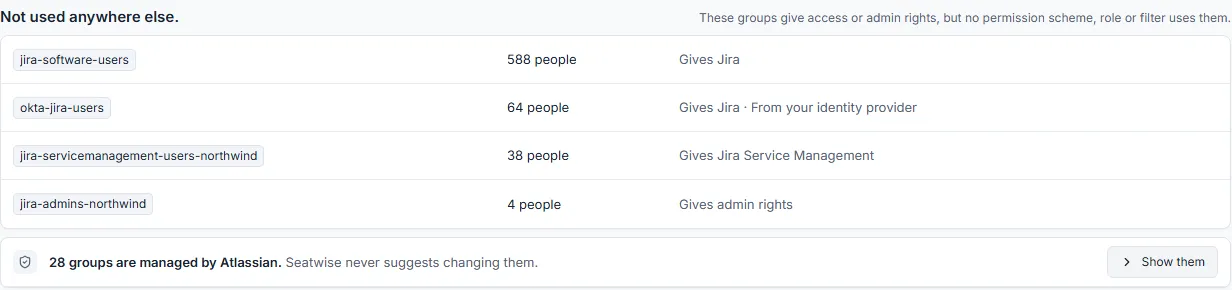
Every group that gives access, and how many people are in it. Sample data.
Seatwise shows a preview before anything changes. When you click Remove, it takes people out of the groups that give them a seat, and you can undo it for 30 days. It doesn’t change which role a group carries, and it can’t change groups your identity provider manages (it marks them for you). Those changes are made in Atlassian Administration or at the provider. It covers Jira and Jira Service Management seats, not Confluence.
Checklist
☐ List every group with Jira Service Management access ☐ Read the members of each one, admin groups first ☐ Check the default group and any identity provider mappings ☐ Remove people who aren’t agents, or take the role off a group that shouldn’t carry it ☐ Check the count under Billing › Subscriptions ☐ Write down the date, then look again after the next billing period
Sources: Atlassian: review incorrect license count for Jira Service Management cloud agents, Atlassian: understand default groups, Atlassian: give users access to apps, Atlassian: manage users and user tiers, Atlassian Community: Can’t remove JSM licence from Org Admin. Checked 6 November 2026.