


It’s Monday, someone left on Friday, and the team’s sprint board is suddenly empty. Nothing was deleted. The board’s filter belonged to the person who left, and it was private.
Filters and dashboards belong to one person. When that person goes, so does the easy way to edit what everyone else relies on. The fix takes a minute per item, as long as you do it before the account is deleted.
The quick way: one filter or dashboard
You need the Administer Jira global permission.
- Go to Settings > System, and under Shared items open Filters (or Dashboards).
- Search for the filter by name, or filter the list by owner.
- Open the ••• menu on the row and choose Change owner.
- Pick the new owner and save.
This works for private filters and dashboards too, not only shared ones. Atlassian added that in 2022.
If the new owner already has a filter with the same name, Jira refuses the change. Rename one of them first.
Find everything one person owns
Before a leaver goes, list what they own. On the Filters page and the Dashboards page, filter by Owner and type their name. Write the list down, including which boards use each filter (open the board’s settings to see its filter).
Don’t stop at filters and dashboards. The same person may also be a space lead, a component lead, an approver on open requests, or the default assignee somewhere. Those are changed in their own settings screens.
Many filters? There’s no bulk button
Jira Cloud has no bulk owner change in its screens. Atlassian’s own help page says so and points to the REST API instead. The suggestion to add it, JRACLOUD-47656, has been open since 2015.
If you’re comfortable with a script, an admin can:
- list one person’s filters with
GET /rest/api/3/filter/search?accountId=<id>&overrideSharePermissions=true - change each one with
PUT /rest/api/3/filter/<id>/owner - move up to 100 dashboards at a time with
PUT /rest/api/3/dashboard/bulk/editand thechangeOwneraction
Otherwise, ten filters by hand is ten short visits to the same page. Annoying, not hard.
What happens if you skip this
Here’s what Atlassian says happens after a delete:
- Filters stay, with the owner shown as Former user. Shared filters keep working. Private filters stop working for the boards and plans built on them.
- Dashboards move to the trash. An admin can restore them within 60 days (Shared items > Dashboards > show dashboards moved to trash), and the restoring admin becomes the owner.
- Filter subscriptions are a quiet one. A subscription belongs to the person who created it, not to the filter owner. Changing the filter’s owner doesn’t move the subscription, and the emails stop when that person is deactivated. Ask the people who relied on the email to subscribe again.
Deactivating first buys you time: the account stays, and admins can still change the owner of a deactivated person’s filters. Deletion is the step that can’t be undone after its 14-day grace period.
The order that keeps everything working
- List what the person owns (filters, dashboards, boards using them, space and component leads).
- Pick a new owner for each, usually their manager or the space lead.
- Change the owners.
- Ask the team to re-create any email subscriptions they need.
- Then remove access, deactivate or delete the account.
Where Seatwise fits
Seatwise lists the people who have left (deactivated or closed accounts) who still own filters, dashboards or lead a space. It suggests a new owner, for example the person most subscribed to their shared filters, and moves the filters, dashboards and space lead roles in one go. It can also hand over their open work items, component leads and user field defaults. Subscriptions and pending approvals come back as clear manual steps, because Jira doesn’t let apps change them. Like every app, it can’t list someone else’s private dashboards; Jira doesn’t allow that.
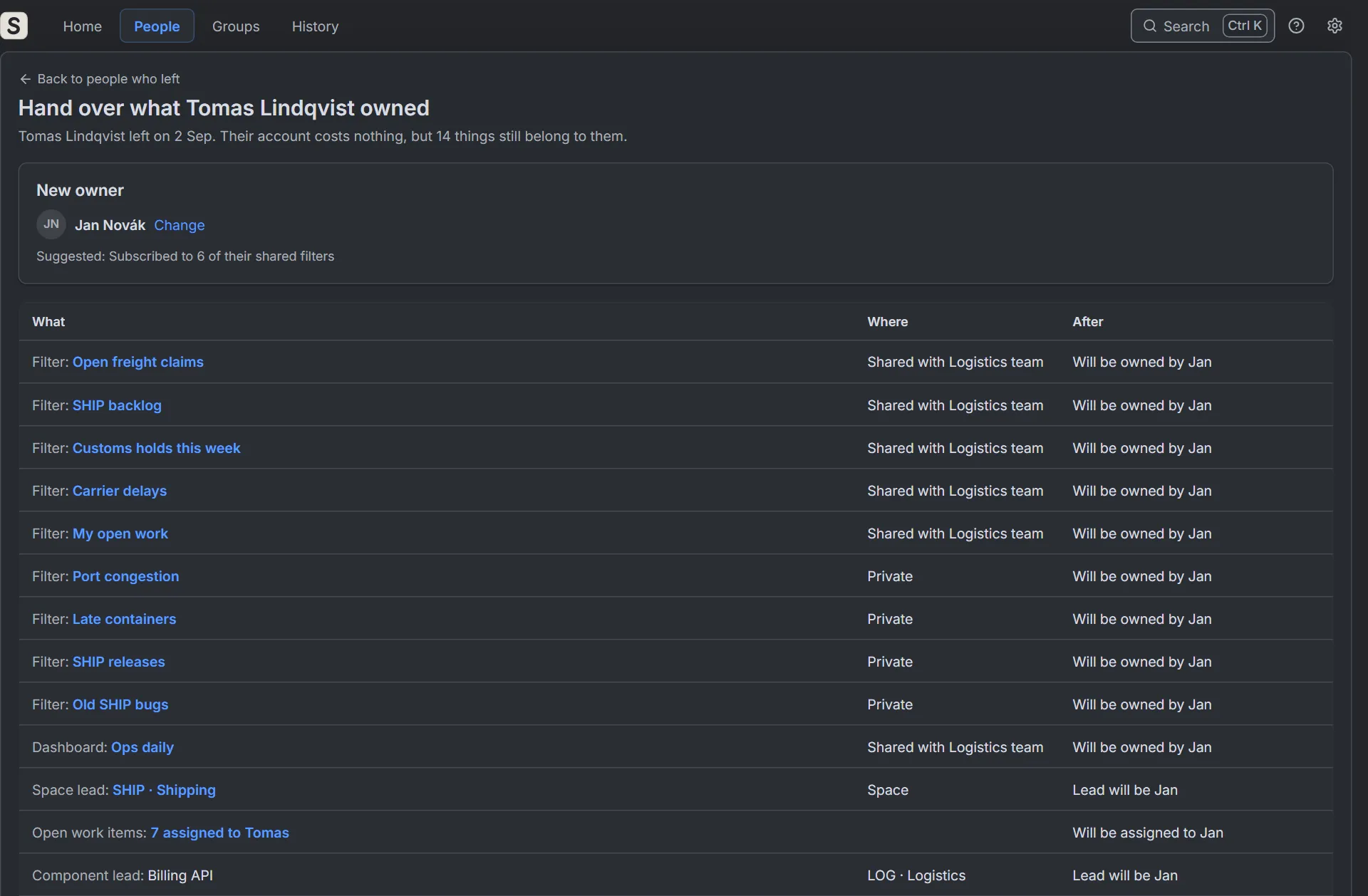 Seatwise, sample data: one person’s filters, dashboards and space lead roles, handed to a new owner in one go.
Checklist
- List the leaver’s filters and dashboards (filter by Owner)
- Note which boards use their filters
- Change each owner before the account is deleted
- Change space leads and component leads
- Ask people to re-create email subscriptions
- Only then deactivate or delete
Sources
- Manage filters (Atlassian Support)
- Manage dashboards (Atlassian Support)
- Bulk change of filter owners in Jira Cloud (Atlassian KB)
- Find owners of deleted filters in Jira Cloud (Atlassian KB)
- JRACLOUD-41269: admins can change owners of private filters and dashboards
- JRACLOUD-47656: bulk change ownership of filters and dashboards
- JRACLOUD-97525: subscriptions stay with the original user