


You want to delete an old group, rename it, or replace it with a group from your identity provider. First you need to know where Jira still uses it. A group can sit in a shared permission scheme, in a space role in one space, in a filter’s query or in an Automation flow, and its name won’t tell you which. A group called old-contractors may still give access in a shared scheme, while jira-users-temp may be used nowhere.
Jira has no single “where is this group used” view
Atlassian’s own help article says the Jira Cloud interface can’t show whether a group is used in a permission scheme, and offers a REST API script as a workaround. It adds that global permissions, filter shares and subscriptions, and dashboard permissions also reference groups. The public request for a group usage view, JRACLOUD-71967, has more than 1,000 votes and is still at Gathering Interest.
So the honest answer is a manual check, place by place. This page lists each place, how to check it in Jira, and what Jira can’t show you.
Sources: How to find group usage in permission schemes for Jira Cloud via REST API and Python, JRACLOUD-71967, checked 13 October 2026.
Before you start
- Check product access first. Whether the group gives anyone Jira at all is set in Atlassian Administration, not in Jira. See How to check which groups give Jira access.
- You need the Administer Jira global permission for the scheme, workflow, filter and dashboard admin pages below.
- Know your space types. Company-managed spaces share schemes. Team-managed spaces don’t use permission schemes: each one sets access on its own Access page.
- Write down what you check as you go: the place, what you found and the date. There is a template at the end.
The checklist
The last column says how much work each check is. “One page” means Jira shows the whole site at once. “One by one” means you open each scheme, space or item.
| Place to check | Where in Jira | What to look for | How Jira lets you check |
|---|---|---|---|
| Product access | Atlassian Administration › Apps › Atlassian apps › Manage app | The group has a role for an app, or is a default group | One page per app |
| Global permissions | Settings › System › Global permissions | The group under any permission | One page |
| Permission schemes | Settings › Work items › Permission schemes | Grants to Group or Group custom field value; roles the group belongs to | One by one, per scheme |
| Space roles (company-managed) | Space settings › People, in each space | The group in a role | One by one, per space |
| Team-managed spaces | Space settings › Access, in each space | The group with a role | One by one, per space |
| Work item security | Settings › Work items › Work item security schemes | A security level granted to the group or a group picker field | One by one, per scheme |
| Notification schemes | Settings › Work items › Notification schemes | The group or a group picker field as a recipient | One by one, per scheme |
| Workflows | Settings › Work items › Workflows; team-managed: Space settings › Work types | A transition rule that restricts who can move a work item to the group | One by one, per transition |
| Filter shares | Filters, search by group; admin: Settings › System › Filters | Filters shared with the group | One search, only filters you can see |
| Filter queries (JQL) | No screen: REST API | membersOf("group name") in a filter’s JQL | REST API only |
| Dashboards | Settings › System › Shared items › Dashboards | The group in a dashboard’s shares | One page, read each row |
| Board admins | The board › Configure board › Administrators | The group as a board admin | One by one, per board |
| Request types (Jira Service Management) | Space settings › Request management › Request types › Restrictions | The group allowed to use a restricted request type | One by one, per request type |
| Automation flows | Settings › System › Global automation; Space settings › Automation | A User condition that checks the group; groups allowed to manage flows | One by one, per flow |
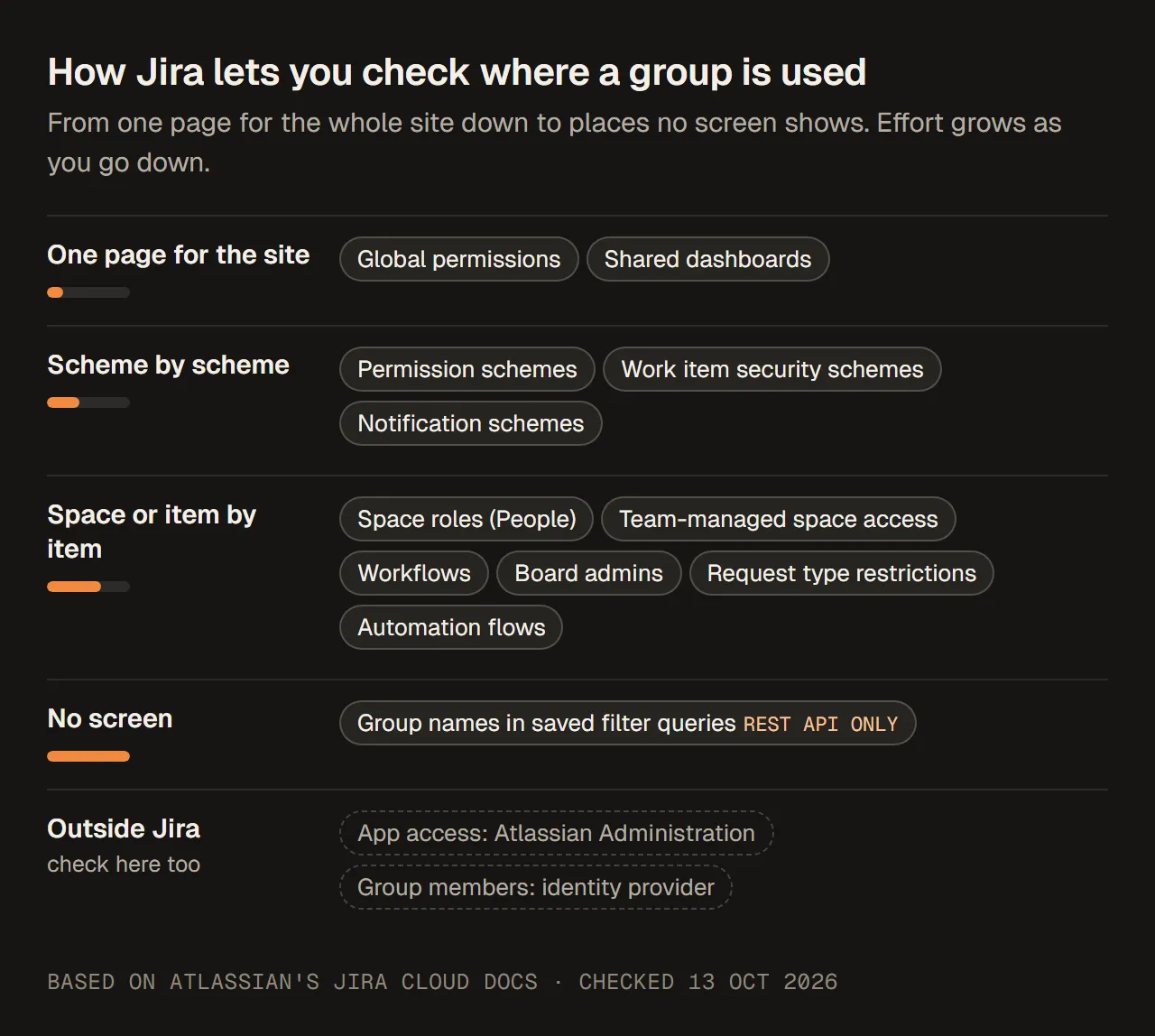
How much of each check Jira can show you at once. Inside Jira, only global permissions and shared dashboards come as one page for the whole site.
Global permissions
Jira shows all global permissions on a single page.
- Select Settings, then System.
- Select Global permissions in the sidebar.
Each permission lists the groups that hold it. Look closely at Administer Jira, Browse users and groups, Share dashboards and filters, Manage group filter subscriptions, Make bulk changes and Create team-managed spaces. On newer sites, the default group jira-admins-<site> gives the Jira administrator permissions, so treat it as part of your admin setup, not as clean-up.
Sources: View, grant, revoke global permissions in Jira, Manage global permissions, What are default groups in Atlassian?, checked 13 October 2026.
Permission schemes: direct, through a role, or through a field
- Select Settings, then Work items.
- Under Work item attributes, select Permission schemes. It is near the bottom of the list.
- Open each scheme by its name, or select Permissions.
- Read every permission and note where the group appears.
A permission scheme can be shared by many spaces, and a change applies to all of them. For each scheme where you find the group, note which spaces use it. In a space, Space settings, then Permissions, shows the scheme it uses.
A group can reach a permission in three ways, and only the first shows its name on the scheme page:
- Directly. The permission is granted to Group, and the group’s name is listed.
- Through a space role. The permission is granted to a role, such as Developers, and the group is a member of that role in some spaces. The scheme only shows the role. You find the group in each space’s role members (next section).
- Through a group picker field. The permission is granted to Group custom field value: anyone in the group chosen in a group picker field on the work item. The group name isn’t in the scheme at all; it is stored on work items.
There is also the Application access grant: anyone with access to an app. That one doesn’t name a group, but it gives the permission to every group that gives Jira access.
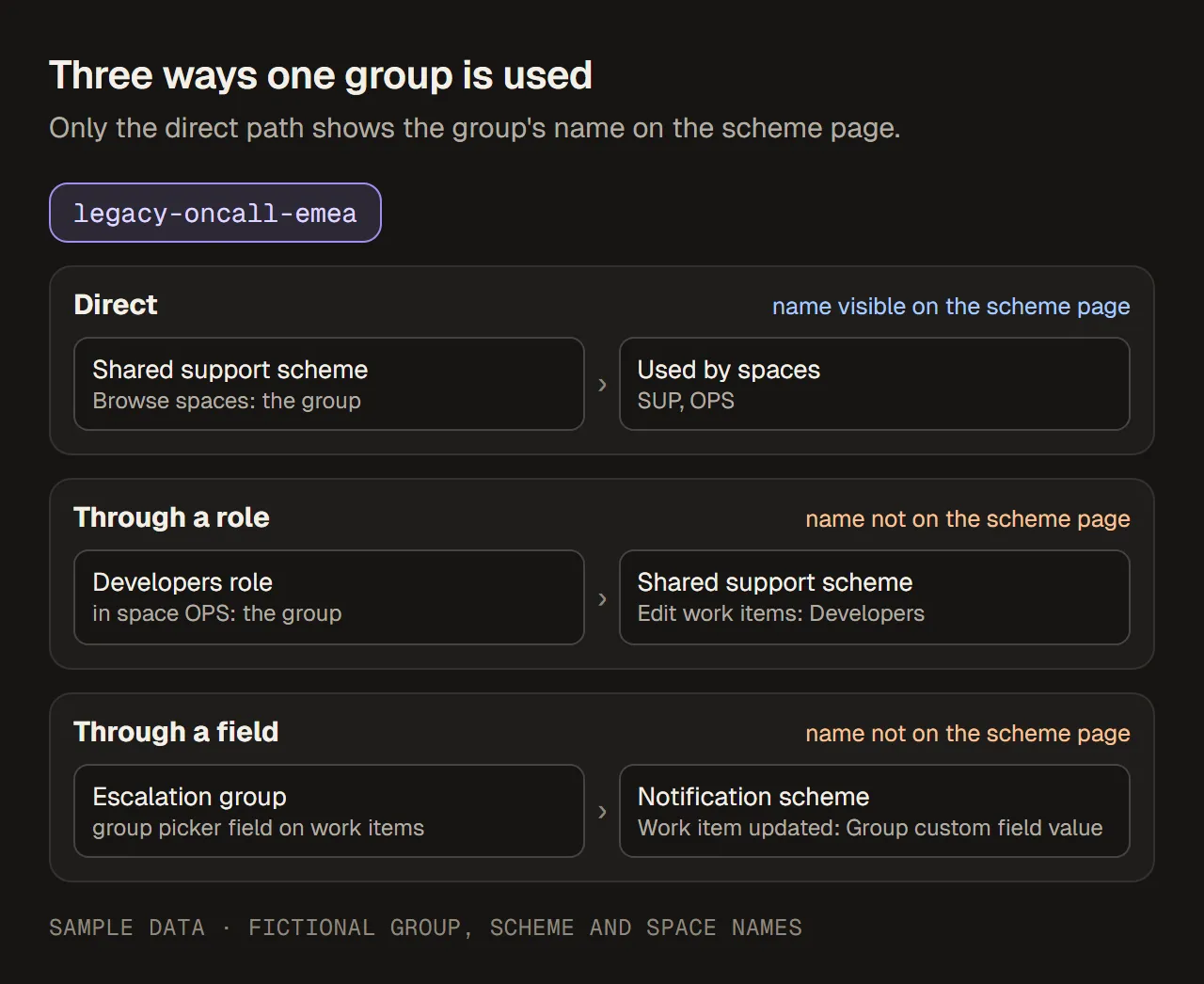
One group, three paths. The scheme page shows the group’s name only on the direct path. Sample data, fictional group and spaces.
If you have many schemes, Atlassian’s help article has a REST API and Python example that lists the schemes where a group is granted directly. Atlassian notes that it doesn’t support or maintain the script.
Sources: Grant or revoke permissions in a scheme, What are permission schemes in Jira?, Change which permission scheme a space uses, How to find group usage in permission schemes, checked 13 October 2026.
Space roles and team-managed spaces
Company-managed spaces. Role members are set per space. Open Space settings, then People in each space and look for the group in any role. Atlassian’s documentation doesn’t describe a page that lists one group’s roles across all spaces, so this check is space by space.
To understand what a role membership does, see where the role itself is used:
- Select Settings, then System.
- Under Security, select Space roles.
- Select View Usage for the role.
It lists the permission schemes, notification schemes, work item security levels and workflow conditions that use the role.
Team-managed spaces. These don’t use permission schemes. Open Space settings, then Access in each team-managed space. People and groups can be given a role there, such as Viewer, Member or Administrator. Also note the space’s access level: open, limited or private.
Removing a group from a role changes one space. Deleting or renaming the group affects every space at once. If the only place you found the group is one role in one space, removing it from that role may be all you need.
Sources: View space role usage, Restrict space access to certain groups or users, Add people to team-managed spaces, Team-managed space permissions, checked 13 October 2026.
Work item security and notification schemes
Work item security. Select Settings, then Work items, then Work item security schemes under Work item attributes. In each scheme, check every security level. A level can be granted to Group, Group custom field value or a space role, among others. People who aren’t given a level can’t see the work items set to it, so removing a group here can hide work items from its members.
Notifications. Select Settings, then Work items, then Notification schemes. Open each scheme: its page lists every event and who is notified. Look for Group, Group custom field value and space roles that contain the group. A change here affects who gets email, not who has access.
Sources: Grant users access to security levels in a work item security scheme, What are work item security schemes?, Configure notification schemes, checked 13 October 2026.
Workflows
A workflow can stop people from moving a work item unless they are in a group.
- Company-managed: select Settings, then Work items, then Workflows. Open each workflow with More actions (•••), then Edit.
- Team-managed: open Space settings, then Work types, select a work type and select Edit workflow.
Select each transition (the arrow between two statuses) and read its Rules. Look for Restrict who can move a work item set to groups. In the old workflow editor, the same thing was called a User Is In Group, User Is In Any Group or User Is In Group Custom Field condition.
If the group goes, only the people left in the rule can use that transition. And a saved workflow change applies to every space that uses the workflow.
Sources: Restrict workflows based on user groups, What is the new workflow editor?, Available workflow rules in team-managed spaces, checked 13 October 2026.
Filters, dashboards and boards
Filter shares. Filters can be shared with a group. In the filters list you can search for filters by owner, space or group. You only see filters you have access to. Admins can find, change the owner of, or delete shared filters under Settings, then System, then Filters.
Filter subscriptions. A filter’s results can be emailed to a group. Atlassian lists subscriptions among the places that reference groups, but its documentation doesn’t describe one page that lists every group subscription. Check the subscriptions of the filters you find.
Group names inside filter queries. A filter’s JQL can name a group, for example membersOf("Developers"). Atlassian says there is no way in the interface to search filters by their JQL. The workaround is the REST API: GET /rest/api/3/filter/search?expand=owner,jql, then search the result for the group name. The API only returns filters you can view. A Jira admin can add overrideSharePermissions=true to include filters with any share settings.
Dashboards. Select Settings, then System, then Shared items, then Dashboards. Each dashboard shows its owner and its list of shares. The search box matches text, so read the shares column for the group.
Board admins. On a company-managed board, select more (•••), then Configure board. The Administrators field can list users or groups.
Sources: Unable to edit group name error in Jira Cloud, Manage filters (admin), Manage filters, Jira REST API: Filters, Manage dashboards, Configure a company-managed board, checked 13 October 2026.
Jira Service Management request types
A request type can be restricted to certain users, groups, customer accounts or customer organizations. Only the people on that list can use it.
- In the service space, open Space settings, then Request management, then Request types.
- Select a request type, then Restrictions.
Atlassian doesn’t describe a list of all request types restricted to one group, so check each restricted request type. One more detail: Automation and apps can’t use restricted request types unless the app user or the atlassian-addons-admin group is on the list. Don’t remove that group by mistake.
Source: Add or remove restrictions on request types, checked 13 October 2026.
Automation flows
Groups show up in Automation in two places:
- Inside a flow. The User condition checks whether a user exists or is in a specified group.
- In the global settings. Under Settings, System, Global automation, then More actions (•••), Global configuration, you can choose the users and groups allowed to manage space flows.
Global flows are under Global automation. Space flows are in each space under Space settings, then Automation. Atlassian’s documentation doesn’t describe a way to search flows for a group name, so open each flow that could check people.
Atlassian also warns that renaming a group used by an Automation flow stops that flow.
Sources: Jira automation conditions, Permissions required to manage automation flows, Create and edit Jira automation flows, Edit a group, checked 13 October 2026.
Before you rename, delete or replace the group
Rename. In Atlassian Administration, open Directory, then Groups, the group, then More actions, then Edit group name. Atlassian marks renaming as beta. You can’t rename a group that is used in some Jira admin settings. The error names the setting that blocks it, for example a filter’s JQL. Fix that setting first. Any Automation flow that uses the old name stops working.
Delete. Atlassian’s advice is to check whether the group sets permissions in any app before you delete it. If members still need those permissions, keep the group. If not, remove the group from those permissions first, so that a new group created later with the same name doesn’t pick them up. Also:
- You can’t delete a default group for a role.
- Deleting a group doesn’t remove its members from your organization.
Replace with a synced group. When you move to user provisioning, the identity provider can’t push a group with the same name as one that already exists. So the new group gets a new name, and every reference you found has to be switched to it, one by one. Deleting a synced group in the identity provider removes it from your Atlassian directory, so the same checks apply before anyone deletes it there.
A safe order is: replace each reference, check that people still have what they need, then delete or rename.
Sources: Edit a group, Delete a group, Unable to edit group name error in Jira Cloud, Understand user provisioning, checked 13 October 2026.
Keep a record of what you checked
A screenshot proves that one screen looked a certain way once. It doesn’t show which places you checked. Keep a short record that the next admin can read without asking you. Copy this and fill it in:
Group:                    legacy-oncall-emea
Checked by, date:         (name), 13 October 2026
Synced or local:          local (Atlassian Administration)
Product access:           no app role, not a default group
Global permissions:       none
Permission schemes:       "Shared support scheme": Browse spaces (spaces SUP, OPS)
Space roles:              OPS: Developers
Team-managed spaces:      none found
Work item security:       none
Notification schemes:     none by name; "Escalation group" field used in 1 scheme
Workflows:                none
Filter shares:            1 filter shared with the group
Filter JQL (REST API):    1 filter uses membersOf("legacy-oncall-emea")
Dashboards, boards:       none
Request types:            none
Automation flows:         none checked the group
Not checked:              group values stored on work items; Marketplace apps
Plan:                     replace in scheme and role, update the filter, then delete
Owner for follow-up:      (name)
Sample record, fictional group and spaces.
The “Not checked” line matters as much as the findings. It tells the reviewer what is still unknown.
What a manual check can’t see
Even a careful check leaves gaps. Say so in your record:
- Group values stored on work items. If a scheme uses a group picker field, the group is data on work items, not a setting.
- Filters you can’t view, unless a Jira admin uses the REST API option above.
- Marketplace apps and other Atlassian apps, such as Confluence. They keep their own settings and use the same groups.
- Changes made after you checked. Date the record, and check again if the change is delayed.
When the list of groups or spaces is long, doing this by hand gets slow. Teams then use REST API scripts, such as Atlassian’s permission scheme example, or Marketplace apps that report group usage. Whatever you use, check which of the places above it actually reads, and keep marking the rest as not checked.